Incoming/Outgoing
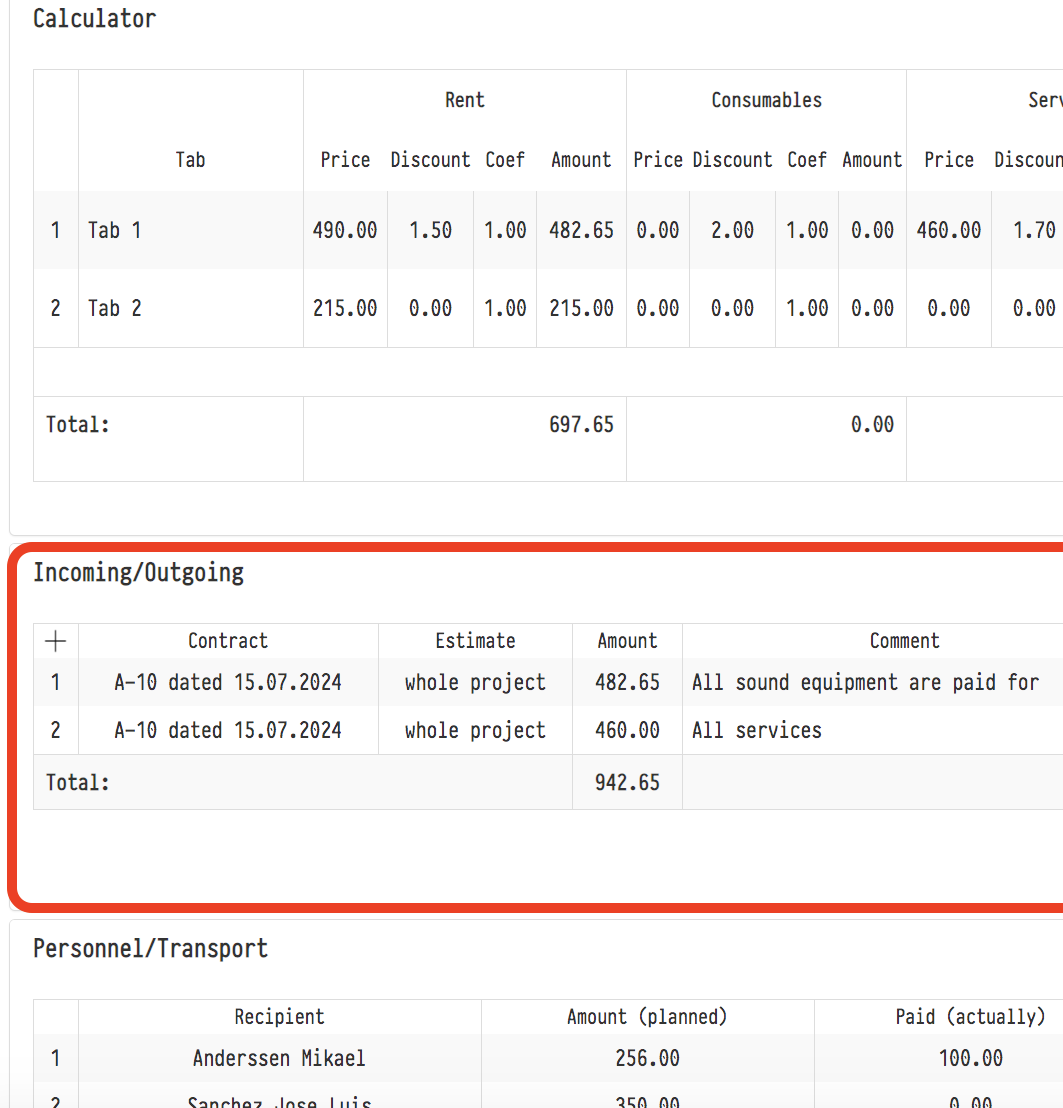
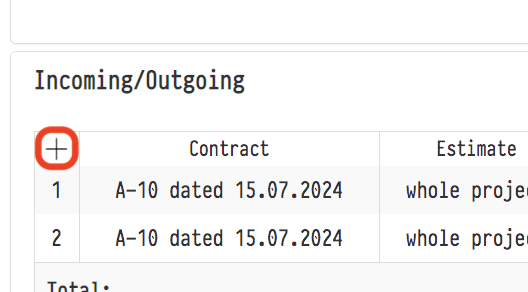
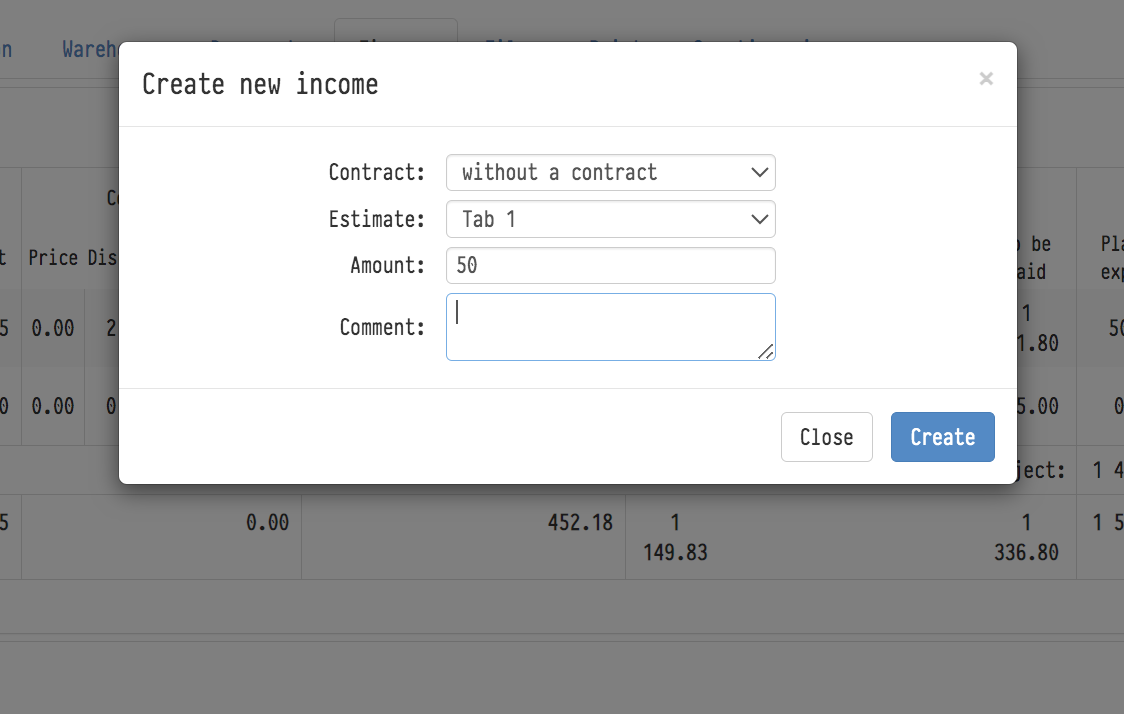
The "Income/Expense" block of the "Finance" tab consists of two halves. The left one is called "Income" and lets you enter the actual payments received. As soon as the client has paid for part of the estimate, you or your accountant click "+" in this half of the block to open the "Creating a new income" window and enter the amount paid by the client.
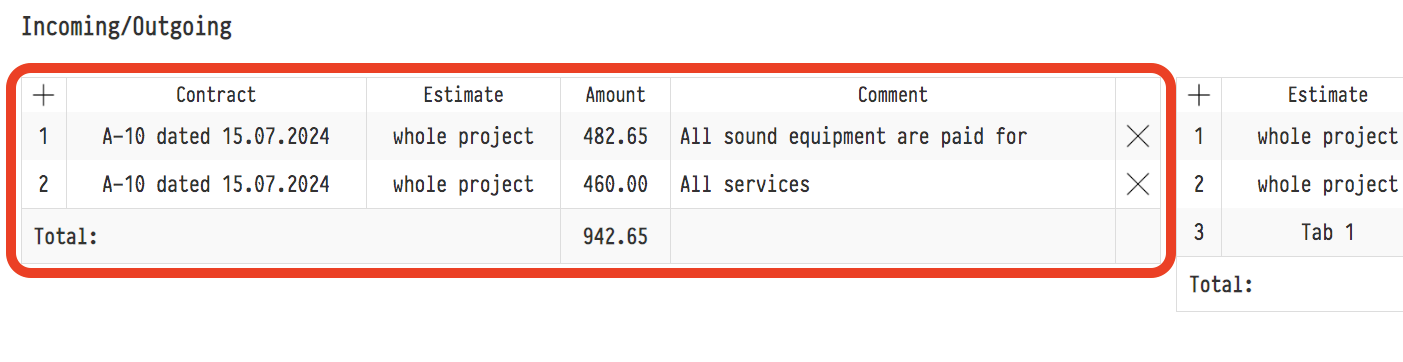
How much the client still owes
Under the list of income there are two total rows:
"Paid": how much the client has already paid for the project, the sum of all income. Hover over it to see a hint like "received 1 500.00 of 4 000.00".
"Outstanding balance": how much the client still owes: the "Amount payable" of the active estimate sheets minus everything already received.
This way you do not need to go to other tabs and calculate manually: the client's debt is visible right away.
If more has been received than the estimate amount (for example, the estimate is not filled in yet or the client has paid too much), the "Overpayment" row with the excess amount is shown instead of "Outstanding balance".
The total rows appear when at least one income entry has been added to the project.

With the right half of the block, called "Expense", you add part of your planned costs to the calculator.
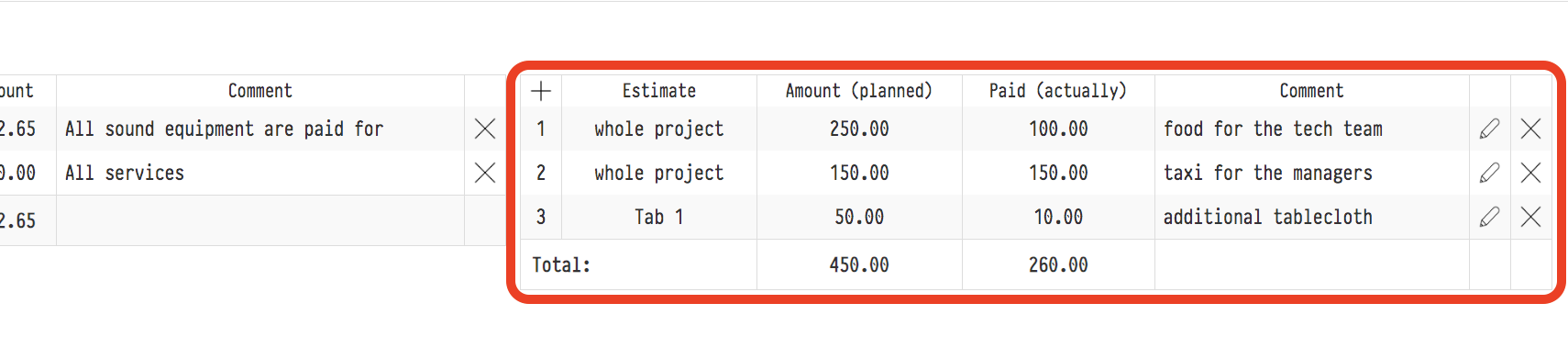
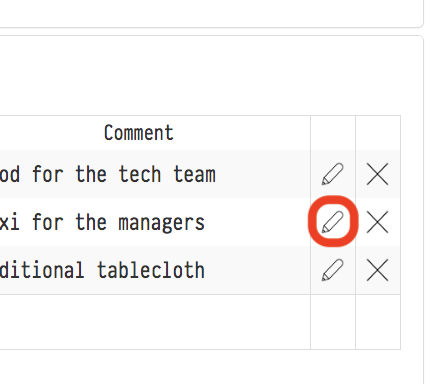
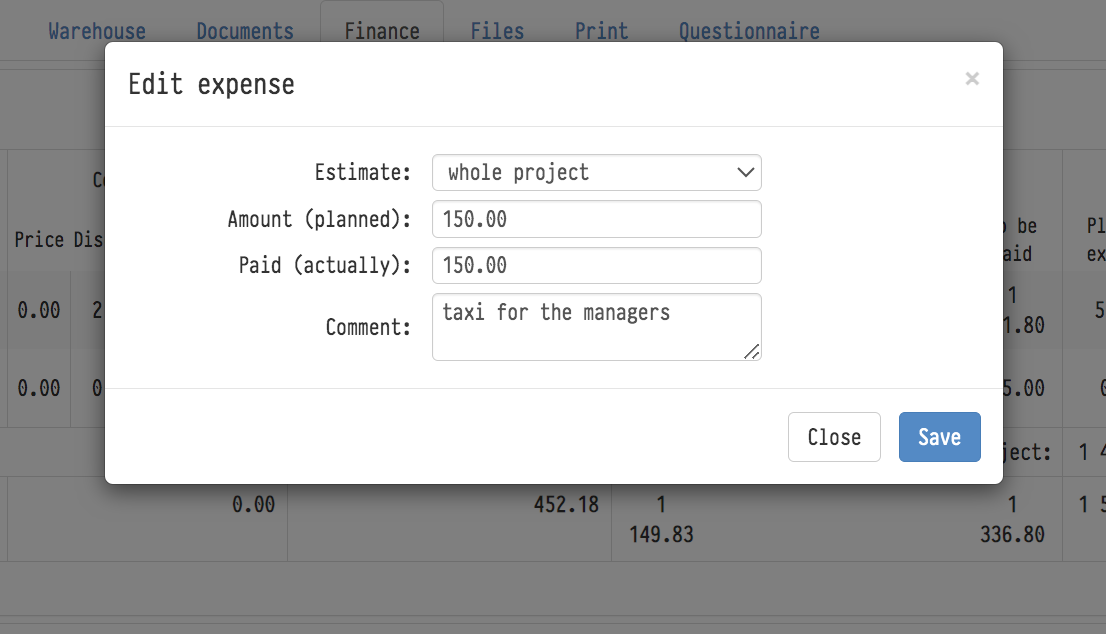
These are expenses other than those that come into the system from the "Planning" and "Specification" tabs. For example, it is convenient to enter here the amounts for meals for your crew at the venue, a taxi for the project manager, and so on. There are also fields to show which part of the planned expenses has already been paid. You can do it when creating a new expense (click "+" in the right half of the block and fill in the "Paid (actually)" field in the window). If the payment is made later, click the "Pencil" icon at any time to open the expense editing window and enter (or correct) the actual payment.
Recipient company and paying company
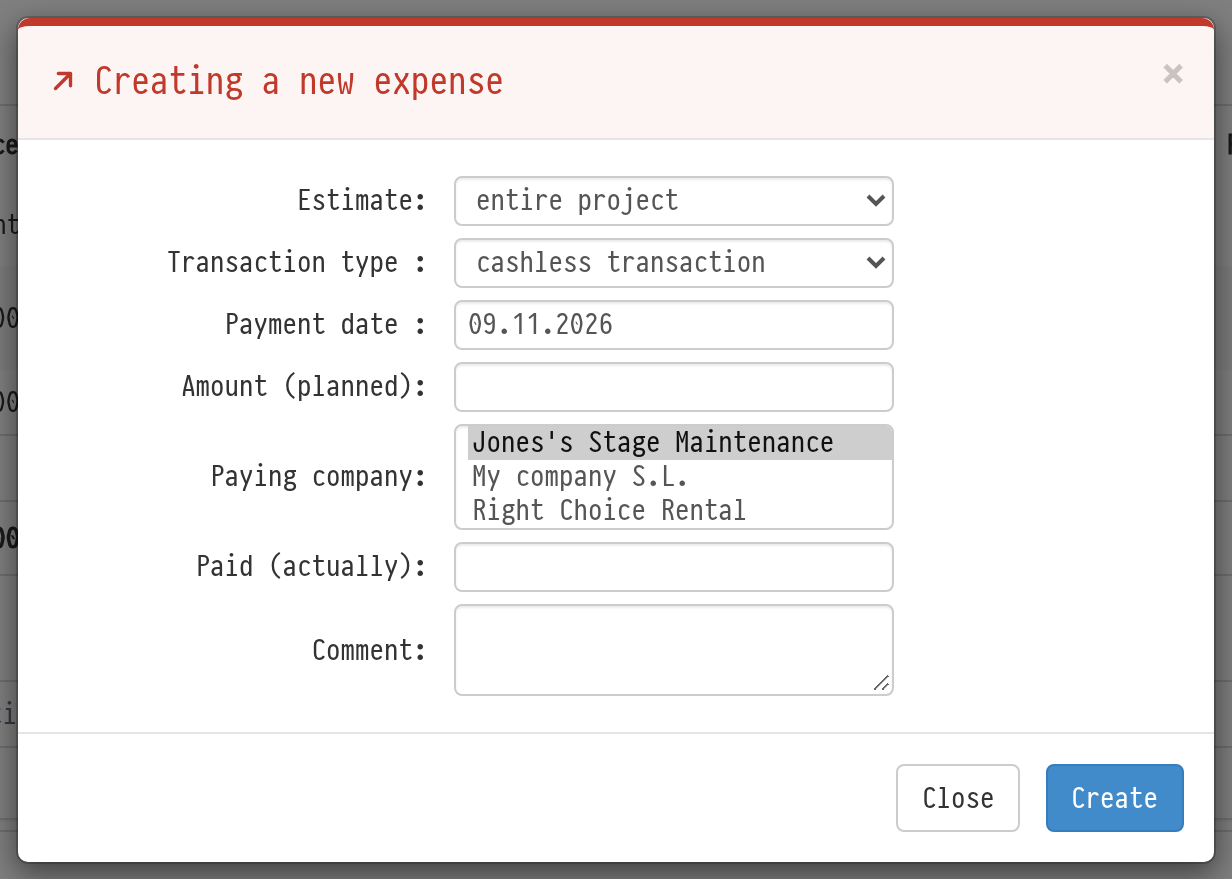
If you have several legal entities of your own, specify which one received the money and which one paid. The income window has the "Recipient company" field, the expense window has "Paying company". The list contains the companies from the "My companies" database; the company marked "Use by default" is selected in advance. In the tables of the block, the company is shown in the "Recipient company" and "Paying company" columns.
The "My companies" filter in "Analytics" → "Financial report" works by these fields: with a company selected, the report includes only income with this recipient company and only expenses with this paying company. See Financial report: main page.
The other project expenses also have a paying company: in the row editing windows of the "Staff/Vehicles", "Sublease" and "Project Managers/Fines" blocks.
Income against an invoice and payment status
If a document package with an invoice has been created on the "Documents" tab, an income entry can be linked to that invoice. The system then recalculates the invoice payment itself: partially or fully paid. This calculation is shown in the accounting table and in analytics, in the "Paid" and "Unpaid" fields.
Please note. Since version 20.4 a project also has a finance status: the row of circles at the top of the "Finance" tab, above the calculator. It is set manually and does not change with income. The two mechanisms work in parallel. See Document and finance statuses.
Supplier invoice for an expense
Each expense row can have a supplier invoice: the expense editing window has an "Invoice" block with number, status, issue date, due date, amount and company details. The invoice status is shown as a coloured dot in the row; hover over it to see the number, date and due date. If the due date has passed and the invoice is not paid, the row is highlighted in red. All invoices across projects are collected in Expense registry.
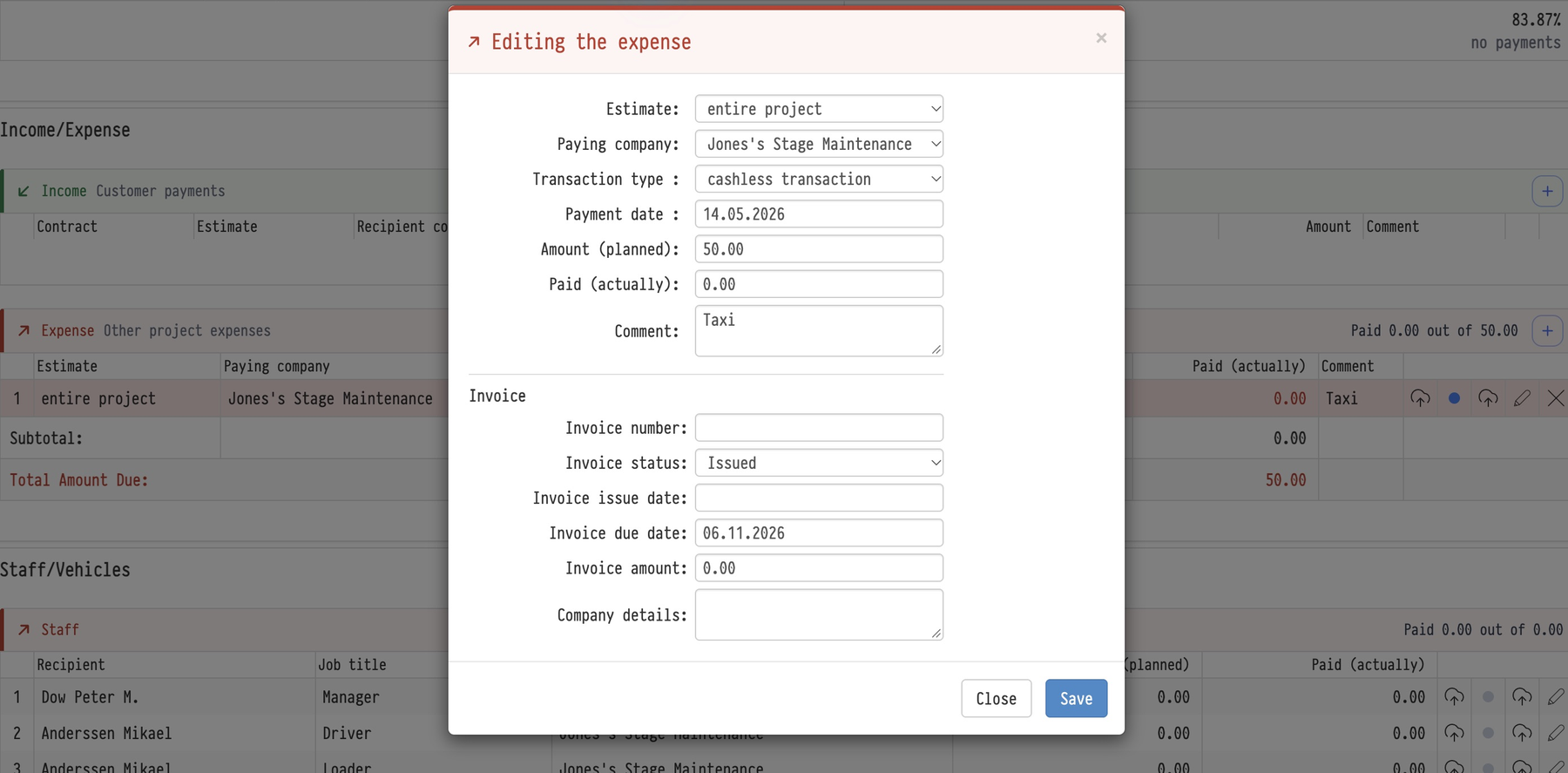
The income and expense windows have the "Transaction type" ("cashless transaction" or "transaction in cash") and "Payment date" fields. In the tables of the block these are separate columns.