Pricing
"Pricing" is a tool for changing catalog rental prices in bulk through an Excel file. In one upload it changes both standard prices and the prices of all price types.
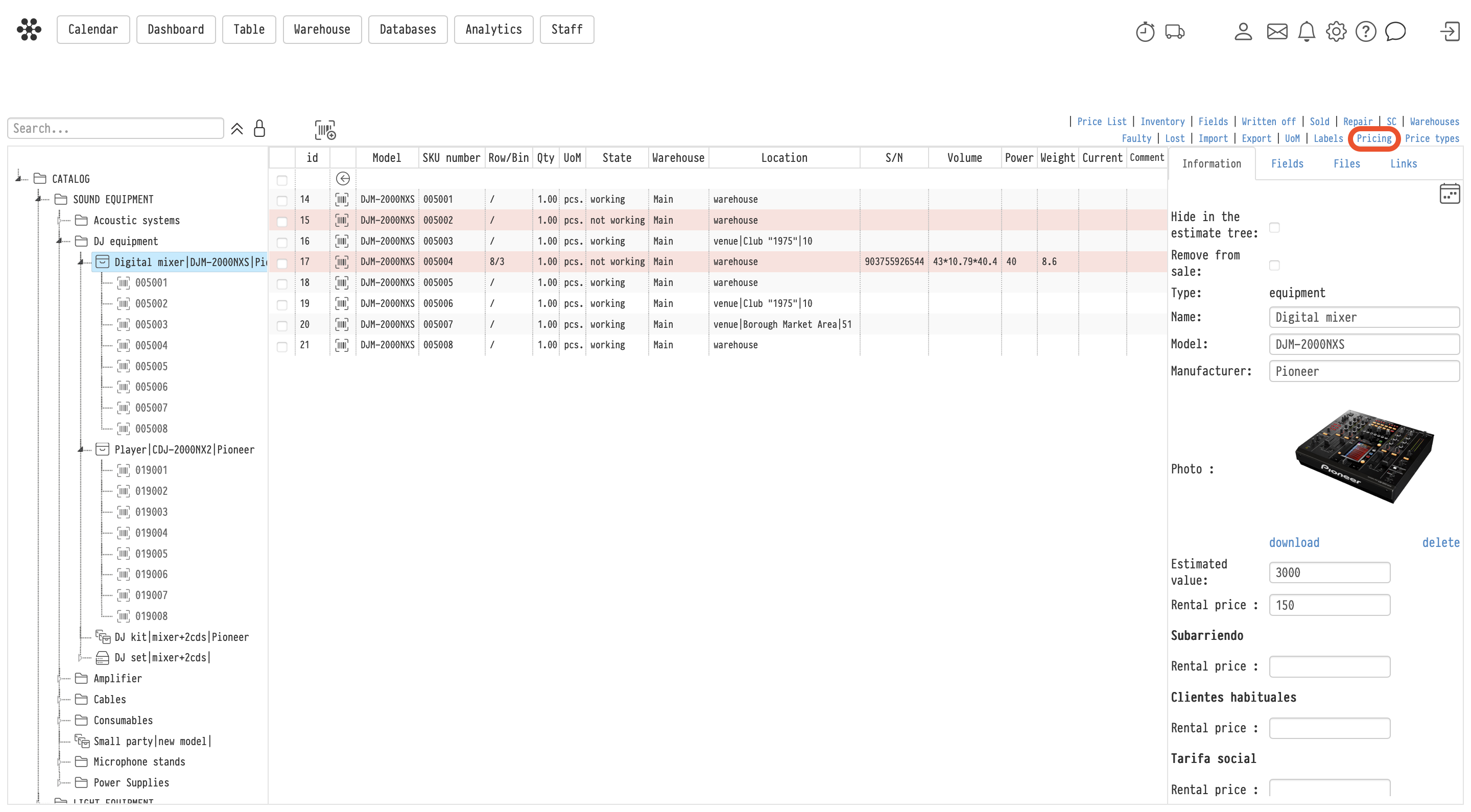
The "Pricing" link is in the row of links above the catalog table, next to "Types of prices". Employees see it if their access template gives "full access" or "read-only" to catalog prices and price types are included in your service plan.
What it is useful for:
seasonal price increases or price indexation;
updating the price list after new purchases;
filling in a new price type, for example for regular clients or for sublease.
Please note. "Types of prices" is where you create price sets, and "Pricing" is where you fill in and change the prices inside them in bulk.
Step 1. Export
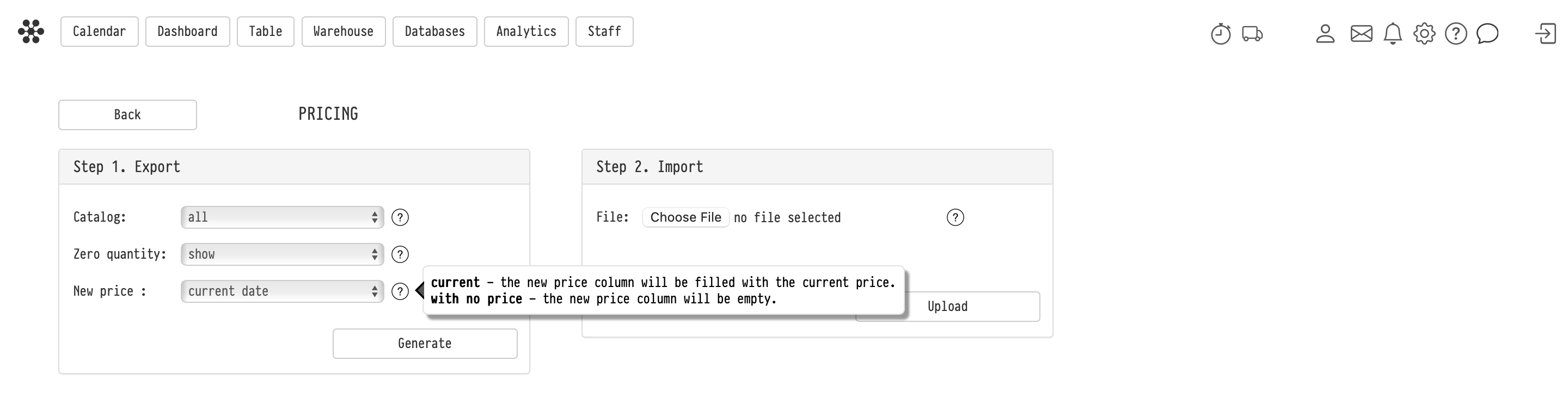
Set up the export in the "Step 1. Export" block.
"Catalog" defines which entries go into the file:
"all": every catalog entry;
"selectively": only the entries you tick. A catalog tree with search appears under the field: tick the sections or entries you need.
"Zero quantity": "show" or "hide" entries with a quantity of 0.
"New price" defines how the new price columns in the file are filled in:
"current": the current prices are copied there, so you only need to correct the ones you want to change;
"with no price": the columns stay empty and you enter the prices yourself.
Click "Generate". The Excel file downloads to your computer.
What is in the file
One row of the file is one catalog entry: equipment, a service, a consumable, accessories, a kit or a set. The first columns describe the entry: id, path in the catalog, name, quantity, model, estimated value, type and manufacturer.
Then come the prices, in pairs: "Rental Price – Current" and "Rental Price – New". The first pair is the standard price (the second header row says "standard"), then there is one pair for each price type, with the name of the type in the second header row.
Change only the "Rental Price – New" columns. The "Current" columns are for reference and are not read on upload.
Step 2. Import
In the "Step 2. Import" block, select the edited file in the "File" field and click "Upload". The prices are written to the catalog straight away, and the message "Prices successfully updated!" appears. Every price change is recorded in the catalog log.
The system finds each entry in the file by the "id" column, so do not change or delete it. The name, model and other descriptive columns are not read on upload, so editing them changes nothing in the catalog.
Please note. An empty cell in a "Rental Price – New" column is not skipped. For equipment, services, consumables and accessories the price becomes empty, that is, 0. For a kit or a set an empty price means "calculate from the contents". So if you exported with "with no price", fill in every row or delete the rows whose prices you do not want to change.
What changes and what does not
The upload changes only rental prices: the standard price and the prices of price types. Estimated value, quantity, name, description and entry type are not taken from the file.
The new prices are saved in the catalog, but existing estimates are not recalculated. To update the prices in an estimate, open the estimate sheet and run the "Update prices" action, see the article Update prices.
To add new entries and SKUs, use the catalog "Import", see the article Import and export.
Key concepts
Pricing, Catalog, Rental price, Price types, Export, Import, Excel, Mass editing, Update prices, Estimate, Project, Price List