Faulty
The "Faulty" list contains SKUs that are broken or need to be checked. The list opens with the "Faulty" link above the catalog table.
How an SKU gets into the list
From the project warehouse. A fault is most often found when equipment is being picked or received. In the project warehouse, select the SKUs with checkboxes and click the "Actions for selected SKUs" icon in the status column title. In the window, choose the action "The SKU is faulty" (or "The SKU requires diagnostics"), describe the fault in the "Comment" field and choose the "Priority": "Low", "Medium" or "High". After you confirm, the SKU state in the catalog becomes "not working", and it can no longer be booked. An SKU in the "requires diagnostics" state also goes to the "Faulty" list, but it stays available for booking until it has been checked and found faulty.
From the SKU card in the catalog. In the "State" row, click "edit". In the "State management" window, choose the action "not working", write a comment and set the "Repair priority". You can also attach files here, for example a photo of the damage.
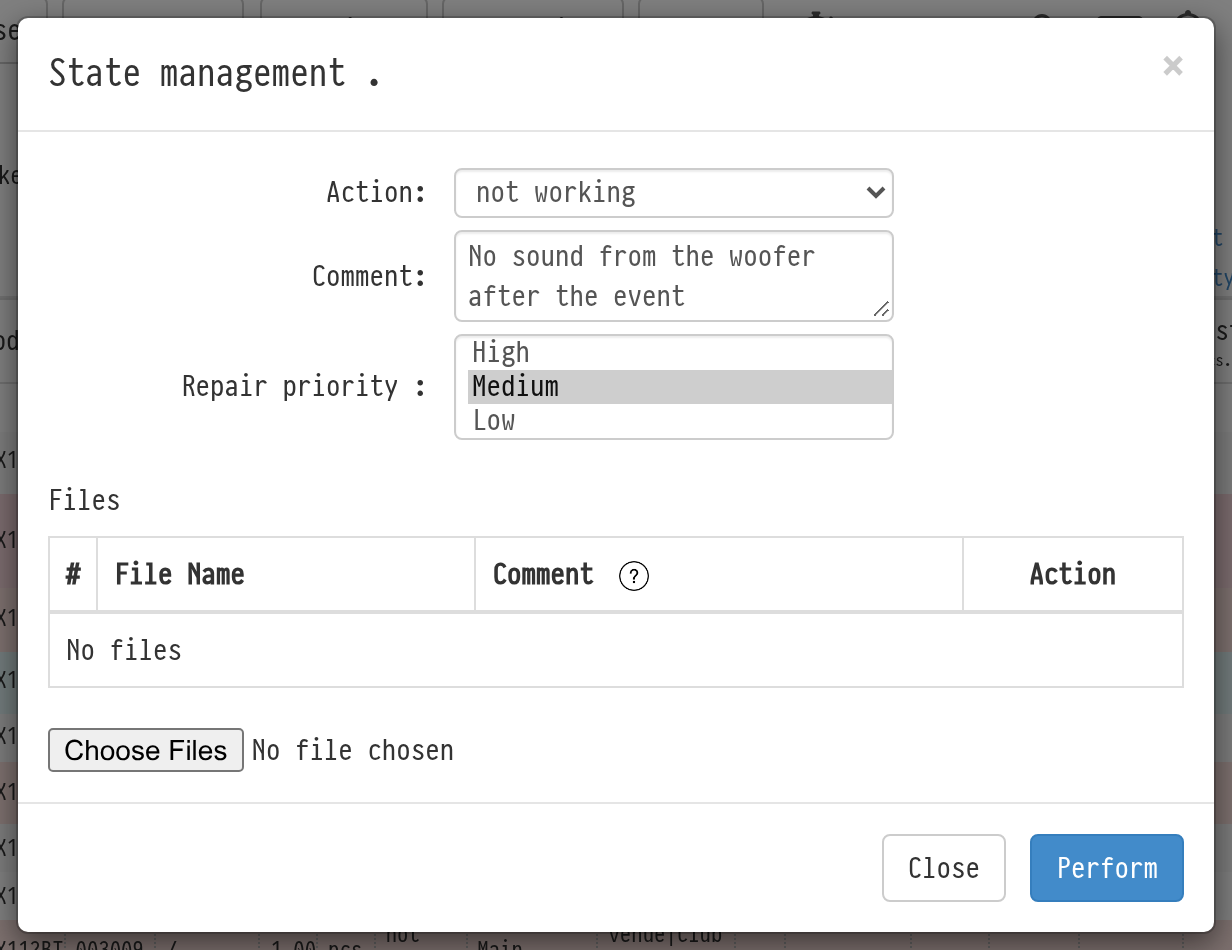
The priority shows how urgently the device needs to be repaired. The default is "Low".
What the list shows
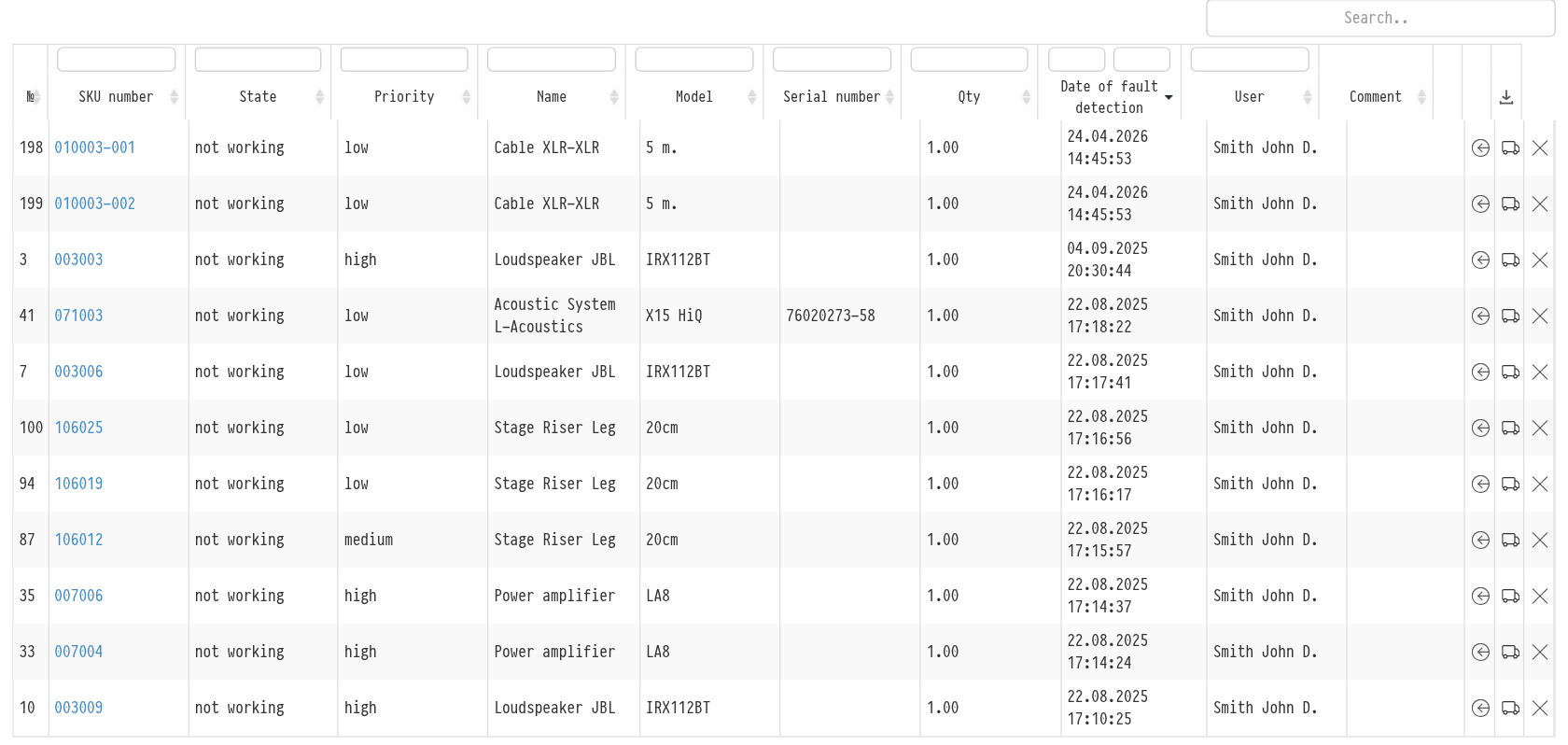
The "Faulty" table has the columns:
"SKU number": click it to open the SKU log in a new tab;
"State": "not working" or "requires diagnostics";
"Priority": low, medium or high;
"Name", "Model", "Serial number", "Qty";
"Date of fault detection" and "User": who marked the SKU as faulty;
"Comment": the comment entered when the SKU was moved to the list.
Rows with medium priority are highlighted in yellow, with high priority in pink, so urgent faults are visible right away. To sort the list by urgency, click the "Priority" column title. Above the columns there are filters: for state and priority a choice from a list, for the date a range, for the others a text search. For example, you can leave only SKUs with high priority.
You can export the table to Excel with the download icon in the top right corner of the table.
What you can do with a faulty SKU
There are three icons on the right of each row:
"return to warehouse": if you have fixed the fault yourself. In the "Return to the warehouse" window you can write a comment on the return. The SKU is again available for booking and work in projects.
"send to service center": the SKU goes for repair. In the "Send to service center" window, choose the service center, enter the planned repair cost and the reported fault, and attach files if needed. The SKU moves to the repair list, see Under repair.
"write off": the device cannot be restored. In the "Write-off" window, enter the date and a comment. The SKU moves to the "Written off" list and is removed from the total quantity of the entry. See Written off.