Equipment Card
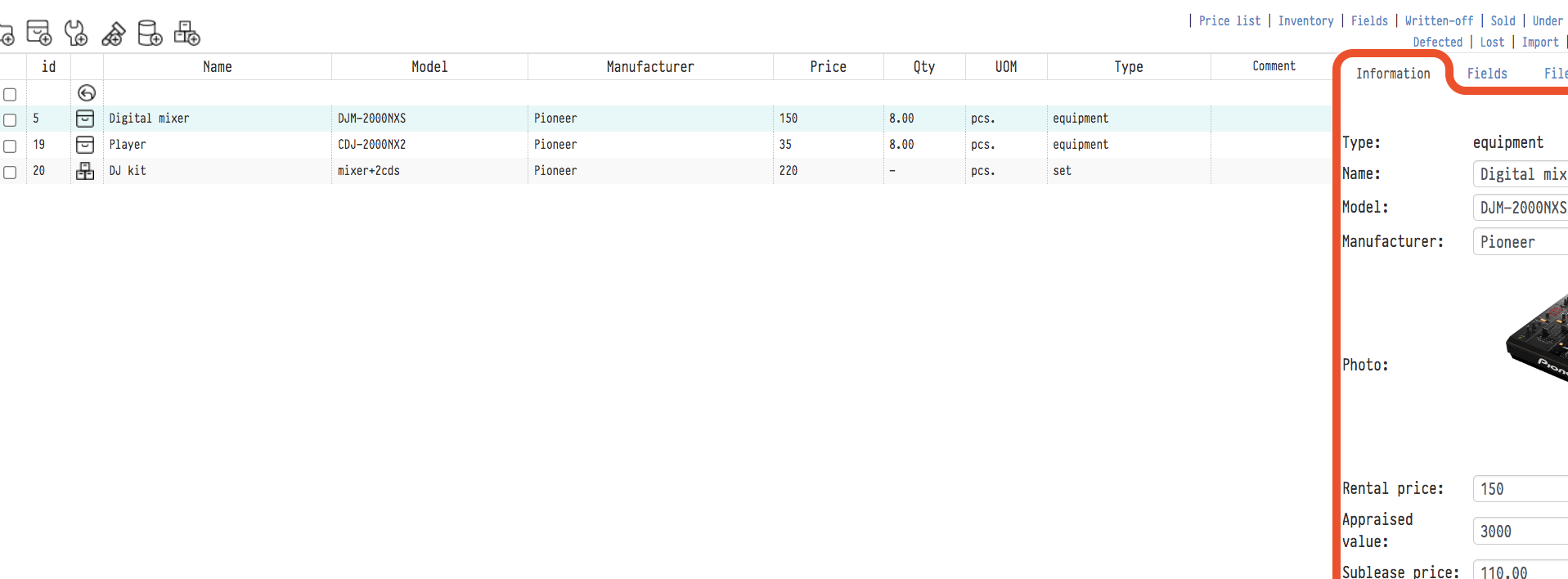
To open the card, select the entry in the central part of the catalog: the card appears on the right. It has four tabs: Information, Fields, Files, Links.
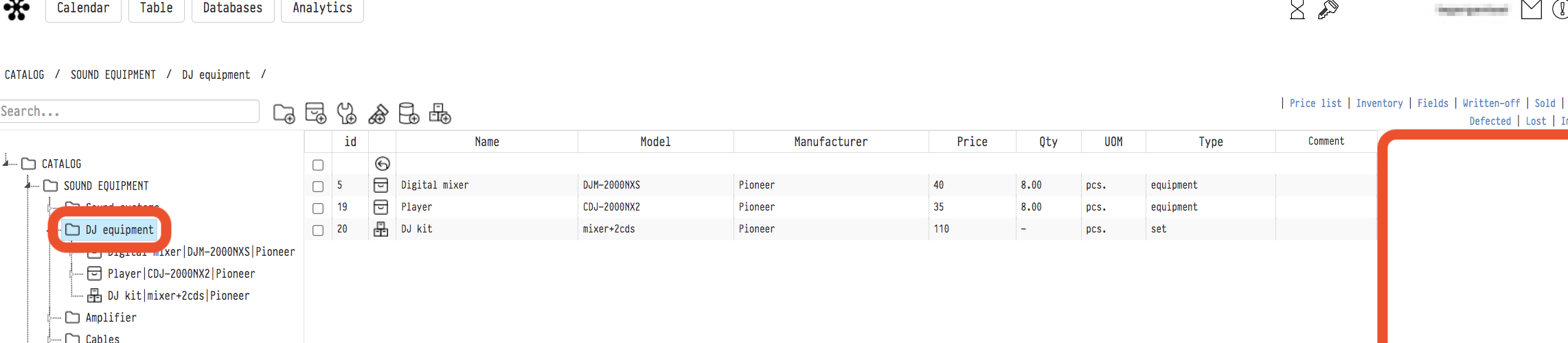
Clicking the entry in the tree on the left gives the same result. In this case, the tree also opens the list of SKUs of this entry, and the workspace shows their table, with the SKU number, state, warehouse and location of each unit.
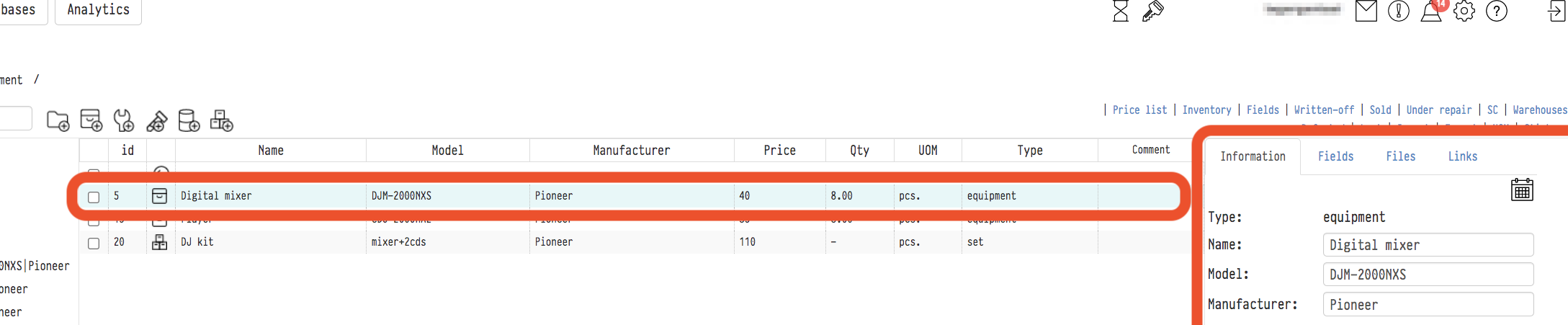
If you then select a specific SKU, the right panel switches from the entry card to the SKU card, which has a different set of tabs and its own fields.
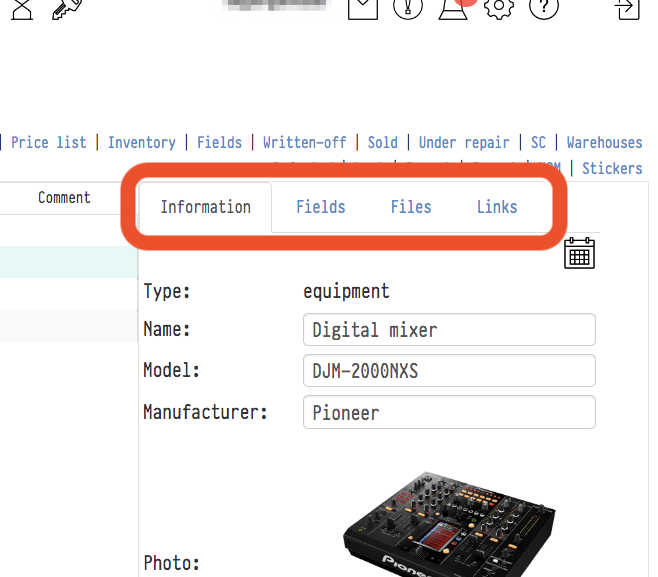
In the upper-right corner of the card there are two icons: "Entry history", the full log of changes of this entry (see System log), and the calendar: on which projects, when and in what quantity the equipment was used.
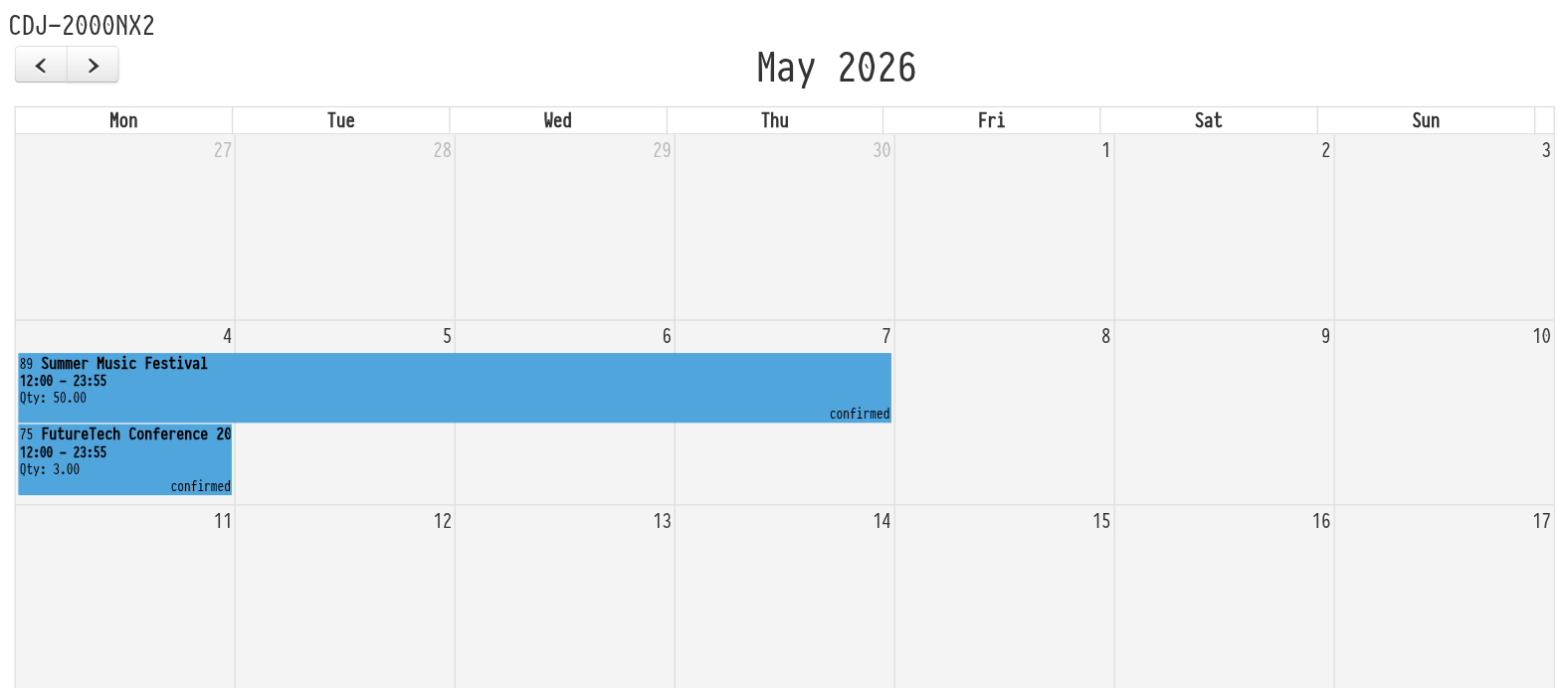
Entry calendar
The calendar opens in a new tab and is built from the project specifications, not the estimates. Each project is a separate event for the booking period: the project number and name (if there is no name, the venue), the booking time, the number of units in the specification ("Qty") and the project status. Cancelled projects are not included. Click an event to open the project.
This matters if you keep the specification separately from the estimate, for example, you added accessories at the specification level or corrected a quantity. The calendar shows what will really go to the project. If you work only in the estimate, you will not notice any difference.
Information tab
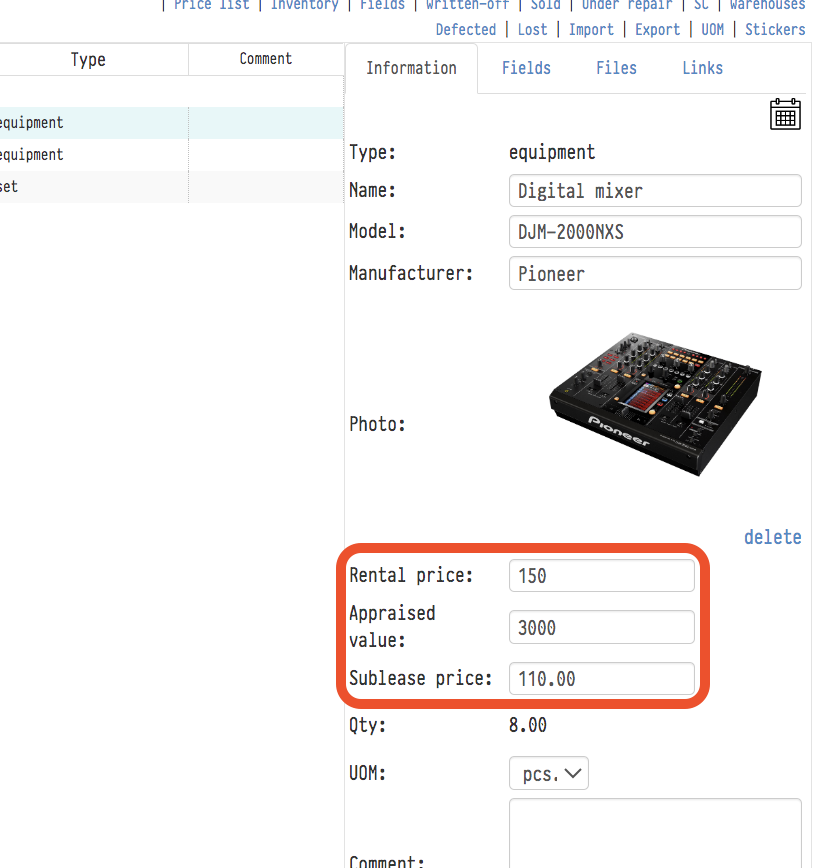
The main tab. Here are the name, model, manufacturer and photo: what the client will see in the quotation.
Hide in the estimate tree: the entry stays in the catalog but is not offered when you add items to the estimate.
Remove from sale: the entry cannot be added to the estimate as a separate row: in the estimate tree it is pale and has no "+". It stays inside kits.
Estimated value: used in handover and safekeeping documents, where the value of the transferred property matters.
Rental price: the price for one rental shift. If price types are set up in your account, a separate price for each type appears under the main field.
Qty: the number of units of the equipment in the catalog.
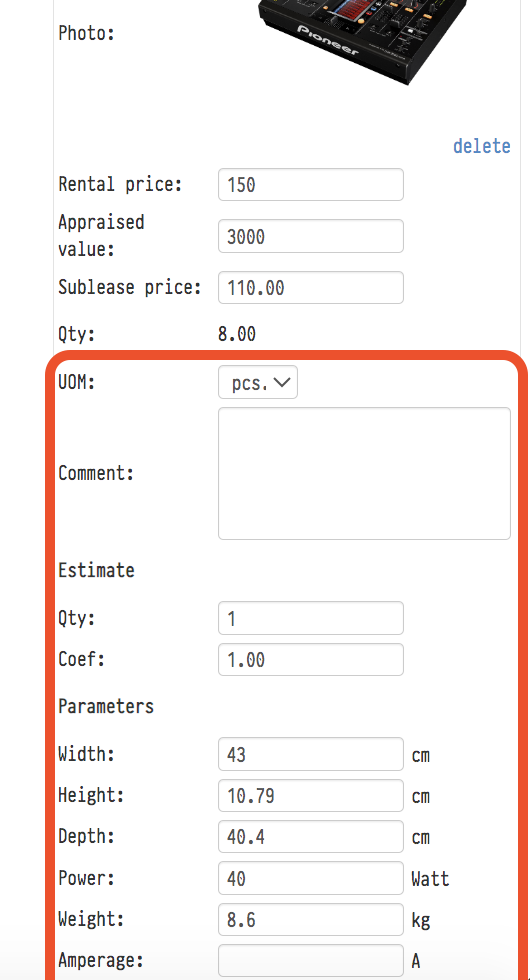
Unit of measurement: pieces, square metres, linear metres and so on. Units are created in the "UoM" item of the Catalog top menu, where the default unit is also set.
Internal comment: visible to everyone who has access to the Catalog.
Comment for the client: when the entry is added to the estimate, it is copied to the client comment of the estimate row and gets into the quotation.
Estimate: the quantity and coefficient with which the entry gets into the estimate by default.
Parameters: width, height, depth, power, weight and current. They are used to calculate the total volume, weight and power consumption of the project.
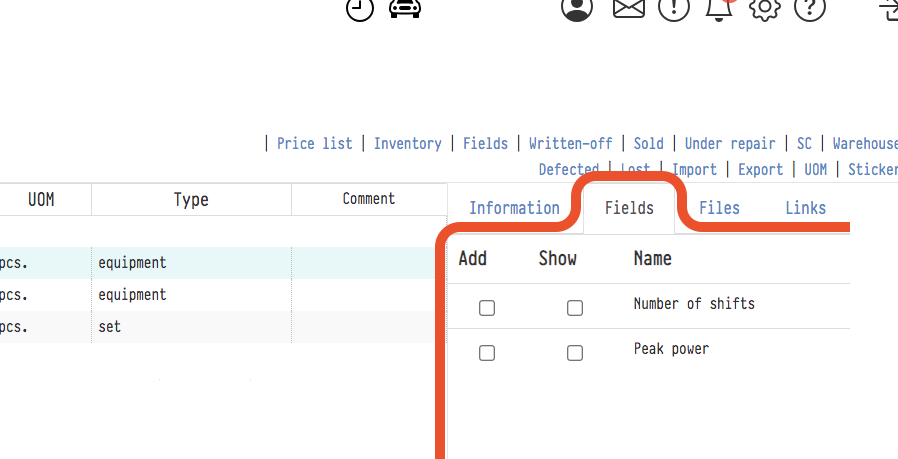
Fields tab
This tab shows the additional fields you have created. You choose which of them to add to this equipment and which to show in the catalog table. How to create fields: see Fields in the Catalog top menu.
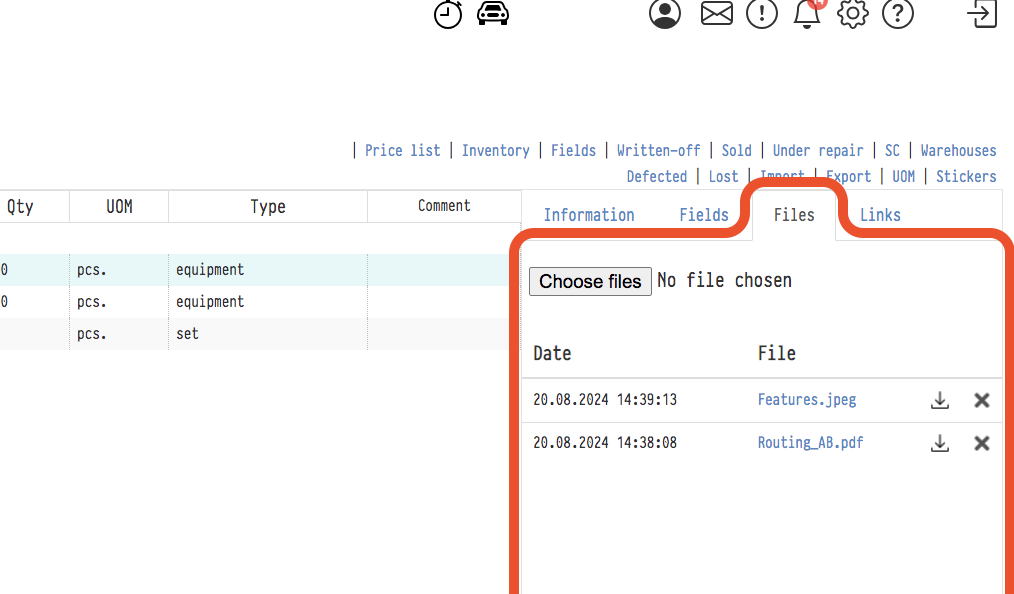
Files tab
Any documents that are useful to keep next to the equipment: licence, insurance, user manual, photos.
Links tab
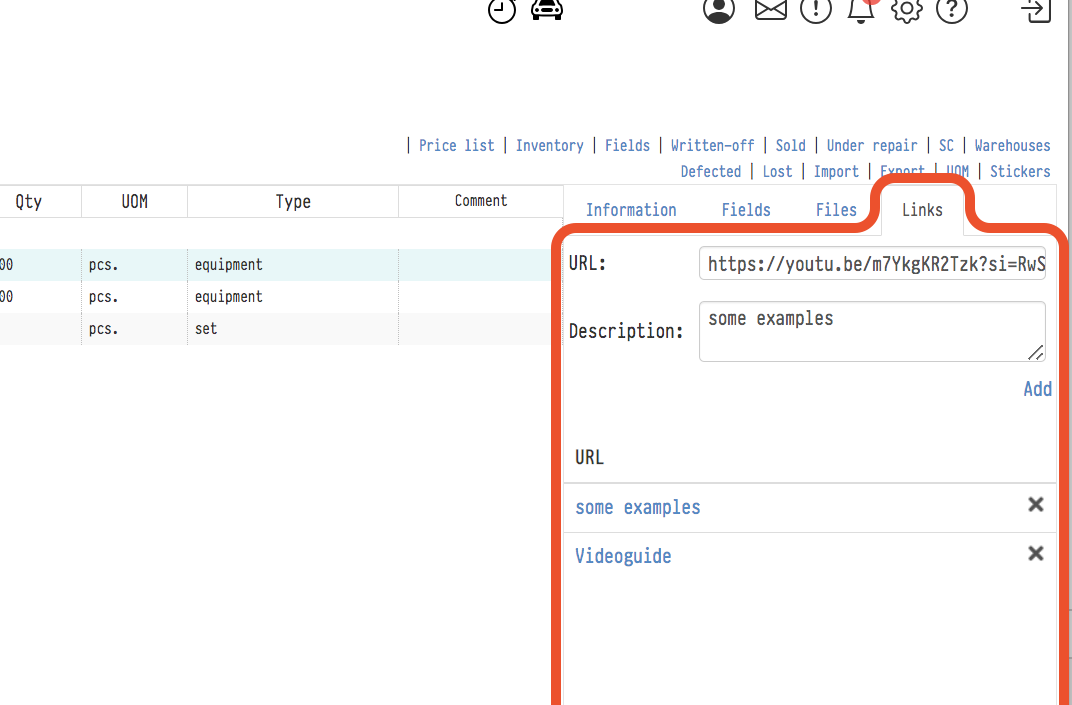
Links with a description: to the manufacturer's website, a video review or anything else.