Financial report: payment deviations
The "Payment deviations" page shows which projects clients have paid less than the estimate amount for, and which more. This way you can see whom to remind about payment and where extra money needs to be sorted out.
How to open
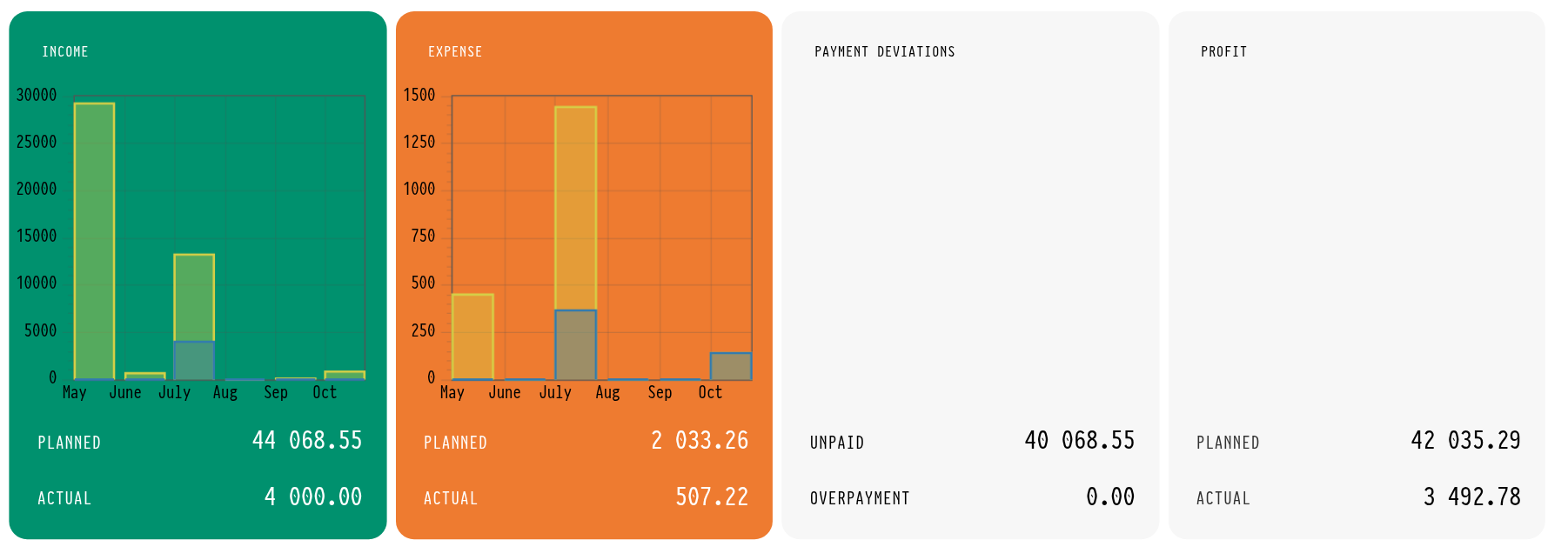
Open "Analytics" → "Financial report" and click the "Payment deviations" block to the right of the charts. The block immediately shows two amounts: "Unpaid" and "Overpayment".
How the deviation is calculated
For each project the system compares two amounts:
"As planned": how much the client has to pay under the project estimates (all active estimate sheets);
"Paid": how much has already been received: the sum of receipts on the project "Finance" tab, "Income/Expense" block.
"Balance" is "As planned" minus "Paid". If the balance is above zero, the project is in the "Unpaid" list. Partially paid projects are there too. If the balance is below zero, the client has paid more than the estimate, and the project is in the "Overpayment" list.
What is on the page
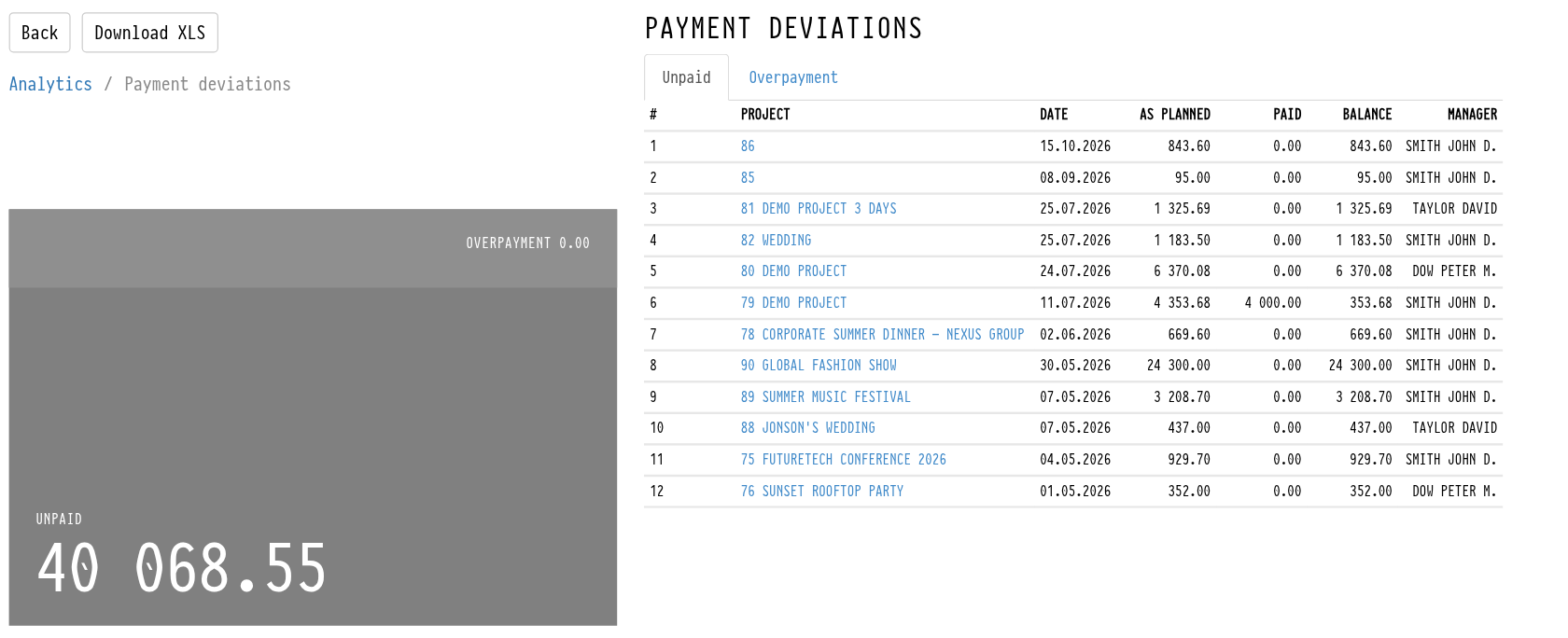
On the left there are the total amounts: "Unpaid" and "Overpayment" for all projects in the selection. On the right there is the "Payment deviations" table with two tabs:
"Unpaid": projects where the client still owes money;
"Overpayment": projects where the client has paid above the estimate.
Columns in each tab:
"Project": number and name. Click it to open the project in a new browser tab, right on the "Finance" tab;
"Date": the project end date;
"As planned", "Paid", "Balance";
"Manager": who runs the project. This is the employee assigned to the "Manager" role in the project (if the role has been renamed in the settings, the same role under its new name). If there are several, they are listed with commas.
The "Manager" column helps you see right away whom to ask about the payment.
Filters
At the top of the page there is the same filter panel as on the main page of the financial report: "My companies", estimate status, "Document Status" and "Financial Status", venues, managers, counterparties, clients, period, "Consider tax" / "Do not include tax", "Accounting by project date" / "Accounting by expense date". Filters selected on the main page are carried over here and back. Each filter is described in Financial report: main page.
How the filters affect this report:
"Period": with "Accounting by project date", the report includes projects that end in the selected period;
"My companies": the planned amount is taken only from the estimate sheets of the selected companies, and the paid amount only from receipts with that "Recipient company".
Export to Excel
The "Download XLS" button above the page title exports the list to an Excel file. The file has the same columns as the screen, including "Manager".
The "Back" link and the "Analytics" item in the navigation line take you back to the main page of the financial report with the same filters.
Key concepts
Payment deviations, unpaid, overpayment, client debt, financial report, analytics, project manager, receipt, balance, XLS export