Information
The “Information” section is designed for searching, viewing, and editing SKU cards (depending on user permissions). On the website, the same page is in the main menu: “Warehouse” → “Scanner”.
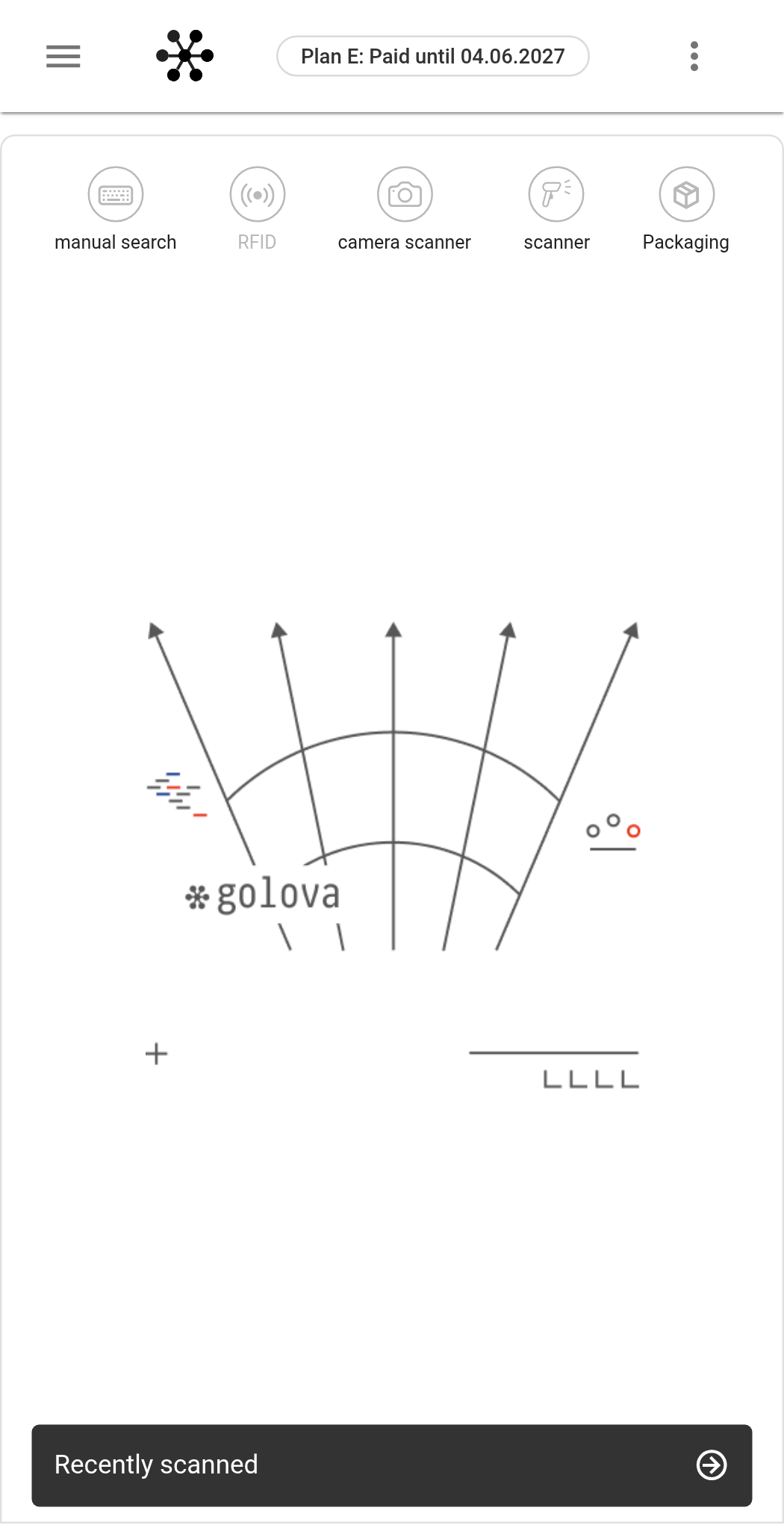
Searching for SKUs
There are four search methods available in this section: “manual search”, “camera scanner”, “scanner” and “RFID”.
Manual search
Opened by tapping the keyboard icon.
Allows you to find an SKU by its number.
Used when:
there is no barcode on the equipment
scanning is not available
The user enters the SKU number, after which the corresponding card is opened.
Camera scanner
Allows you to find an SKU using the mobile device camera.
Supported formats:
barcodes
QR codes
After pointing the camera at the code, the system automatically recognizes it and opens the SKU card.
External scanner
Allows you to use a connected scanner (for example, via Bluetooth).
Suitable for warehouse workflows using dedicated hardware.
After scanning, the code is automatically recognized and the SKU card is opened.
RFID scanning
Allows you to find SKUs using RFID.
Works if the device supports RFID (for example, a data collection terminal with an RFID module).
After reading the tag, the SKU card is opened.
The system does not allow duplicate SKU numbers, so a single specific card is always opened.
Packaging
The “Packaging” button opens the “Scan container” window. It reads with RFID antennas the tags of all entries packed in a container. Select the antennas and click “Start”; the number of read units is shown next to the “Reset” button. The mode works if RFID receivers are set up in the account.
Recently scanned
The “Recently scanned” bar at the bottom of the page opens the list of SKUs you have scanned recently, so you can quickly return to a card.
SKU card
After opening the card, the user can:
view SKU information
edit data (if permissions allow)
Editing availability depends on user permissions:
with catalog edit permissions — full editing is available
without permissions — the card is view-only
Adding photos
Photos can be added to the SKU card.
Photos:
are taken using the mobile device camera
are saved directly in the SKU card gallery
This is useful for:
documenting equipment condition
adding visual information for the team
Notes
An internet connection is required
All actions are performed in real time