Editing and copying a template
To open the list of access templates, go to “Databases” → “Employees”, click “Options” and choose “Access templates”.
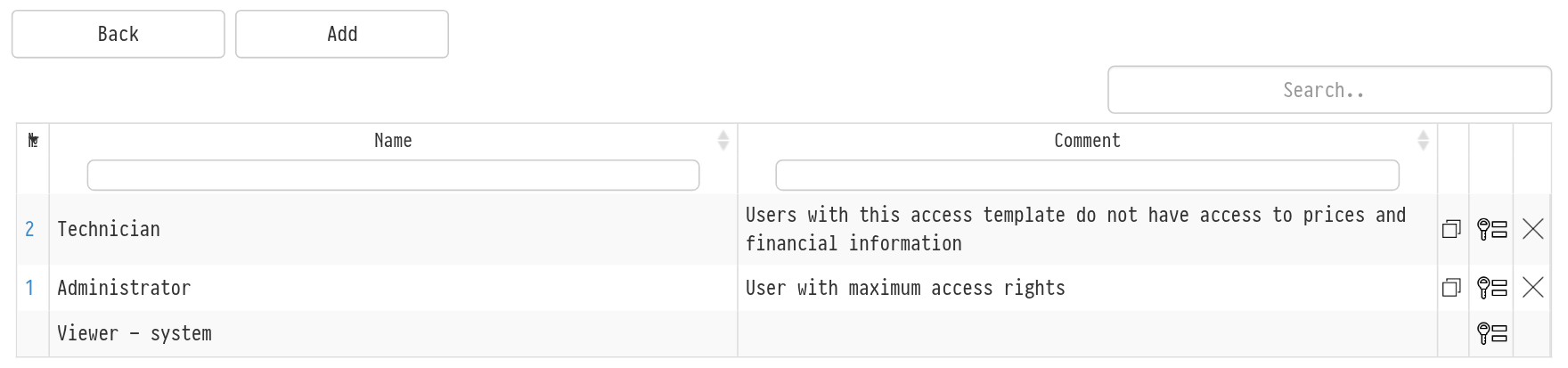
To make changes to the template, click the key on the right side of the row. The full list of access settings opens.
To rename the access template and change its comment, click its number in the left column.
Another important feature is copying an access template. It is convenient if you need templates with small differences. In this case, you can set up one template, create a copy of it and then edit the copy.
To create a copy, click the copy icon to the left of the key.
To delete the access template, click the cross in the right column.
The “Viewer - system” row has no number: it is a system template. You can only open its settings with the key; you cannot rename, copy or delete it.