Specification
Above the sheets in the "Specification" block there is a row of numbered circles and arrows: this is how the specification status is set. The name of the current status is shown on the right. At one status the specification stops repeating changes made in the estimate (disconnection), and at another the "Warehouse" tab opens in the project. Read more: Specification statuses.
In this block, on the left there is the tree structure of the catalog, already familiar from the "Estimate" tab, and on the right there is the information about the SKUs used in the project, also presented as a tree.
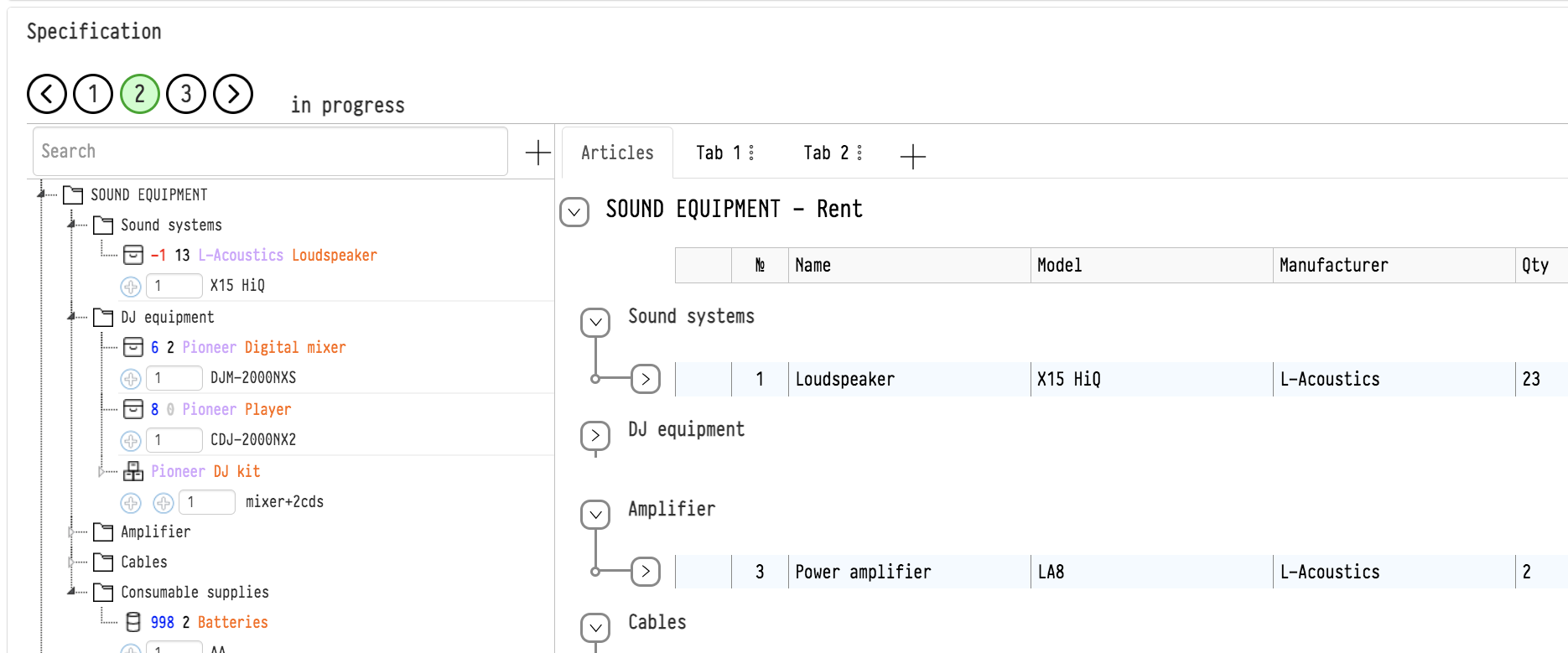
On the right there is the table of project entries. How it works, how to add entries, change quantities and assign SKUs is described in Entries and SKUs in the specification.
SKUs of an entry
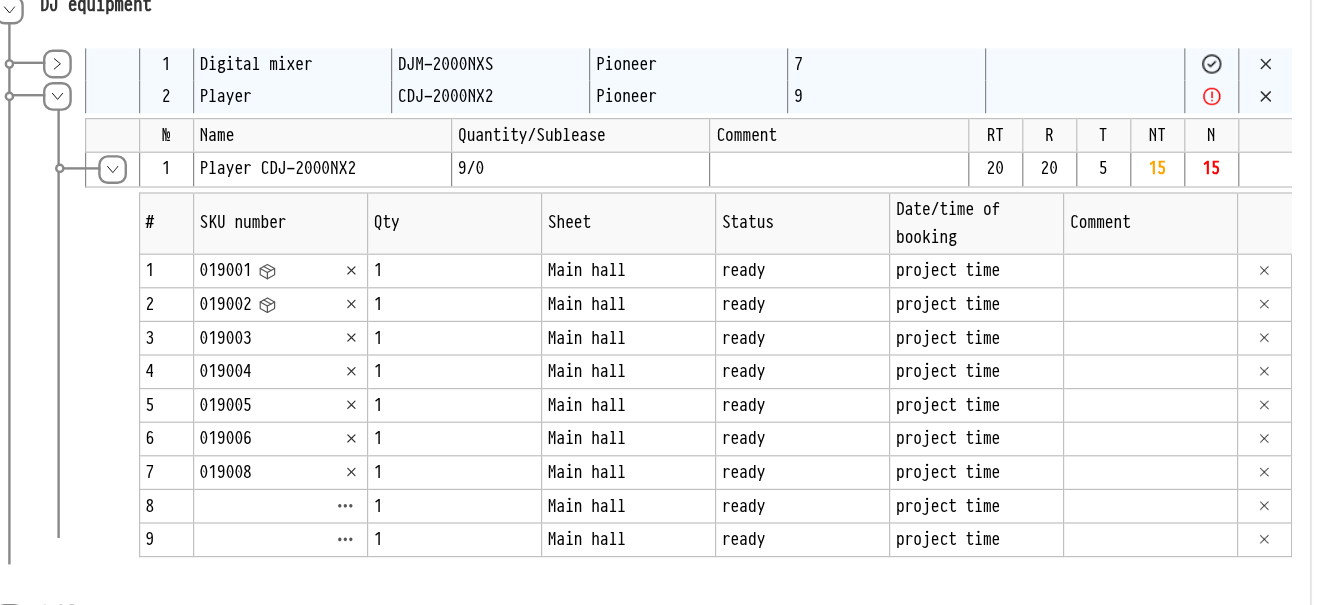
The list of SKUs of an entry opens with a click and is loaded only when you open it, so even large projects open quickly. Each SKU row shows the SKU number, quantity, sheet, warehouse status, "Date/time of booking" and "Comment".
If there are many SKUs, they are split into pages. Above the SKU table, choose how many rows to show in "Lines per page": 5, 10, 20, 50 or 100. Move between pages with the "First", "Previous", "Next", "Last" buttons; between them you can see which page you are on, for example "Page 2 of 5".
SKU comments
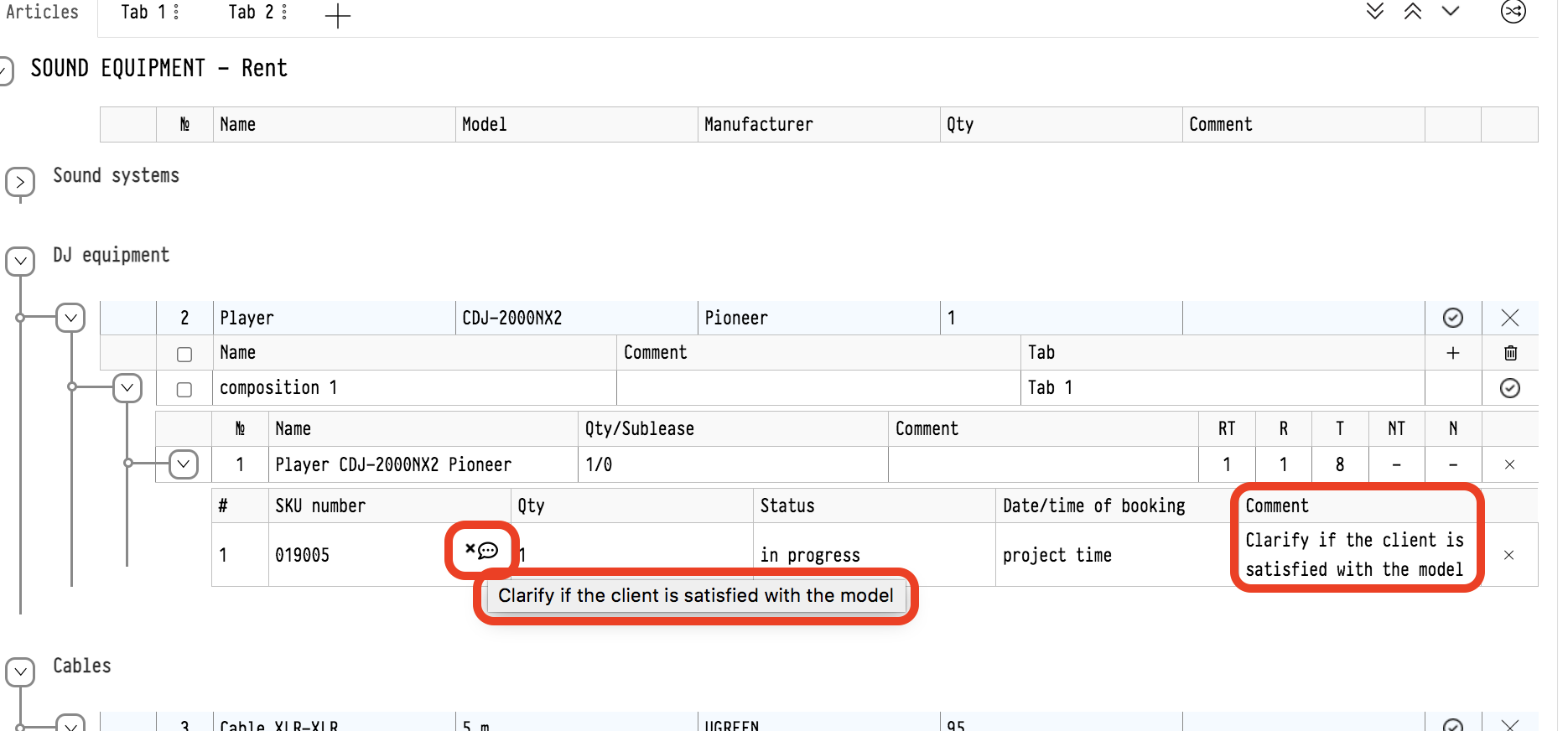
If, while preparing the warehouse pick list, you need to tell the warehouse something about a specific SKU, write it in the "Comment" column of the SKU row: click the cell. This comment applies only to the current project and is shown in the warehouse right away.
An icon  may be shown next to the SKU number. It means the SKU has an internal comment in the catalog, for example "scratch on the case" or "works only with the second power supply". Hover over the icon to read the comment. This way the warehouse learns about the device without opening the catalog. The comment itself is written in the SKU card in the catalog, in the "Internal comment" field.
Other icons may be shown next to the number too: the SKU is faulty, lost or deleted from the catalog. Hover over the faulty or lost icon to see the comment entered when the SKU was marked.
Empty lines
If the equipment you need is not in the catalog (for example, it will be taken from a partner or made for the project), add it to the specification as an empty line. This is an entry you describe manually. It takes part in the project calculations just like catalog entries.
How to add
Click "+" ("Add empty line") to the right of the search above the catalog tree. In the "Adding an empty line" window, fill in:
"Estimate": the sheet to add the line to;
"Section": the section of the sheet to put it in;
"Name" and "Model";
"Add as": the entry type: "Equipment", "Consumable" or "Accessories". The type defines how the line is shipped in the warehouse: equipment piece by piece, accessories and consumables as one row for the whole quantity;
"Qty" and "Number of lines": how many units are in a line and how many identical lines to create;
"Specifications": "Width, cm", "Height, cm", "Depth, cm", "Weight, kg", "Power, W", "Current, A". The system calculates the volume from the width, height and depth.
Click "Add".
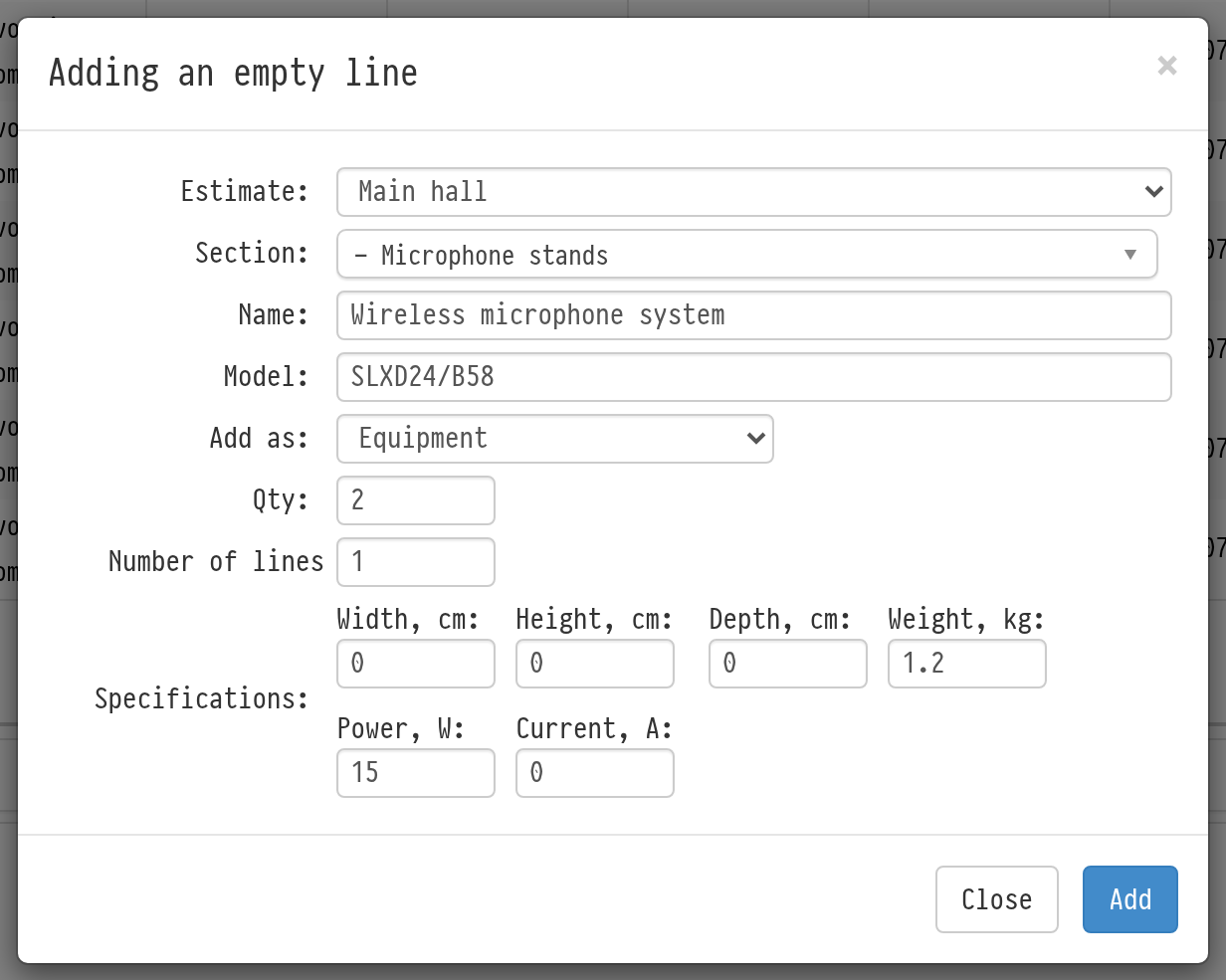
The specifications of an empty line are counted in the same way as for catalog entries: in the total weight, volume and power of the project and in the warehouse pick list. So fill them in if the line goes to the venue together with the other equipment.
You can also add an empty line in the estimate with the same "Adding an empty line" window. There it also has the section "Type" and "Price", and it goes to the specification together with the other estimate entries.
Empty lines in the shortage
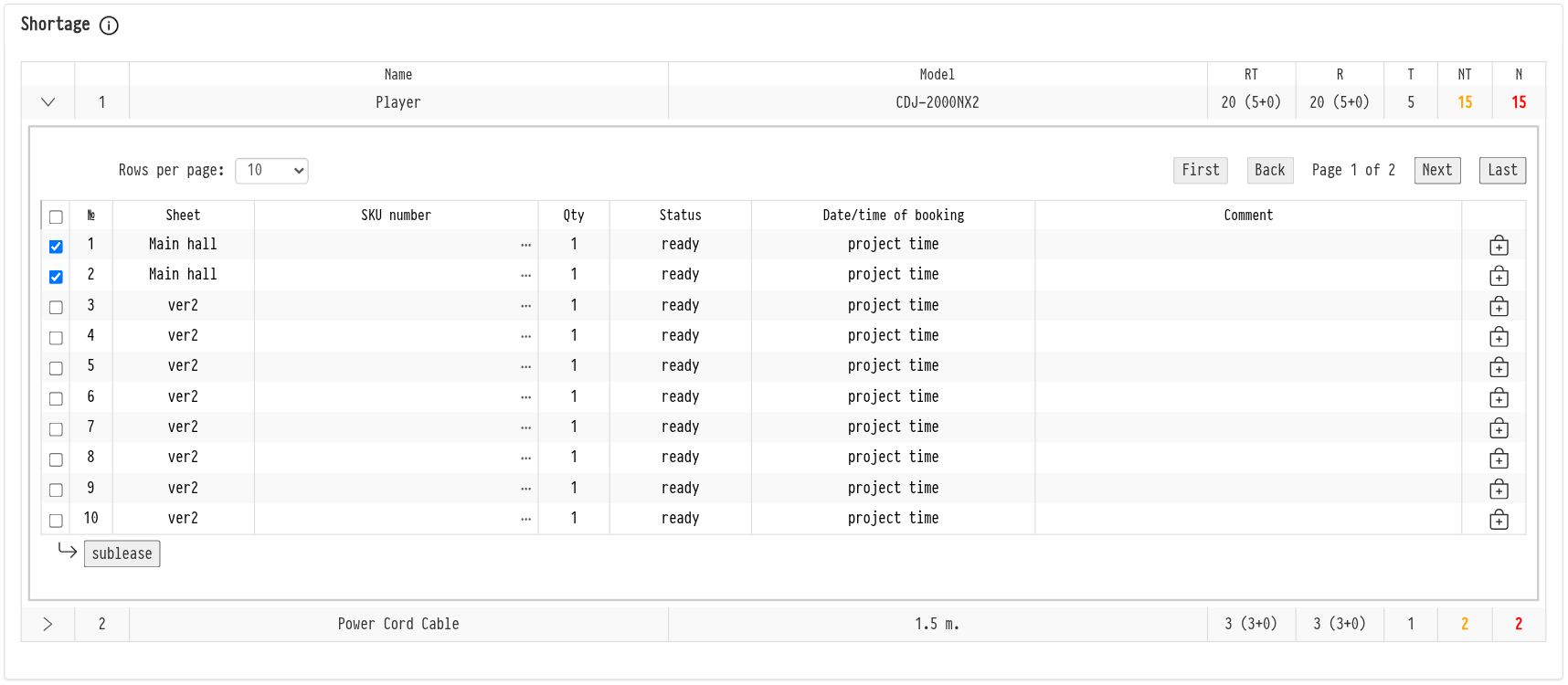
An empty line has no SKUs in the warehouse, so it always appears in the "Shortage" block. Expand it there, select the rows with checkboxes and choose under the list where the equipment will come from:
"sublease": the row goes to the "Sublease" block, where the sublease terms are filled in;
"production": you will make the equipment yourself;
"purchase": the equipment will be bought for the project without adding it to the catalog.
You can choose the same for one row: click "…" in the SKU column and choose an option in the list. The "production" and "purchase" buttons are available only for empty lines. For catalog entries, sublease and SKU assignment are available.
After you choose, the row leaves the "Shortage". Instead of an SKU number it shows "production" or "purchase", and this is how it is seen in the specification and in the warehouse. Such rows can be shipped and moved in the warehouse like regular ones.
Please note. An employee with full access to the specification in the access template can add empty lines and choose actions for them.
More about the block: Shortage.