Kanban mode
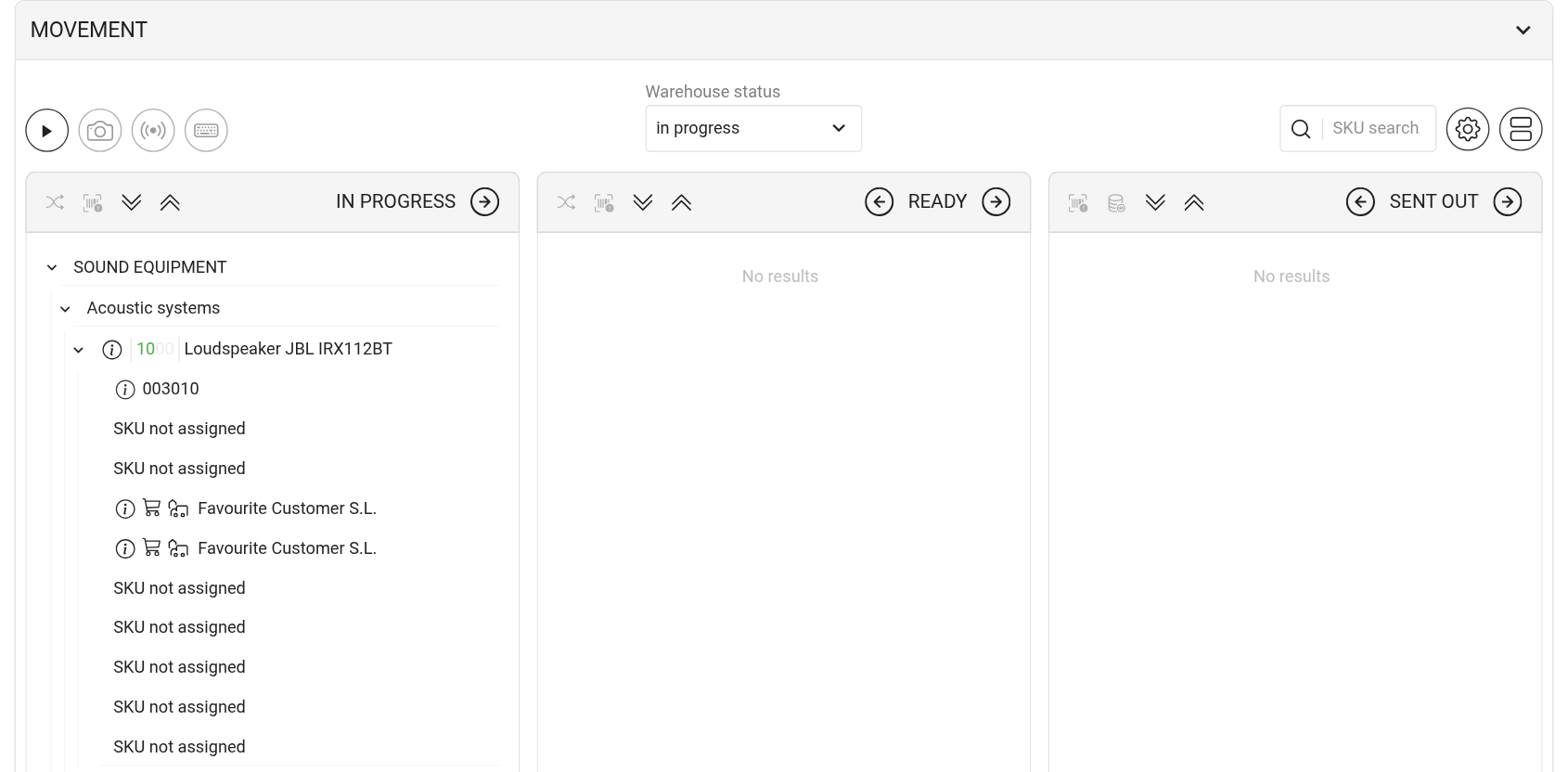
In Kanban mode, the "Movement" block is divided into columns, one for each warehouse status, in the order in which the statuses are set up. Each column holds the project entries that are in this status now.
A computer shows up to four columns at once, a tablet two or three, a phone one. The other columns scroll sideways: swipe or scroll.
To switch to this view from the table, click the rightmost round button on the block panel.
List rows
Entries are shown as a tree: estimate sheet → kit → entry → SKUs. The arrow on the left collapses and expands a branch. How entries are grouped is chosen in the "Setup" window (the gear): "Nesting", "Sheets", "Kits".
The green number next to an entry is how many units of it are in the column. The "i" icon next to it opens the "Information" window about the entry.
The SKUs of the entry are listed under it. The "i" icon next to a SKU opens the "SKU information" window with its data and history. For accessories and consumables, the quantity is shown in brackets next to the SKU number.
If no SKU is assigned yet, the row says "SKU not assigned". During shipping, a "specify SKU" field appears instead: choose a SKU from the list of available ones.
The cross to the right of a SKU removes it from the entry. It is there until the equipment is shipped to the venue.
An arrow next to a SKU means it has been moved to another project or received from another project. Click it to see the project number, the comment and the quantity.
Please note. The quantity in one specification row is 10,000 at most: a larger number is replaced with 10,000. If you need to ship more, add the entry to the estimate in one more row.
SKU condition
A red icon in a row shows that something is wrong with the SKU: "The SKU is lost", "The SKU is faulty", "The SKU requires diagnostics" or the SKU is under repair. Click the icon to open the "Status change" window: it shows the "Current status", and you can choose a "New state" ("Working", "Faulty", "Needs diagnostics", "Lost") and write a comment.
Lost SKUs and SKUs under repair cannot be selected or moved until their condition changes.
Column header
The column header has the status name and the move arrows. The action icons and the "select all" checkbox appear after you click "▶" on the block panel.
Checkbox: select all entries of the column.
Target icon, "Assign random SKUs": the system assigns free SKUs to the selected entries that have none yet. There is no such icon in statuses with the location "Venue" and in the last status.
"Actions for selected SKUs": opens the "Action with selected SKUs" window (see below).
"Bulk processing of consumables": only in statuses with the location "Venue". More: "Consumables at the venue".
Double arrows: expand or collapse all branches of the column.
Left and right arrows by the status name: move the selected entries to the previous or the next status. The first status has no left arrow, the last one has no right arrow.
If the selected entries include accessories or consumables, the "Movement of accessories and consumables" window opens before the move: in it you can move only part of the quantity.
What is moved and what is not
The system moves only the SKUs that can be moved: available equipment goes to the new status, the rest stays where it was. For what was not moved, a message appears at the bottom of the screen saying what and why, for example:
"Error. You are trying to transfer an entry to the venue without an assigned SKU": the entry has no SKU yet. Assign one with the scanner, by hand or with random assignment (see below);
"Error. The SKU … must be in the warehouse to transfer to the venue": this unit is currently on another project and has not come back yet;
a message that the quantity in stock is not enough to transfer to the venue: for accessories and consumables, there is less in the warehouse than you are trying to ship;
"Error. To transfer sublease entries to the venue, you need to assign a lessor.": the sublease row has no lessor (see "Sublease");
a message that the SKU has been moved to another project: the SKU has already been handed over to another project.
The message stays on the screen for about 20 seconds, and you can close it earlier. Fix the cause and move the remaining entries again.
Please note. If someone has already moved some of the selected entries, for example from another device, the system leaves them alone and tells you that the entries are no longer in this status. Refresh the page to see the current picture.
With random assignment (the target icon), the system picks a free SKU for each selected entry without one: first from those in the warehouse now, then from the others available for the project dates. Entries that already have a SKU do not change. If there is no free SKU, the entry stays empty. You cannot undo the assignment with one button: remove extra SKUs by hand.
Action with selected SKUs
Select SKUs and click the "Actions for selected SKUs" icon. The "Action with selected SKUs" window shows the list of what you selected; for accessories and consumables you can enter the quantity. Choose the "Action":
"The SKU is lost": the SKU goes to the "Lost" list in the catalog, and you cannot move it to another warehouse status. Not available in the last warehouse status.
"The SKU is faulty": the SKU goes to the "Faulty" list and can no longer be booked. You can set the "Priority": "Low", "Medium" or "High".
"The SKU requires diagnostics": the SKU goes to the "Faulty" list but can still be booked.
"Move to another project": only in statuses with the location "Venue". The equipment goes from the venue straight to the selected project.
Add a "Comment" and click "Confirm". What to do with the SKU next is described in "Lost" and "Faulty".