The list of projects in the Warehouse menu
The "Warehouse" → "Projects" menu shows a list of projects as cards. This page is meant for warehouse staff and shows only the projects for which the warehouse has already been activated.
Which projects are shown
The list shows the projects for which the warehouse is activated in the system. Warehouse activation depends on the status settings: gear "Settings" → "System" → "Statuses", see Statuses.
By default (with the standard system settings):
the warehouse is activated with the "approved" status of the specification;
the specification itself becomes available after the "confirmed" status of the estimate.
So in the standard configuration this list shows projects that have already been approved and are ready for warehouse operations. If you change the status settings, the list follows your rules.
Besides, the list shows only the projects your access template allows you to see.
Period
Above the cards there is a date switcher. The list keeps the projects whose event dates overlap with the selected period. The "❮" and "❯" arrows move the period back and forward, and clicking the date opens a calendar. The calendar icon on the right sets the step: "Day", "Week", "Month" or "Year". Under the switcher you see how many projects were found.
The selected period and step are remembered in the browser: the next time you open the page, the list shows the same period.
Searching for a project
If the project you need is far away in time, find it with the search: the magnifier icon in the upper left corner of the list block.
Click the magnifier. The "Search" window opens.
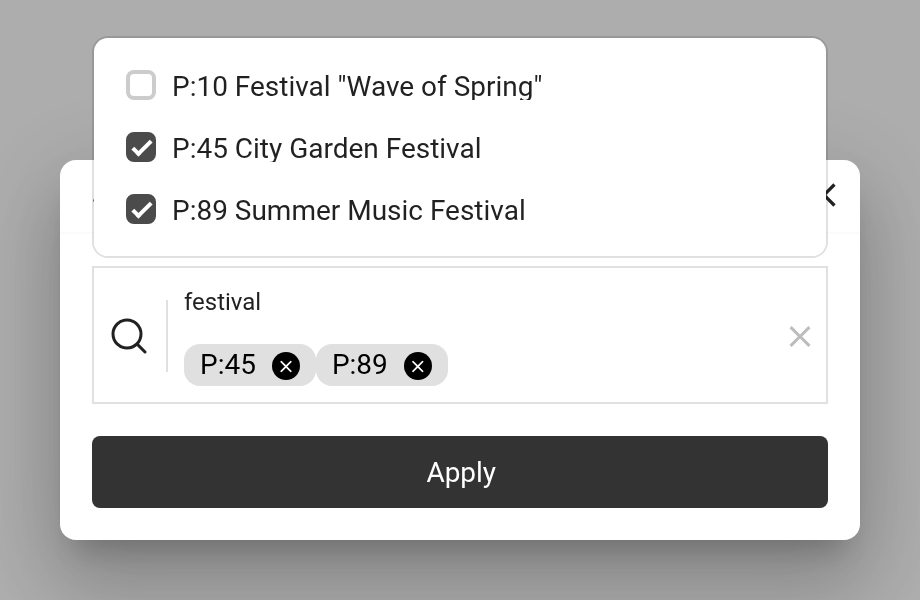
Enter part of the project name or its full number, at least two characters. A list of matching projects appears above the field in the form "P:number name".
Tick one or several projects. The selected ones appear in the field as "P:number" tags; remove an extra tag with its cross.
Click "Apply".
Only the selected projects stay in the list, and the date switcher is replaced with the "Search results" label. To return to the usual list, click the cross to the right of this label.
Please note. The search covers all dates, but only projects with an activated warehouse. If a project is not in the results, check its specification status.
What the project card shows
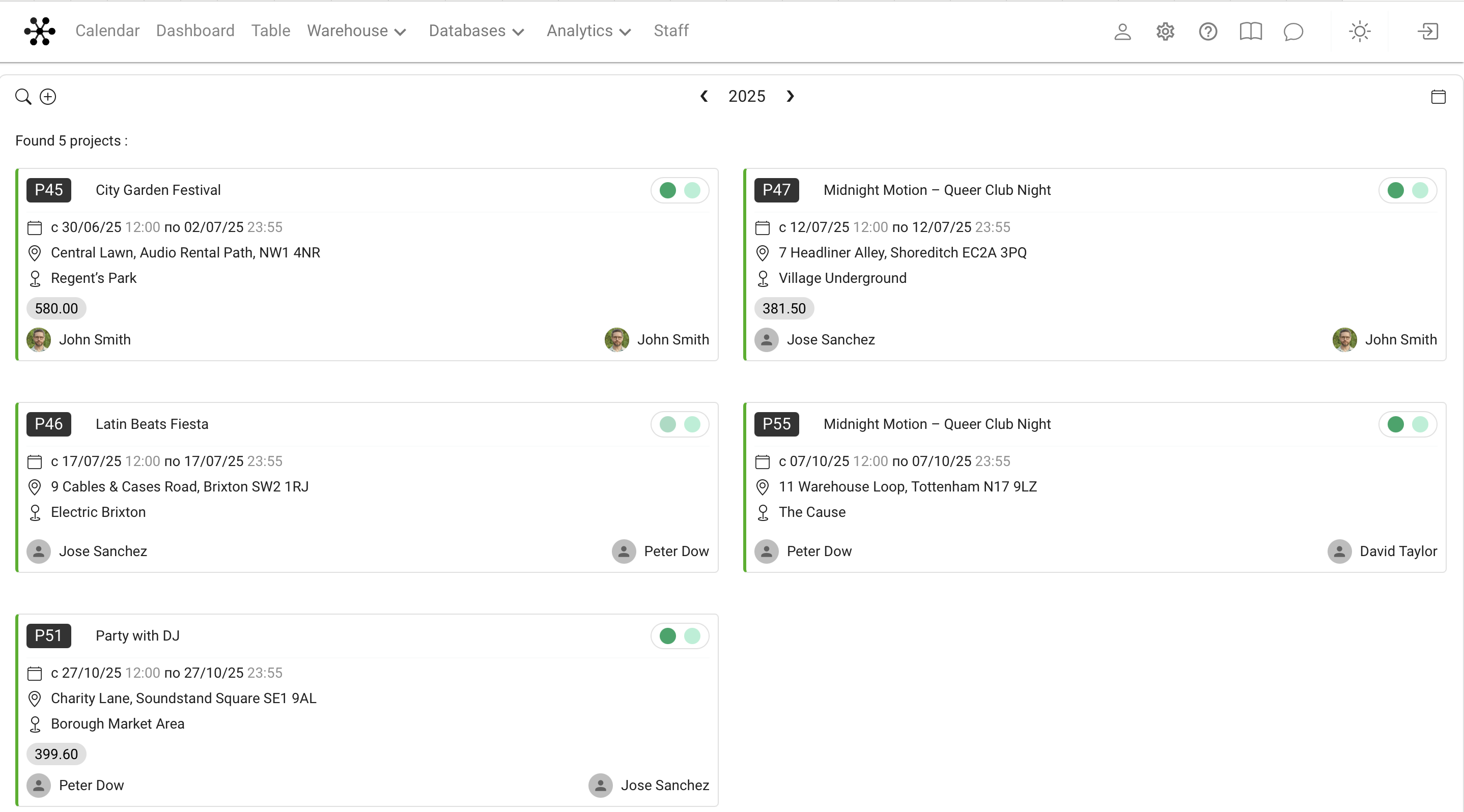
Each project is shown as a separate card with:
project number and name;
event dates;
venue and address (if the address is set in the venue card);
project statuses as colored indicators;
responsible persons (the first two assigned employees are shown).
The colors of the status indicators are set in the settings: gear "Settings" → "System" → "Calendar", see Calendar.
Going to the project warehouse
When you click a card, you go straight to the warehouse of the selected project, where you can ship, receive and do other warehouse operations. How the project warehouse works: Warehouse.
The "+" icon next to the magnifier creates a new project right from the warehouse, see Project from warehouse.
Purpose of the page
This interface is meant for use in the warehouse (for example, on a tablet or a work computer), so that employees work only with the relevant projects for which warehouse operations can already be done.
Key concepts
Warehouse, Project, Project card, Project search, Period, Project statuses, Estimate, Specification, Responsible persons, Venue, Address, Reservation