Editing budget items
In the selected sheet, in the list of entries already added to the project, there is a pencil icon to the left of the name of each entry. Click it to edit the data of this entry.
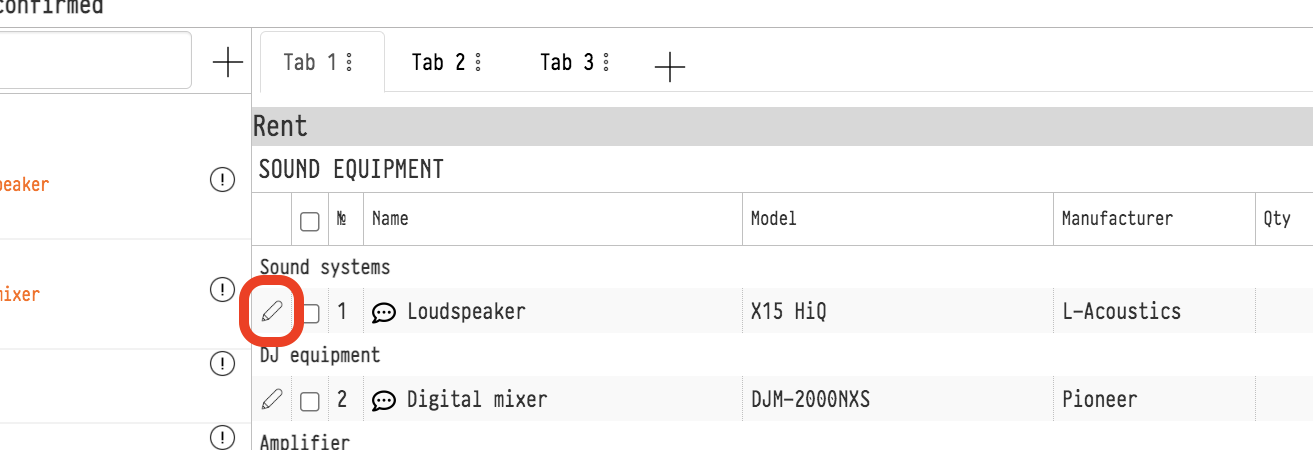
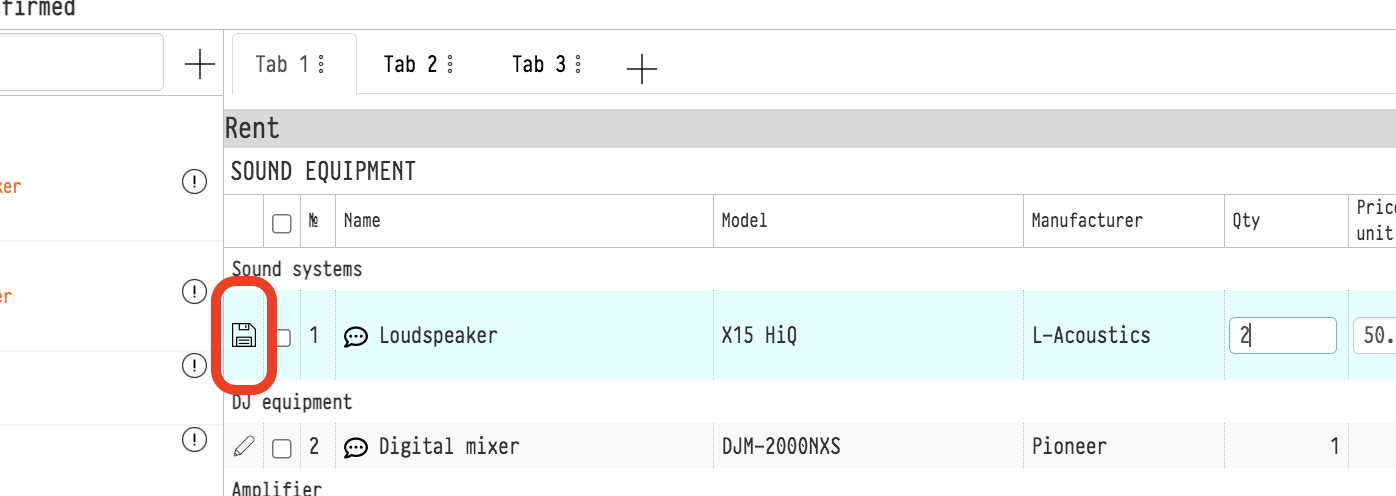
Now you can change the number of units in the project, set a new unit price, set a coefficient and a discount for this entry. After making the changes, click the floppy disk icon (where the pencil was), and the updated figures appear in the totals.
Editing subsection parameters
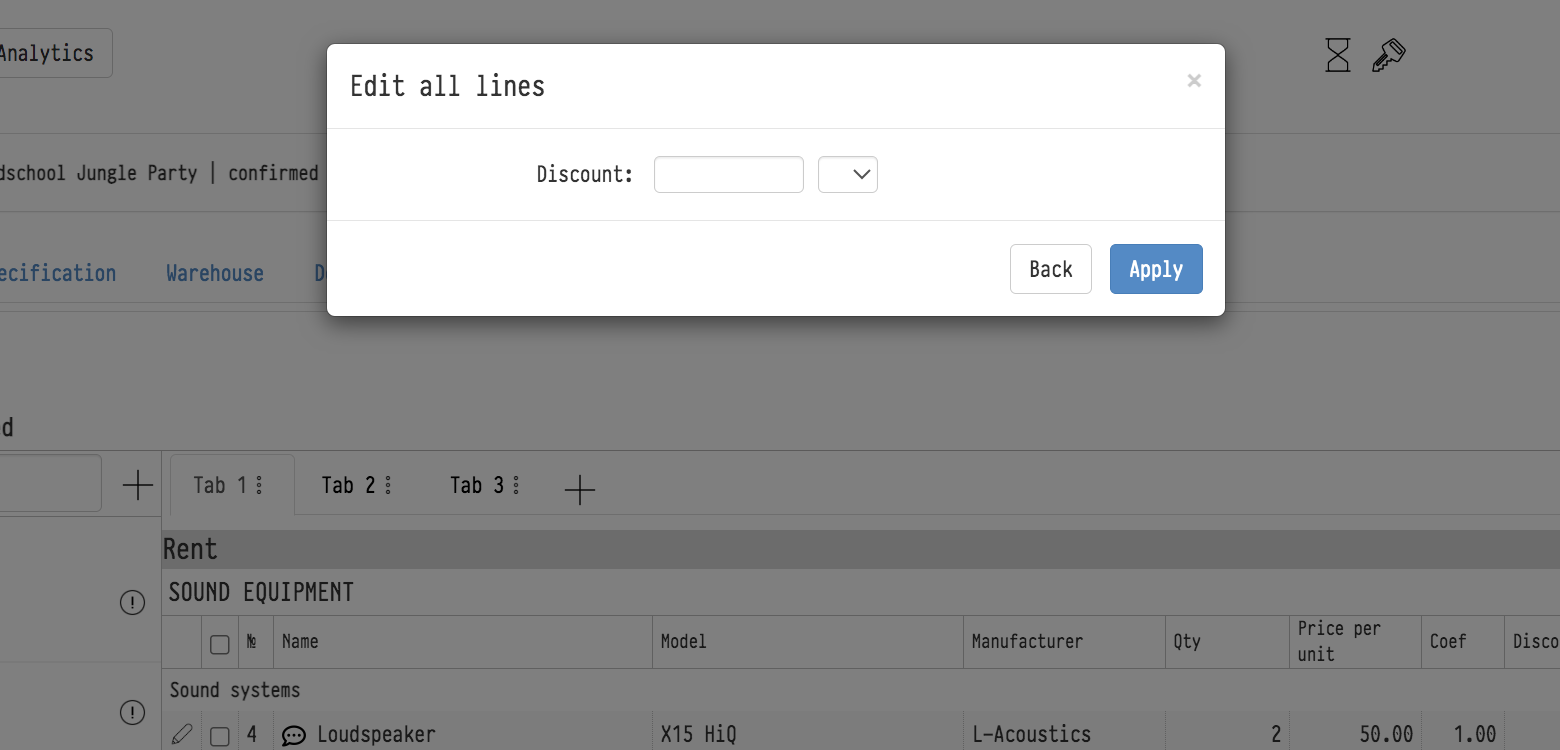
In any subsection, the "Coefficient" and "Discount" column titles are clickable. Click either of them to open a window where you can change these parameters for all rows of the subsection at once.
Renaming sections and subsections
In an estimate, sections and subsections are by default named as in the catalog. But the internal name does not always suit the client: for example, the catalog section is "Sound", and in the quotation you want to write "Sound equipment for the main stage". You can change the name of a section or subsection in this estimate only; the catalog does not change.
Click the pencil icon to the left of the section or subsection name in the estimate sheet.
In the "Editing" window, choose "text" in the "Name type" field.
Enter the new name in the "Name" field and click "Save".
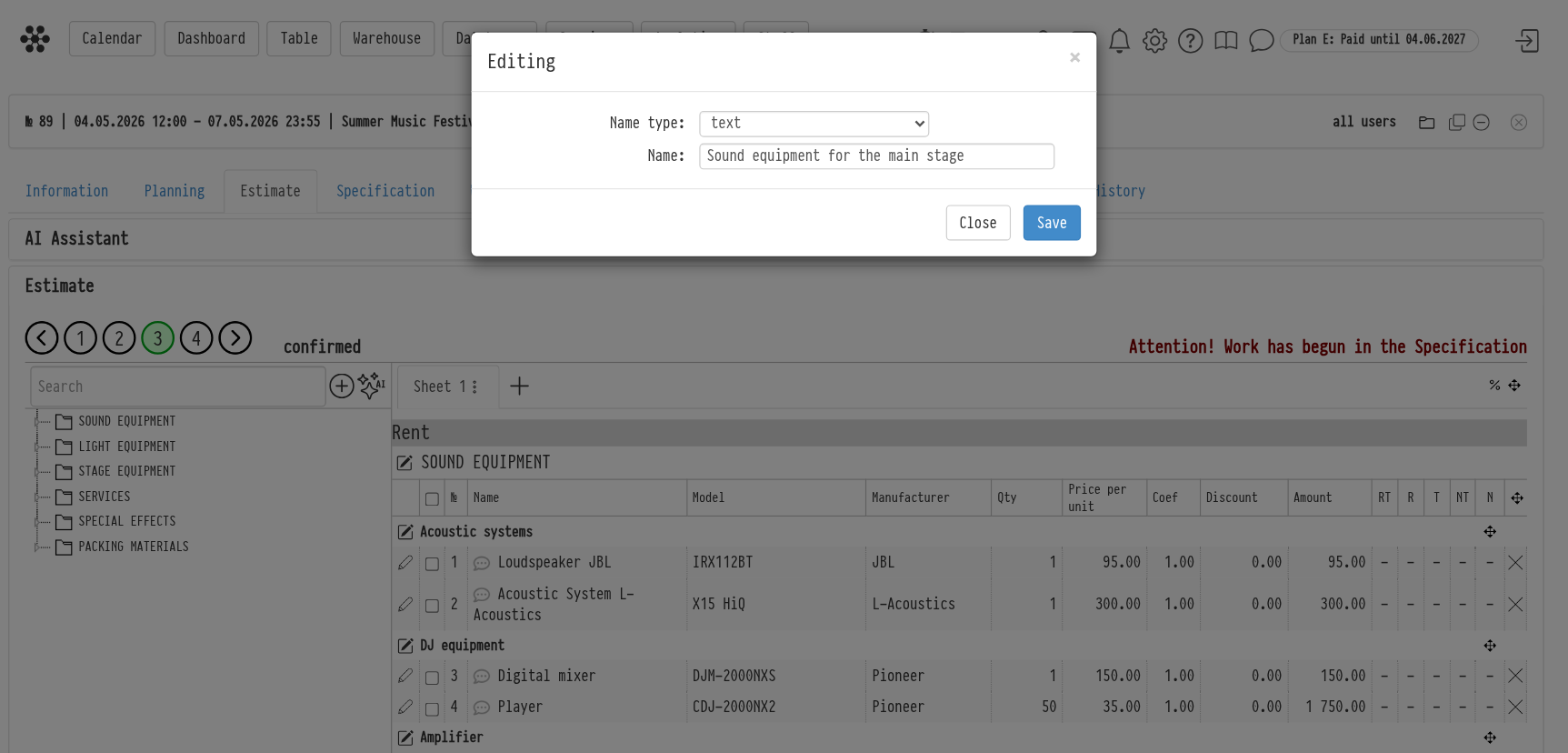
The new name applies only to this estimate sheet. It is shown in the quotation and in the Excel export of the estimate. In the estimate itself, the catalog name stays next to it in a pale font, so you can see which section it is.
To return the catalog name, open the same window and choose "from catalog" in "Name type".
Please note. Only employees with full access to project prices (the "Prices" block in the access template) see the pencil icon.
Order of rows, subsections and sections
You can change the order manually if the catalog sorting is set to "By Positioning": gear icon "Settings" → "System" → "Catalog", the "Sorting" field. With "By Name" sorting there are no move icons in the estimate. You also need "full access" to "Parameters" in the "Estimate" block of the access template, and the current estimate status needs to allow editing.
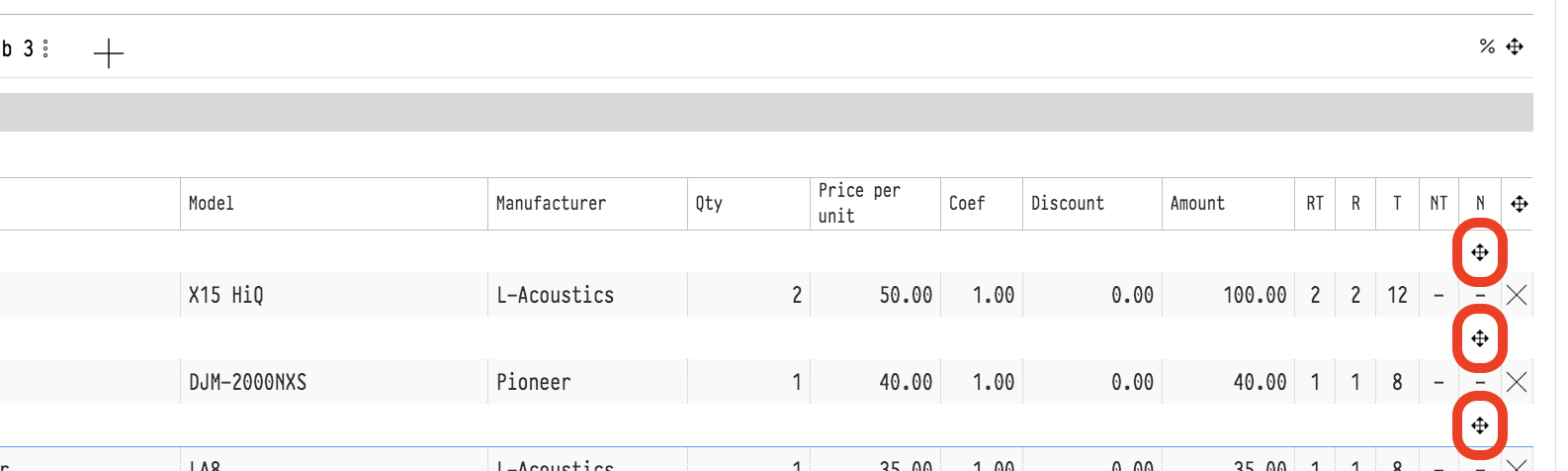
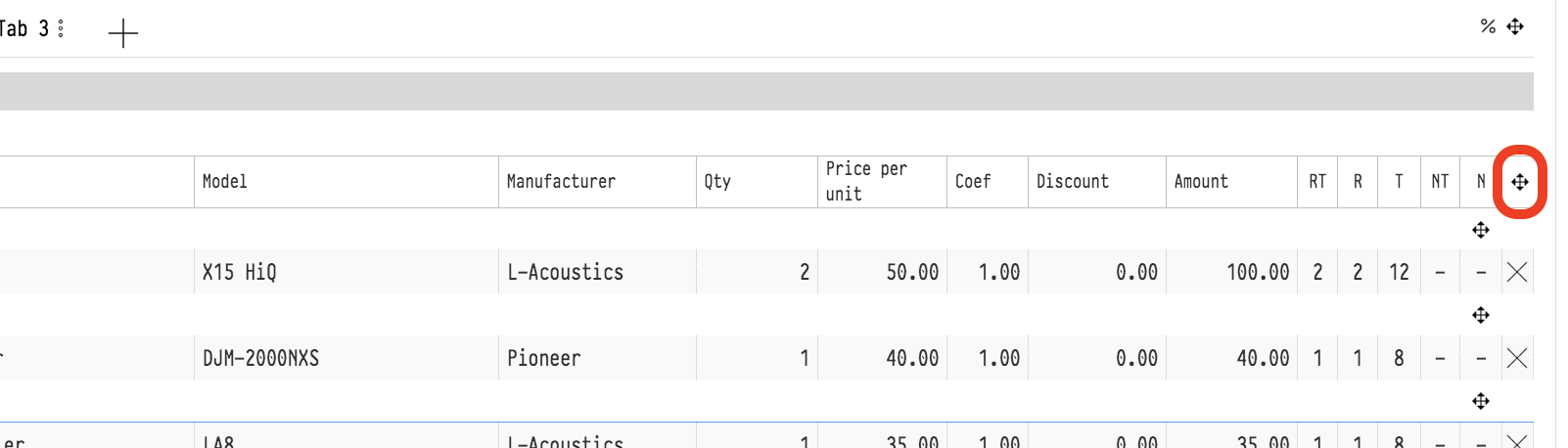
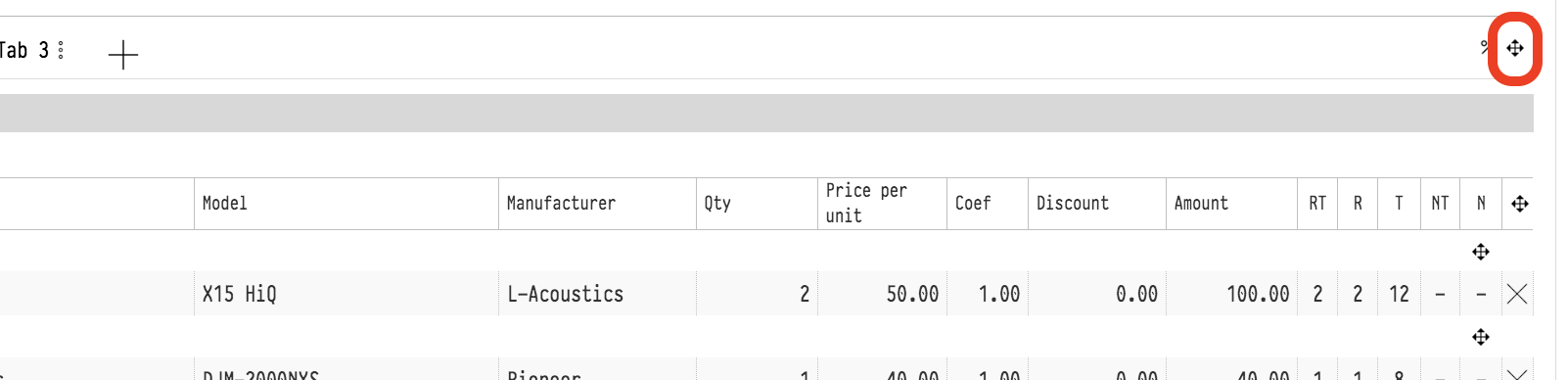
The move icon is the "cross-arrow". Click it, drag the rows with the mouse and click the icon again to turn the mode off. The new order is saved right away.
Rows inside a subsection: the icon in the subsection header (tooltip "entry transfer").
Subsections inside a section: the icon in the section row (tooltip "category transfer").
Sections on a sheet: the icon to the right of the sheet names (tooltip "Section Transfer").
To return the catalog order, use "Organize" in the sheet menu, see Arrange.
Order of estimate sheets
To swap sheets, drag the sheet tab left or right with the mouse. You do not need a separate icon for this.