Consumable SKU
A consumable SKU is different from an equipment SKU. For equipment, an SKU is the unique number of one physical item. For example, you have the entry "JBL SRX712 loudspeaker" with 12 units. So you create 12 SKUs for this entry in the Golova catalog, and you can track the movement and history of each unit.
For consumables this is too much: you are unlikely to track every AA battery, pair of work gloves or box of screws one by one. So for a consumable you can create one SKU with a quantity that changes.
Example.
You have two 200 l barrels of glycerine in the warehouse, each with an SKU barcode label. Before a project you pour 5 l from one barrel into a canister. In the catalog this looks as follows. There is an entry of the "Consumable" type called "Glycerine" with litres (l) as the unit of measurement. It has two SKUs, one for each barrel. The quantity in the SKU card is 200. When you send it to the project, you enter 5. When the project is over, the quantity in the SKU becomes 195, because the consumable is considered used up on the project.
By default the system creates a consumable SKU with a quantity of one, to avoid mistakes. Once again: a consumable SKU is one number for a group of items, and the number of items is set in the SKU card.
Consumable SKU card
The card has the "Information", "Fields", "Files", "Notes" and "Monetary transactions" tabs. The "Fields" tab is visible to employees with full access to the catalog. Most fields are the same as in the Equipment SKU card. The main difference is that a consumable has a quantity, and you can perform actions with it.
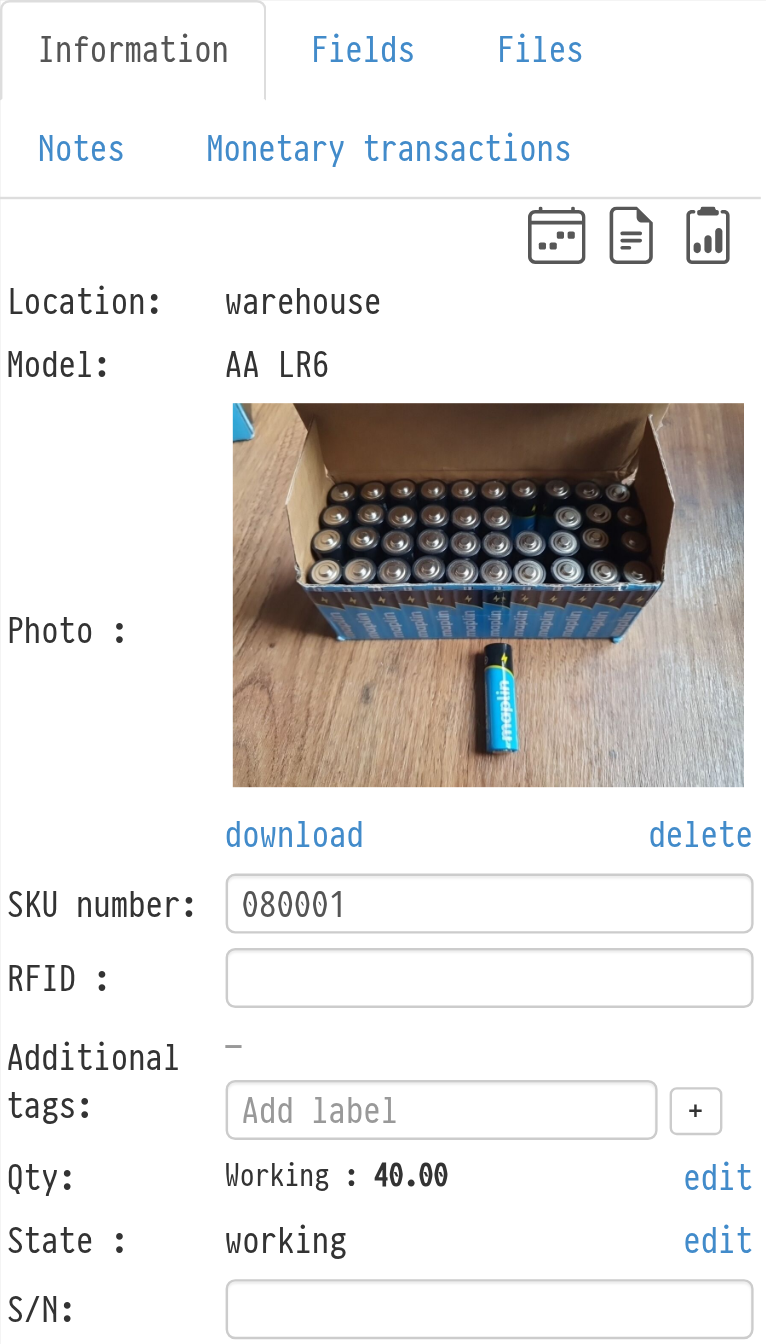
Quantity
The "Qty" row shows how many units are working. If some units are moved to another state (for example "lost"), a breakdown by state and a "Total" line appear under this number.
To change the quantity, click "edit" in the "Qty" row. The "Quantity management" window opens. Choose the "Action", fill in the fields and click "Perform".
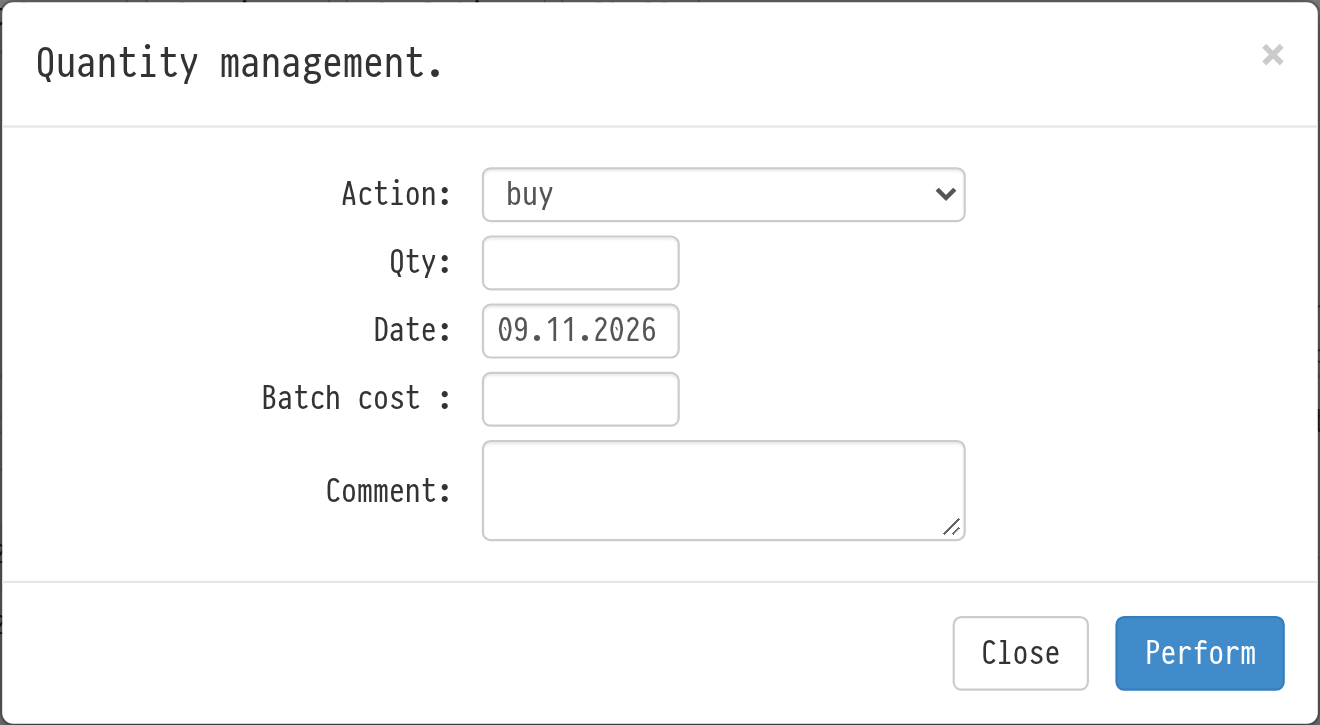
"buy" adds to the stock. Enter "Qty", "Date" and "Batch cost". The quantity in the SKU goes up, and a purchase record appears on the "Monetary transactions" tab.
"write off" reduces the quantity. Enter "Qty" and "Date". The written-off quantity appears in the "Written off" list in the top menu of the catalog.
"move" transfers quantity to another SKU of the same entry (for example, you pour 10 litres from the barrel with SKU 001 into the barrel with SKU 002). Enter "Qty" and choose the other SKU. The quantity changes in both SKUs.
"sell" sells part of the quantity. Enter "Qty", "Date", "Purchaser" and "Sale price". The sale appears in the SKU history and in the "Sold" list in the top menu of the catalog.
You can add a "Comment" to any action.
State
If part of a consumable is lost, you can mark this without changing the whole quantity: click "edit" in the "State" row, choose "lost" and enter how many units are lost. These units are moved to a separate "Extracted units" list. See the article State management for consumables.
Monetary transactions
The "Monetary transactions" tab collects all purchases of the SKU: "Date", "Qty", "Cost", "Comment" and a "Subtotal" row. Records are added automatically when the SKU is created and when you use the "buy" action. You can also add, edit or delete a record by hand. A manual record does not change the quantity in stock, so it is a handy way to record a batch that is paid for in parts. The Purchases report is built from these records.