Purchases report
The Purchases report collects all purchases of equipment, accessories and consumables: when they were made and for what amount. The report takes its data from the "Monetary transactions" tab in the SKU cards.
Where the data comes from
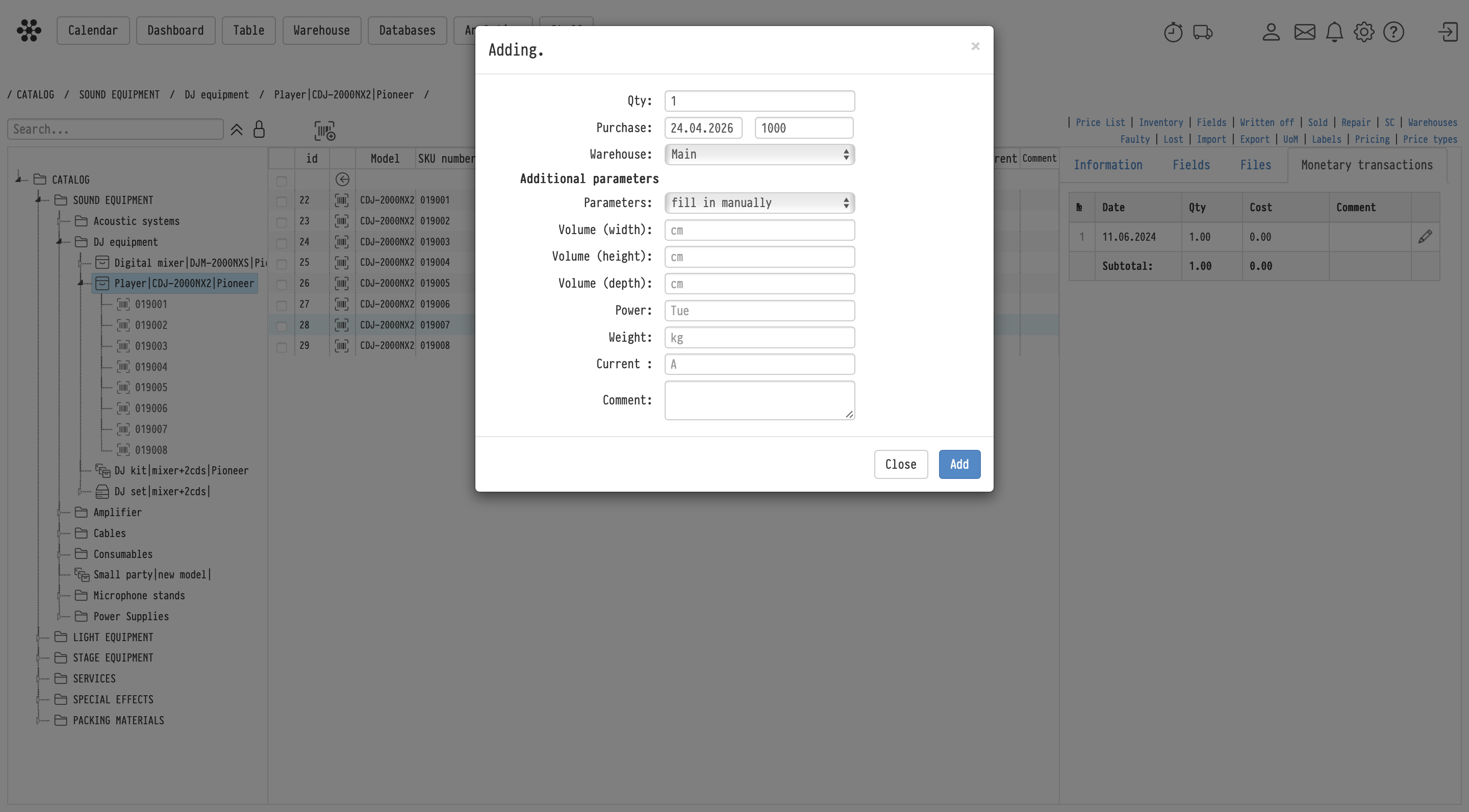
When you add an SKU to the catalog, you enter the purchase date and the cost. After that, a purchase record appears on the "Monetary transactions" tab of the SKU card. The record is created even if the cost is not entered, with a zero amount.
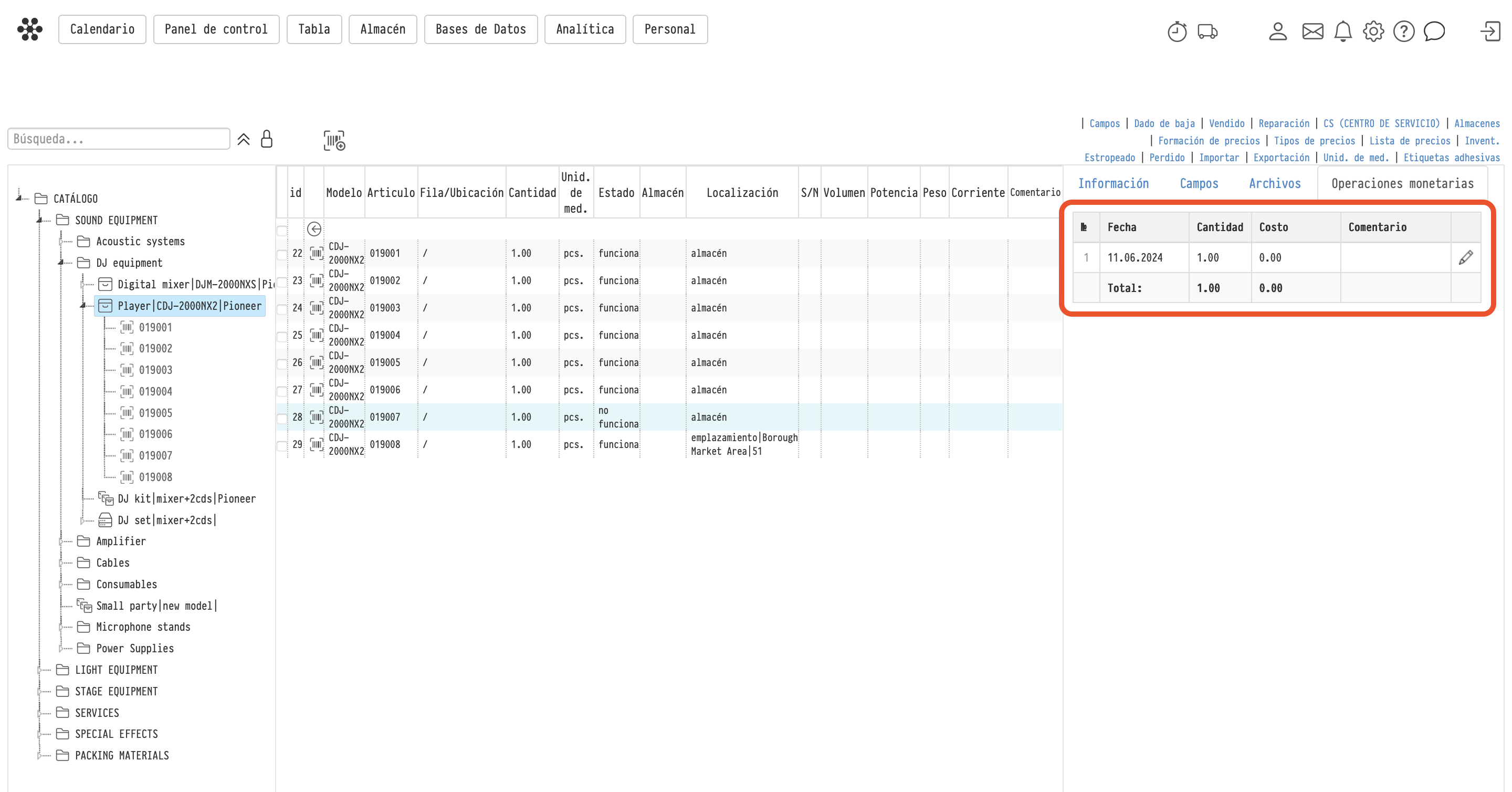
Equipment
each unit is a separate SKU, so adding several units creates several SKUs;
each SKU has its own purchase record, and the cost in it is per unit.
Accessories and consumables
one SKU can contain any number of units;
when you top up an SKU (in the "Qty" row click "edit", in the "Quantity management" window select the "buy" action and enter "Qty", "Date" and "Batch cost"), a new purchase record is created;
each record is a batch: it has the number of units and the cost of the whole batch.
The "Monetary transactions" tab
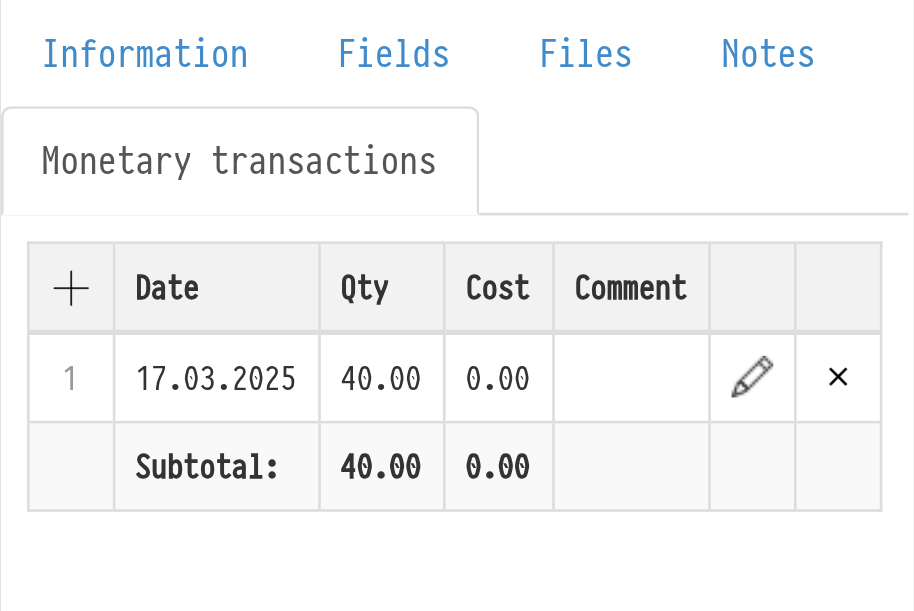
The tab is in the SKU card of equipment, accessories and consumables. The table has the "Date", "Qty", "Cost" and "Comment" columns, and a "Subtotal" row at the bottom.
For accessories and consumables you can add a record by hand (the "Add a new monetary transaction" icon in the table header), edit it (pencil) and delete it.
For equipment you can only edit a record: date, cost and comment. The quantity is always 1. If an equipment SKU was added by mistake, delete the SKU itself.
A monetary transaction added by hand does not change the quantity in the warehouse. This way you can record payment in parts: for example, enter the second part of the payment for a batch you have already bought.
Employees with full access to the catalog can add, edit and delete records. With read-only access, the tab is shown without buttons.
Where to find the report
In the top menu, open "Analytics" → "Purchases report".
Please note. The item is visible if the employee's access template has "show" selected for the "Purchases report" row on the "Analytics" tab.
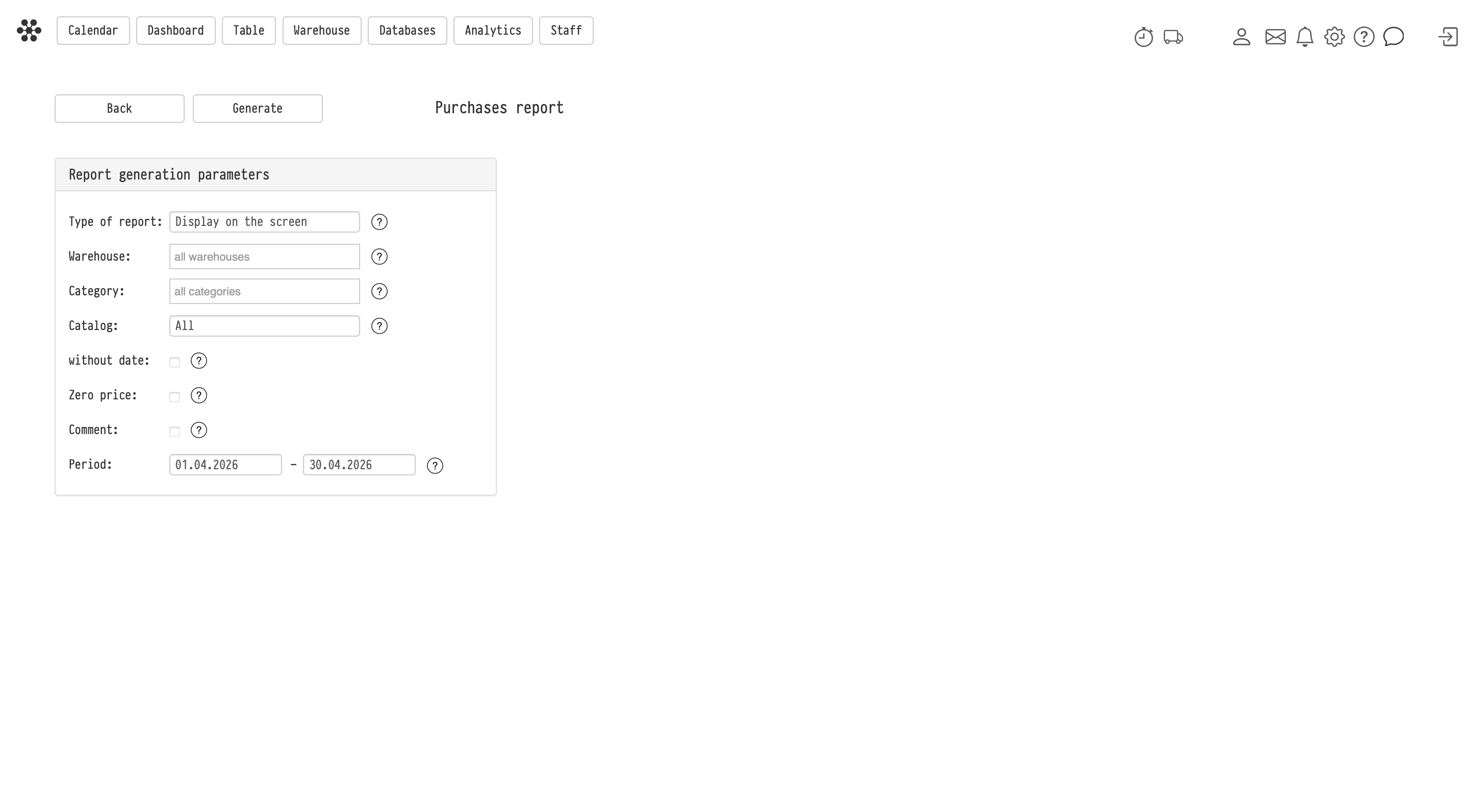
Report generation parameters
In the "Report generation parameters" block you can set:
"Type of report": "Display on the screen" (the report opens in a new tab) or "Download XLS";
"Warehouse": "all warehouses", "Without warehouse" or a specific warehouse from the "Warehouse" field of the SKU card;
"Category": "all categories", "Equipment", "Accessories" or "Consumables";
"Catalog": "All" or "Selectively": in the second case, check sections and entries in the catalog tree; there is a search above the tree;
"Period": purchase dates from and to;
"without date": show purchases without a purchase date that have a price;
"Zero price": show purchases with a zero amount;
"Comment": add the comment from monetary transactions to the report.
Then click "Generate".
What is in the report
Table columns: "SKU number", "Name", "Model", "Type", "Warehouse", "Purchase date", "Price per unit", "Quantity", "Total Amount" and, if the parameter is on, "Comment". At the bottom there is a "Subtotal" row.
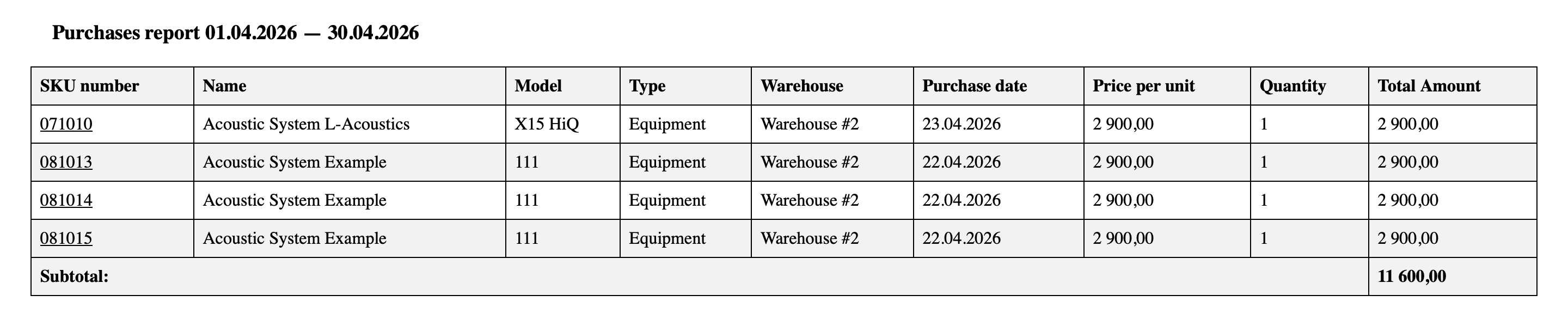
Each row is one purchase. For equipment it is one row per SKU; for accessories and consumables one SKU can have several rows, one per batch.
The SKU number in the report is a link: it opens the catalog in a new tab on this SKU, where you can correct the purchase data. If the catalog section is not available to you or the SKU has been deleted, the number is shown without a link.
What it is useful for
calculate equipment costs for a period;
see the purchase history of an entry or a warehouse;
check how consumables were topped up;
prepare data for accounting.