On the project's "Print" tab, you can download service documents for the project: the timeline, contacts, lists of staff and vehicles, access passes, tasks and a summary table.
Currency
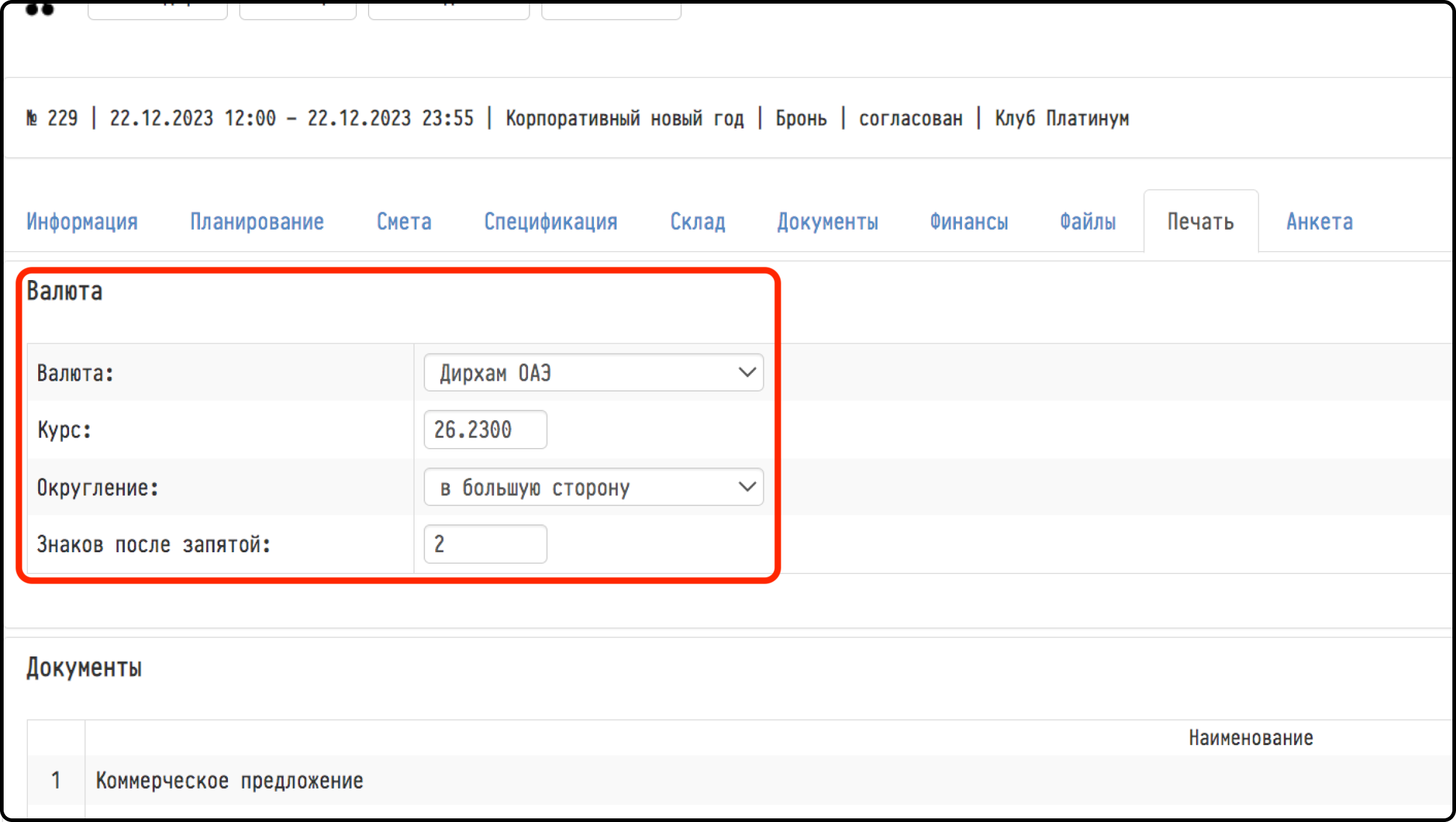
At the top of the tab there is the "Currency" block. Here you choose the currency in which the estimate and the quotation of this project are printed. By default, it is the company currency from the global settings: the "Settings" gear → "System" → "Common".
If you choose another currency, three more fields appear: "Exchange rate": how many units of the main currency one unit of the selected currency costs (you can correct it manually); "Rounding": "standard", "upward adjustment" or "downward adjustment"; "Decimal places": from −3 to 3. Changes are saved right away: amounts in the main currency are divided by the rate and rounded by these rules.
Please note. The "Currency" block is visible only to employees whose access template has "full access" selected for "Prices" in the "Estimate" block.
Documents
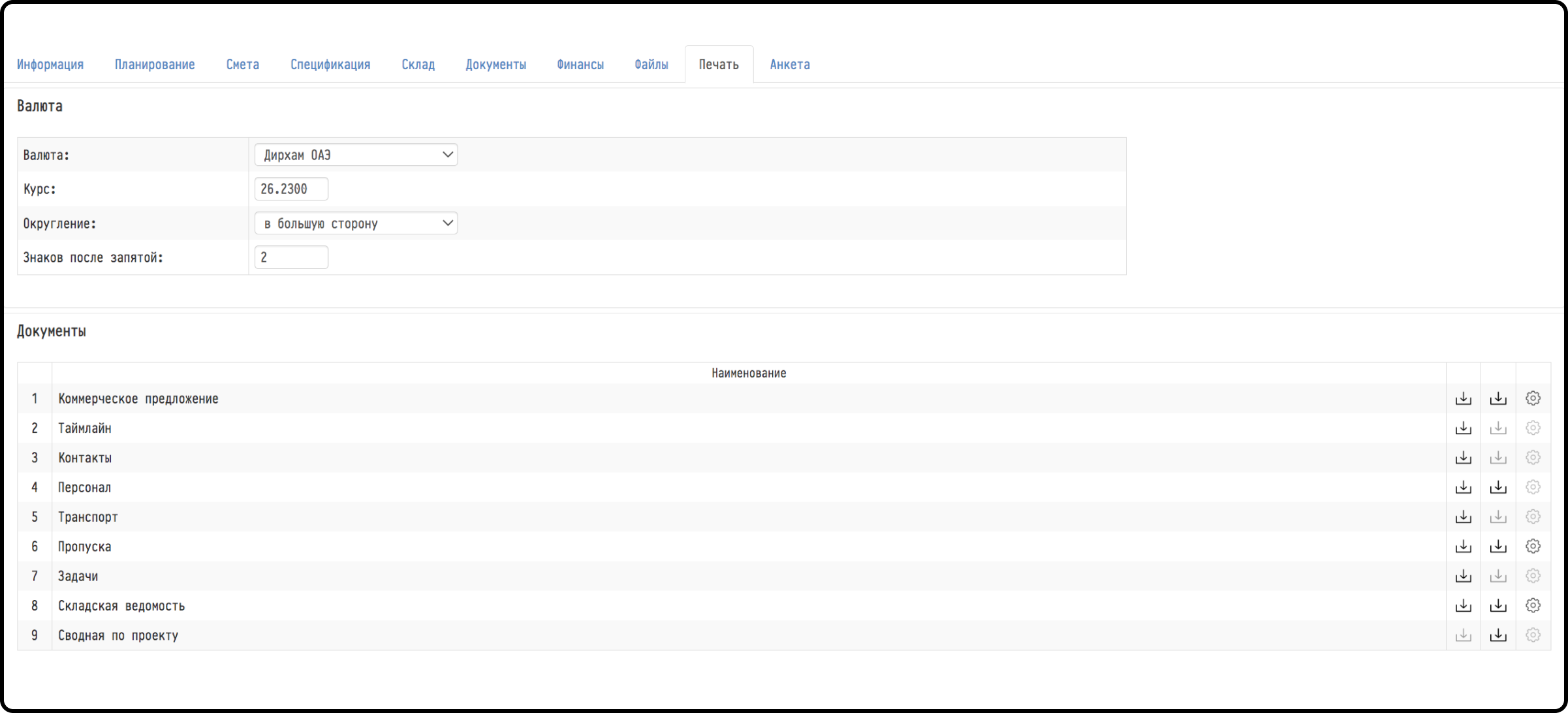
The "Documents" table has a row for each document. On the right of the row there are the "download PDF" and "download XLS" icons, "Save to Storage" and "parameters". If a format is not available for a document, its icon is pale.
"Timeline": PDF;
"Contacts": PDF;
"Staff": PDF and XLS;
"Vehicles": PDF;
"Access passes": PDF and XLS;
"Tasks": PDF;
"Project summary": XLS, without parameters.
Which rows you see depends on your access template and plan.
"Project summary" is a project summary in Excel. The first sheet has the project number and name, client, dates, contact person, venue and address, responsible persons by role, project status, and the estimate total broken down by sheet. Below are the finances in two columns, the expected and the actual result: income received, total expenses with a breakdown, net profit and profitability. The second sheet has the project management: role, employee, estimate sheet, percentage, planned amount and amount paid.
Saving to Storage
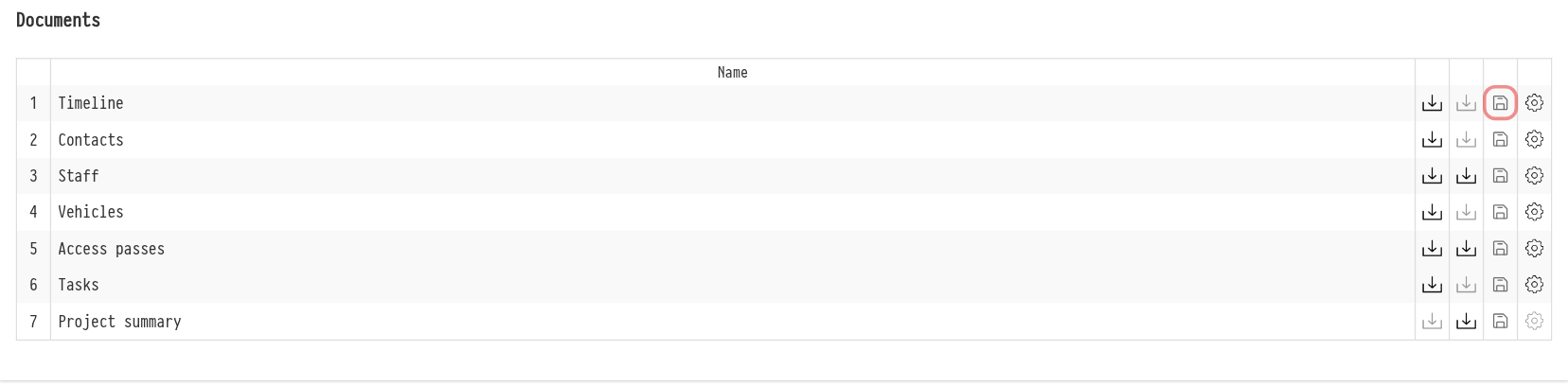
The "Save to Storage" icon (a floppy disk) in a document row saves the document with its current parameters to the project folder in Storage: "Other" → a subfolder named after the document. Documents are saved in the same formats in which you can download them: timeline, contacts, vehicles and tasks in PDF, staff and access passes in PDF and XLS, the project summary in XLS.
The icon is visible if the employee has access to Storage (access template, "Services" tab). See Saving documents to Storage.
Document parameters
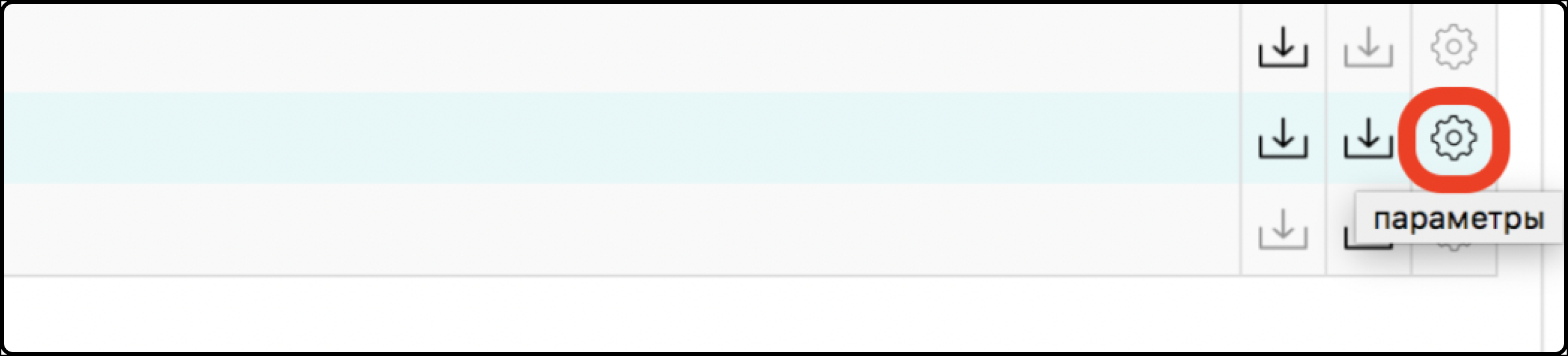
To set up the contents of a document, click "parameters" (the gear) in its row: the settings open below the row.
Each document has its own "Display" block:
"Timeline": "Table type" ("By date and tabs", "By tabs and date", "By tabs and phase", "Summary by date") and which sections to include: "Staff", "Managers", "Vehicles", "Tasks";
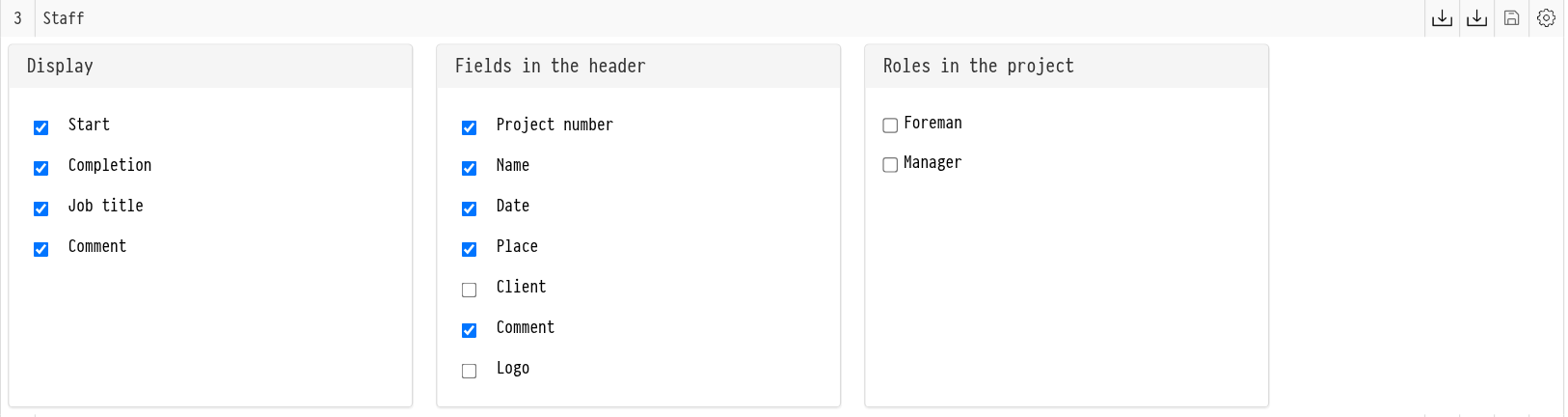
"Staff": which columns to show: "Start", "Completion", "Job title", "Comment";
"Access passes": whom to include: "Staff (ID document)", "Staff (passport)", "Staff (without ID)", "Vehicles".
Fields in the header
In the "Fields in the header" block, use checkboxes to choose what to show in the document header: "Project number", "Name", "Date", "Place", "Client", "Comment", "Logo".
The "Project number" and "Name" fields have appeared in the header of all documents on this tab that have parameters. Both checkboxes are on by default, and your choice for them is remembered.
Roles in the project
In the "Roles in the project" block, select the roles to show in the document header, for example the manager or the foreman. The document will show the name of the employee in this role. If you also select "Contact" under a role, their phone number is shown next to the name. You can turn on the phone for some roles only. If the project has no roles, the block says so.