Sublease
The "Sublease" block on the "Specification" tab is for entries you take from other companies. They come here from the "Shortage" block when you decide not to take an entry from your own warehouse but to sublease it.
List of entries
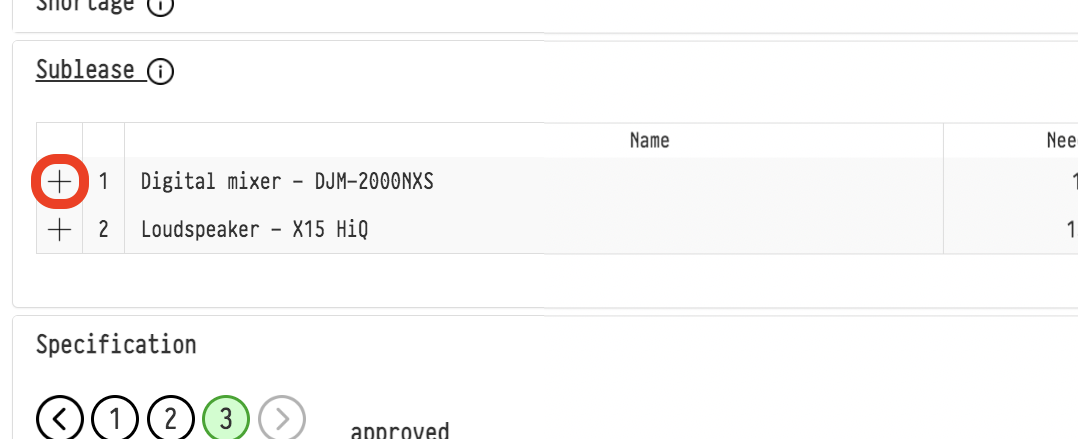
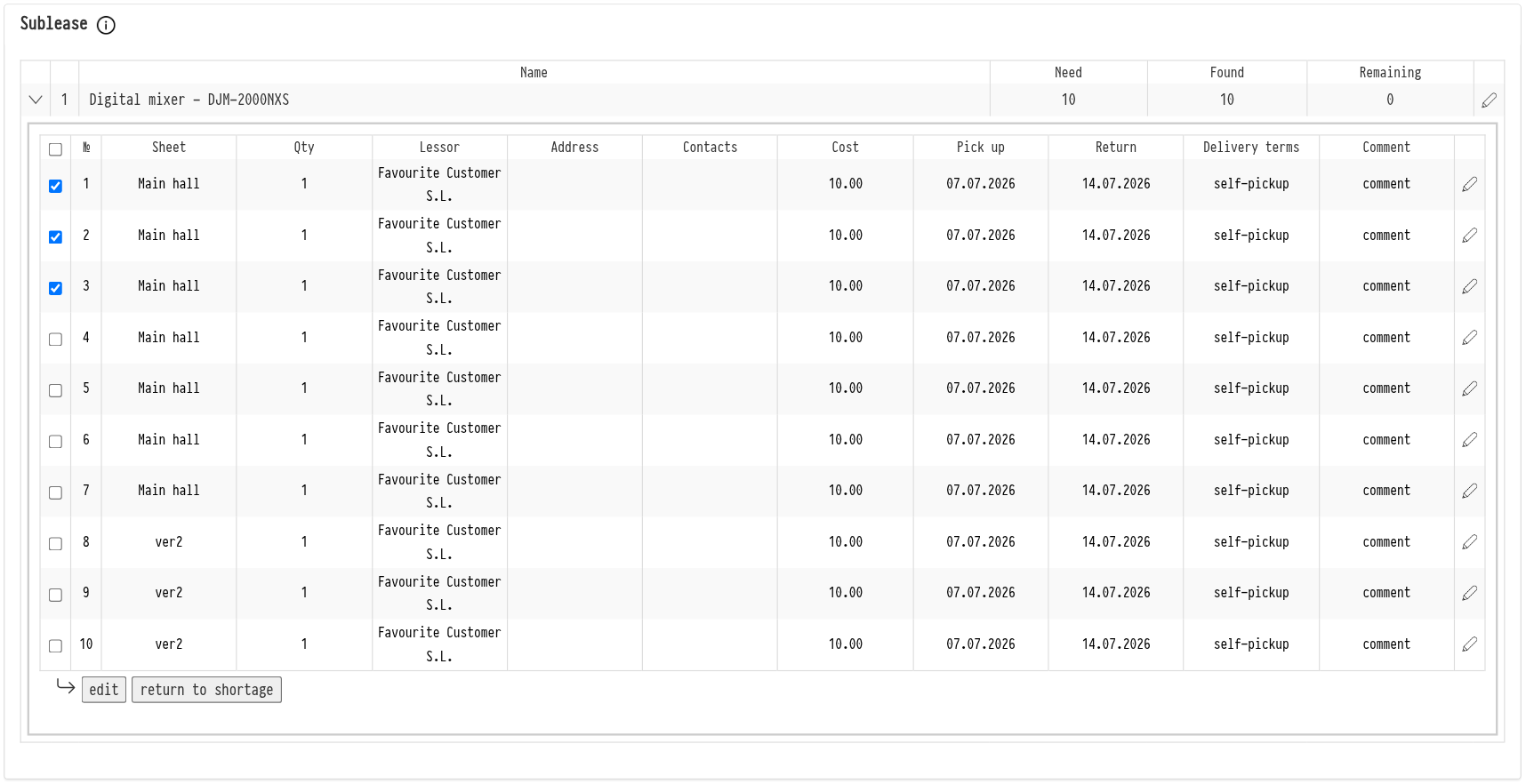
The table shows the subleased entries: "Name", "Need" (how many are required), "Found" (for how many a lessor has been specified) and "Remaining" (for how many not yet).
Click the arrow to the left of an entry to expand its sublease rows.
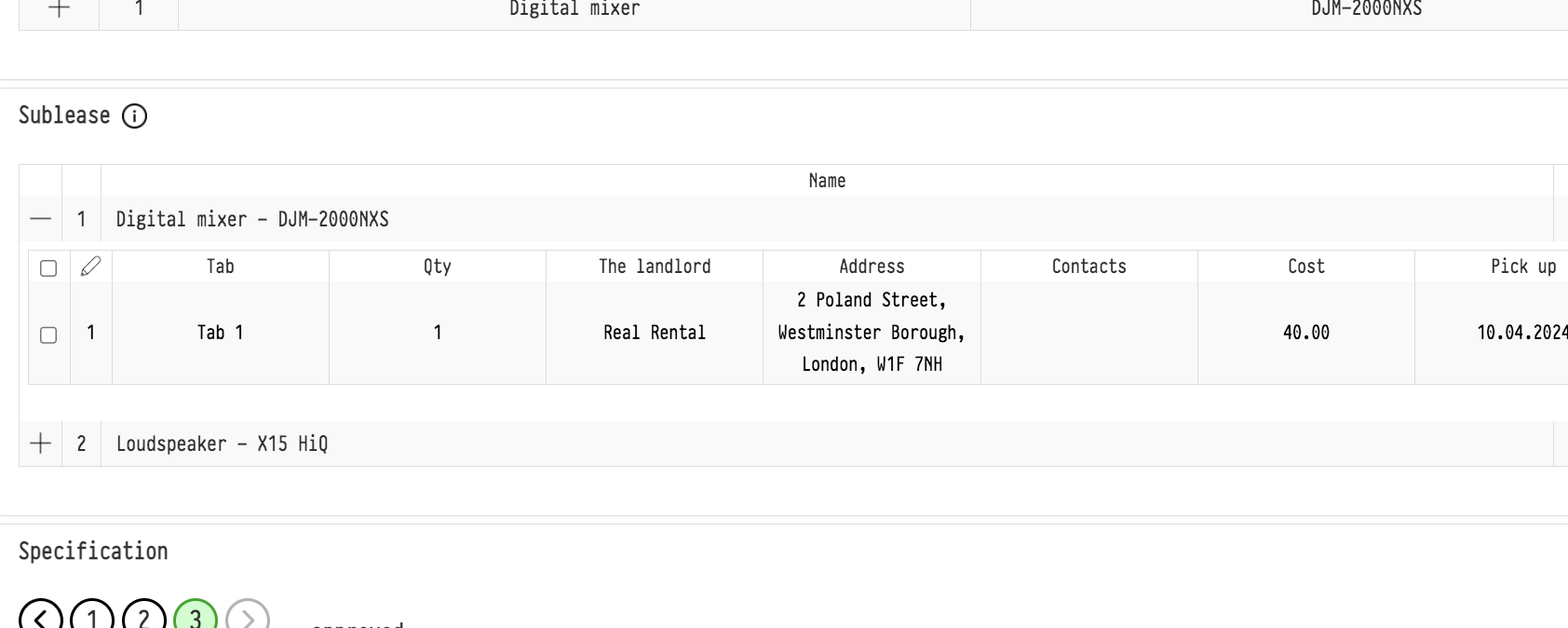
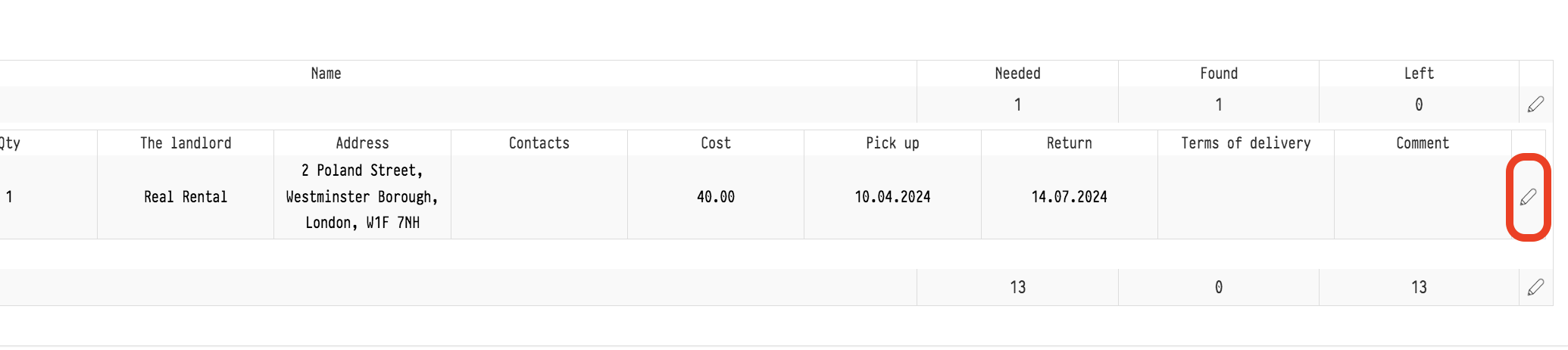
Each row shows "Sheet" (the specification sheet), "Qty", "Lessor", its "Address" and "Contacts", "Cost", the "Pick up" and "Return" dates, "Delivery terms" and "Comment". If there are many rows, they are split into pages: choose "Lines per page" and use the "First", "Previous", "Next", "Last" buttons.
Sublease terms for one row
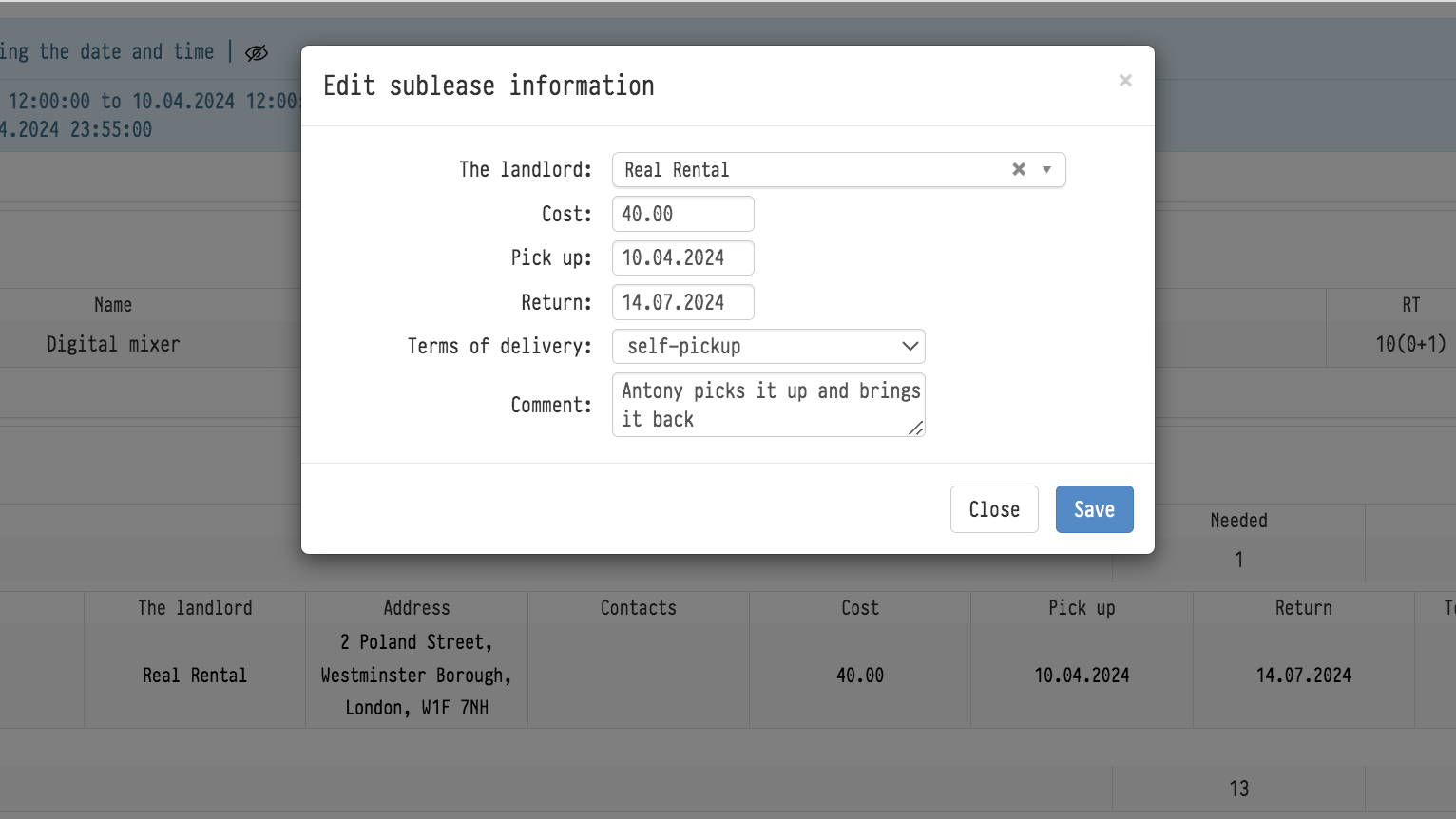
Click the pencil icon  at the end of the row. In the "Editing information about sublease" window, specify:
"Lessor": the list contains only counterparties marked "Available for sublease" in their card (see Adding and editing counterparties);
"Cost";
"Pick up" and "Return": the dates when the equipment is picked up from the lessor and returned;
"Delivery terms": "self-pickup", "delivery to the warehouse" or "delivery to the venue";
"Comment".
Several rows at once
If you take the same entry from one lessor on the same terms, you do not need to fill in each row separately.
Expand the entry and select the rows you need with checkboxes. The checkbox in the table title selects all rows at once.
Click the "edit" button under the table.
Fill in the sublease terms in the window and save: they apply to all selected rows.
Return to shortage
If you take the entry from your own warehouse after all (for example, your own devices have become free), the sublease is no longer needed. Select the rows, click "return to shortage" and confirm. The rows leave the "Sublease" block and go back to the "Shortage" block, where you can assign your own SKUs to them or choose sublease again.
Please note. The "return to shortage" button becomes active when at least one row is selected. Employees with "full access" to the project "Sublease" block in their access template can change sublease terms and return rows to the shortage; other employees do not see the buttons and edit icons.