RFID tags of SKUs
You can stick passive RFID tags on your equipment and link them to SKUs in the catalog. Then a SKU is found and marked without looking for its barcode: just bring the unit to an antenna or drive it through the warehouse gates.
How to connect receivers (RFID readers) and warehouse stations is described in the article "RFID". This article explains how to assign tags to SKUs.
Tags in the SKU card
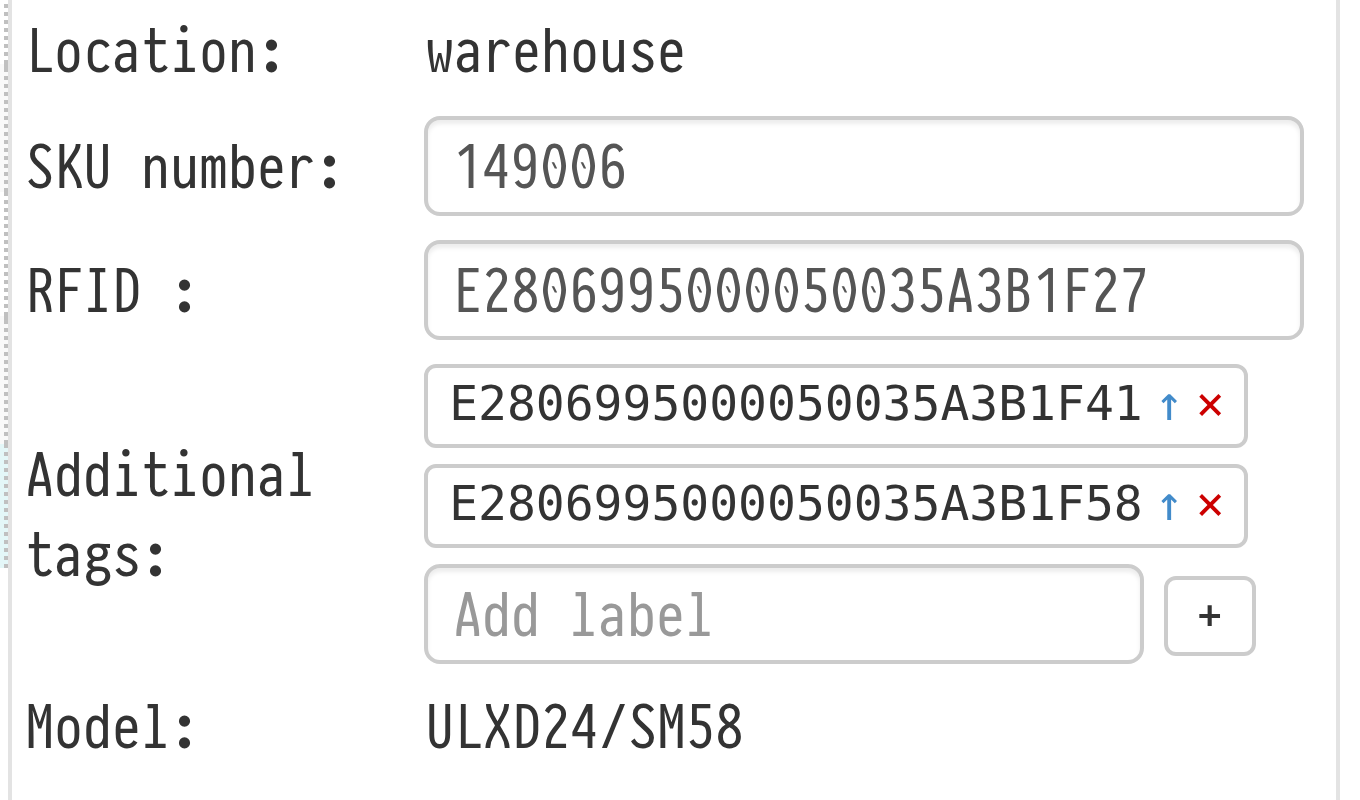
Open a SKU in the catalog. Its card has two rows:
RFID: the main tag of the SKU. You can type the number by hand or read it with the gate antenna (see below). The value is saved automatically;
Additional tags: the other tags of the same SKU. They are useful when one unit carries several tags: for example, a cable with tags on both ends, or a large case with tags on different sides. Type the number in the "Add label" field and click "+".
Each additional tag has two buttons: the arrow "Make primary" and the cross "Remove tag". If you remove the main tag, the first additional tag becomes the main one.
Employees with full access to the catalog can change tags.
Assigning a tag with the gate antenna
If the RFID settings have a receiver marked as gates, a button with an antenna appears next to the "RFID" field: "Assign RFID tag via the gate antennas". Click it and bring one tag to the antenna: its number is filled in automatically.
Please note. Bring tags one at a time. If the antenna reads several tags at once, the system asks you to leave only one tag near the antenna.
The "all" button in the "Additional tags" row reads all tags brought to the antenna at once. You can then add them to the SKU or replace the old additional tags with them.
Assigning tags to many SKUs
To tag many SKUs at once, tick them in the catalog table (the SKU rows) and click the antenna icon "Assign RFID tags" above the table. The icon is visible when gates are connected.
A window opens with the list of selected SKUs and a "read / total" counter. Bring the tags to the antenna one at a time, in the order of the list: each tag that is read is placed next to the next SKU. The "Antenna power" slider with the "Apply" button reduces the reading range so that the antenna does not catch neighbouring tags. When there are as many tags as SKUs, click "Assign".
Rules
A tag belongs to one SKU only. If you assign a tag to another SKU, it is removed from the previous one.
A SKU can have any number of tags. However many tags of one SKU the antenna reads, it counts as one unit and one action.
When a SKU is sold, written off or deleted, its tags are no longer found by search. You can stick them on another unit and assign them again.
Where tags work
Catalog search. You can type a tag number in the search: the SKU found is marked "(RFID)".
Project warehouse and mass return. When you ship and receive equipment, you can choose RFID scanning: the SKUs that are read are marked in the list. See "Mass return of equipment".
Inventory audit. Tags mark the SKUs found, and a separate button reads the warehouse with the inventory antennas. See "Inventory audit".
Mobile app. On the "Information" page you can open a SKU card by reading its tag with a terminal that has a built-in RFID module. See "Information".