Project timeline
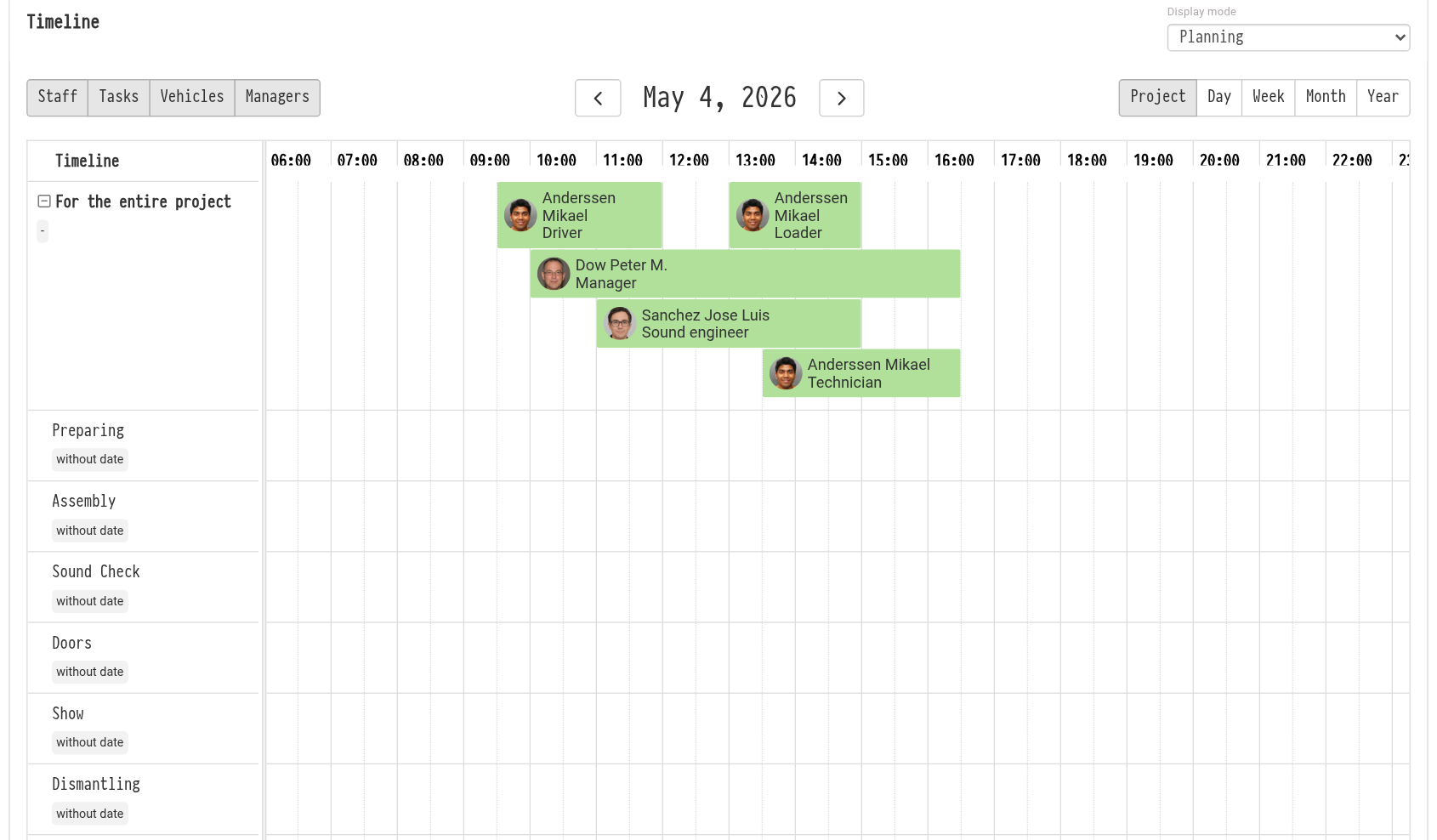
The "Timeline" block on the "Planning" tab shows the project on a time scale: phases (preparing, assembly, sound check, show, dismantling), people, vehicles and tasks. Here it is easy to arrange the phases, see who works when and notice overlaps at once.
The other blocks of the tab, "Staff", "Project management", "Vehicles" and "Tasks", are described in Planning. Everything you add on the chart gets into these blocks, and the other way round.
How the chart is arranged
The rows of the chart are on the left:
"For the entire project": phases common to the whole project;
one row for each active estimate sheet: the phases of that sheet. This is handy when the sheets are different halls or venues: each has its own sound check and its own assembly.
The phases of a project or sheet go under its row. The start and end are shown next to the phase name; a phase without time shows "without date". For the "For the entire project" row, the period is calculated automatically: from the start of the earliest phase to the end of the latest one.
Phases within a row are sorted by start time, the earliest first. Phases without a date are at the end of the list.
The default phases for new projects are set in the settings: gear "Settings" → "System" → "Project", the "Timeline setup" card. More: Project.
The scale is selected above the chart on the right: "Project" (or "10 days" if the project is longer), "Day", "Week", "Month", "Year". The arrows on both sides of the date scroll the period.
Phases
To arrange the phases, select "Editing phases" in the "Display mode" field to the right of the block title.
Add a phase: select a time range with the mouse in the project or sheet row and choose "Add phase" in the menu that appears. The "Adding the timeline" window opens: the sheet the phase belongs to and the "Period" are already filled in from your selection, so you only need to enter the name and click "Create". You can also use the "Add phase" button above the chart.
Change a phase: select a time range in the phase row and choose "Edit phase". In the "Editing the timeline" window you can change the name and time or delete the phase.
You can move or stretch a phase with the mouse right on the chart.
If a phase ends on the next day, for example dismantling from 22:00 to 4:00, the scale shows it across midnight.
Please note. The "Editing phases" mode is available to employees whose access template has "full access" selected for the "Timeline" row on the "Project" tab. With "read-only", the chart can only be viewed.
Planning people, vehicles and tasks
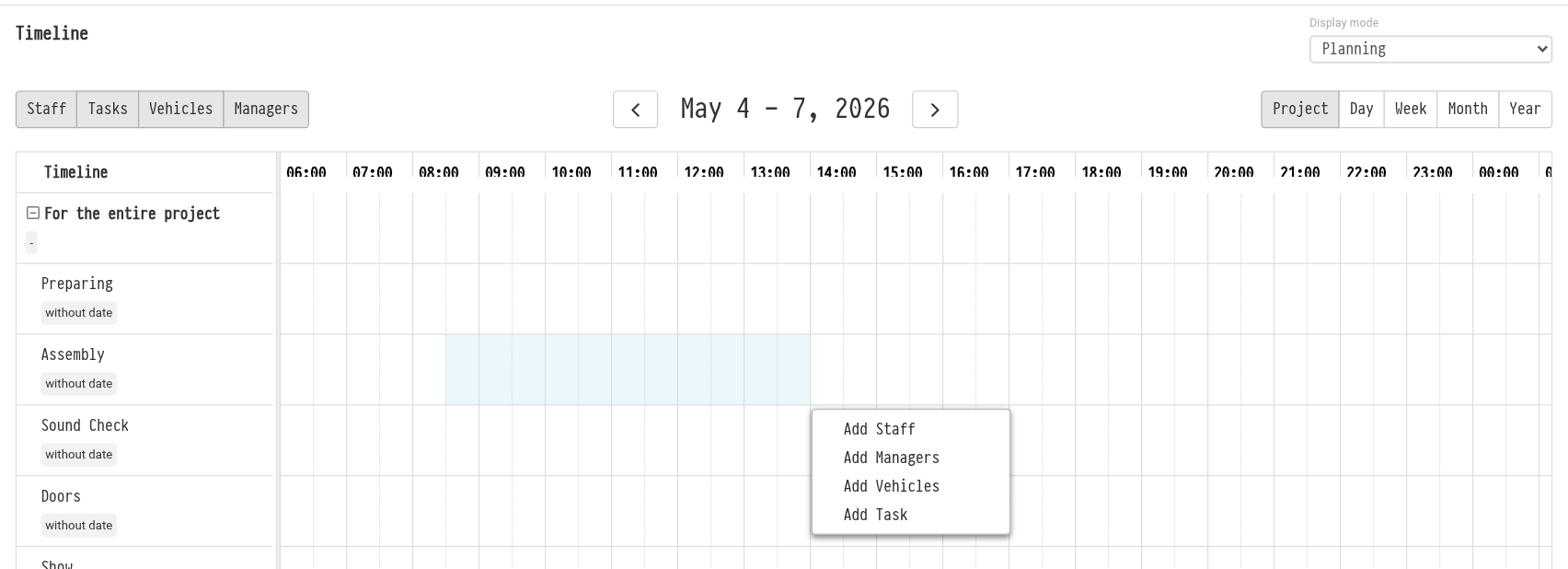
Switch back to the "Planning" mode. Select a time range with the mouse in the row of the phase or sheet you need, and a menu appears:
"Add Staff": the "Adding staff to the event" window opens. The sheet, the phase ("Timeline") and the "Period" are filled in from your selection. Select a specialty and an employee, or enter a "Quantity" if you do not know the exact people yet. Under the fields you see how busy the selected employee is, so you can tell at once whether they are free.
"Add Managers": assign a manager to the entire project or to one sheet. Managers take the whole time of the project or sheet, not a single shift.
"Add Vehicles": choose a vehicle for this time. The list shows the owner next to the vehicle number: the company or an employee.
"Add Task": create a task linked to the phase.
Everything you add appears on the chart as bars. Hover over a bar to see the details: employee, specialty, time, amount. You can move or stretch a bar with the mouse: the time of the shift, trip or task also changes in the blocks below.
The "Staff", "Vehicles", "Managers" and "Tasks" buttons on the left above the chart show and hide these bars. The buttons are visible if the employee's access template gives access to the corresponding planning block.
Summary table
Under the chart there is the "Summary table" block: the same phases, people, vehicles and tasks as a list. Choose the grouping in the "Table type" field:
"By date and tabs": by days, and within a day by estimate sheets;
"By tabs and date": by sheets, and within them by days;
"By tabs and phase": by sheets, and within them by phases;
"Summary by date": all phases of all sheets in order within each day.
The table has the columns "Name", "Start", "End", as well as "Employees", "Managers", "Vehicles" and "Tasks" if you have access to these blocks.
You can download the table as a PDF on the "Print" tab, in the "Timeline" row: there you choose the same table type and the sections to include. More: Print.
Key concepts
timeline, Gantt chart, project phases, editing phases, planning, staff, vehicles, managers, tasks, summary table