Importing and exporting employees
You can fill the "Employees" database from an Excel file instead of adding people one by one. You can also export the employees to Excel, for example to correct the data in a list and upload it back. Export and import use the same columns.
Where to find it
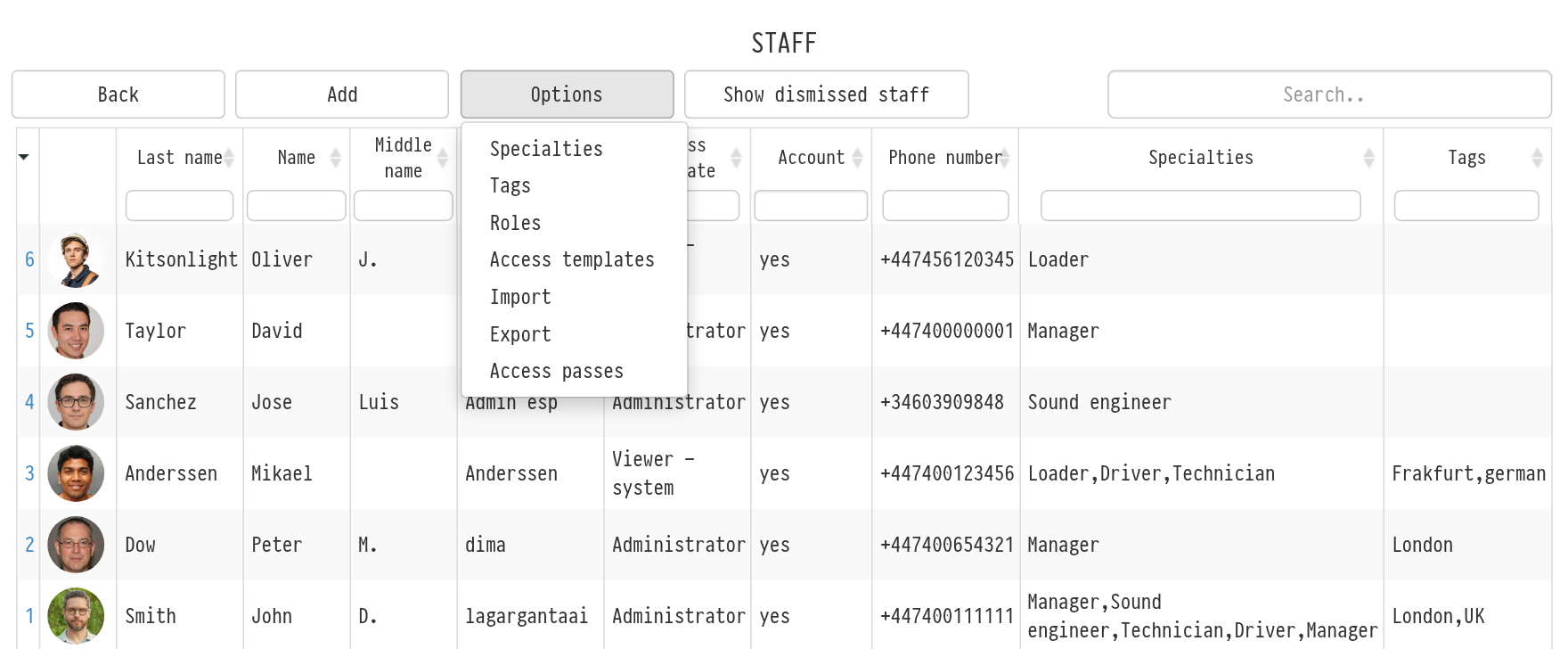
Open "Databases" → "Employees", click "Options" and select "Import" or "Export".
Please note. The "Options" button is visible to employees whose access template gives full access to the "Employees" database.
File columns
The first row of the file holds the headers, the data starts from the second row. The columns go in this order:
"Last name" (required), "Name", "Middle name";
ID document: series, number, date of birth, place of birth, issued by, address;
passport: last name, first name, number, date of issue, expiry date, issued by;
driving license: series, number, category, personal vehicle;
"Phone number" and "E-mail": write several values in one cell separated by a semicolon, for example "+34611222333;+34611222334";
"Comment".
The exact header names are in the sample file, see below. Do not change them: the system uses them to recognize the columns.
Export
On the "Staff export" page, tick the people you need in the "Staff" block (the checkbox in the block header selects everyone) and click "Download". If you do not tick anyone, all employees are exported. Dismissed employees are not exported.
A "Staff export" file with the date in its name is downloaded. Its columns are the same as the import columns, so you can edit the file and upload it back.
Import
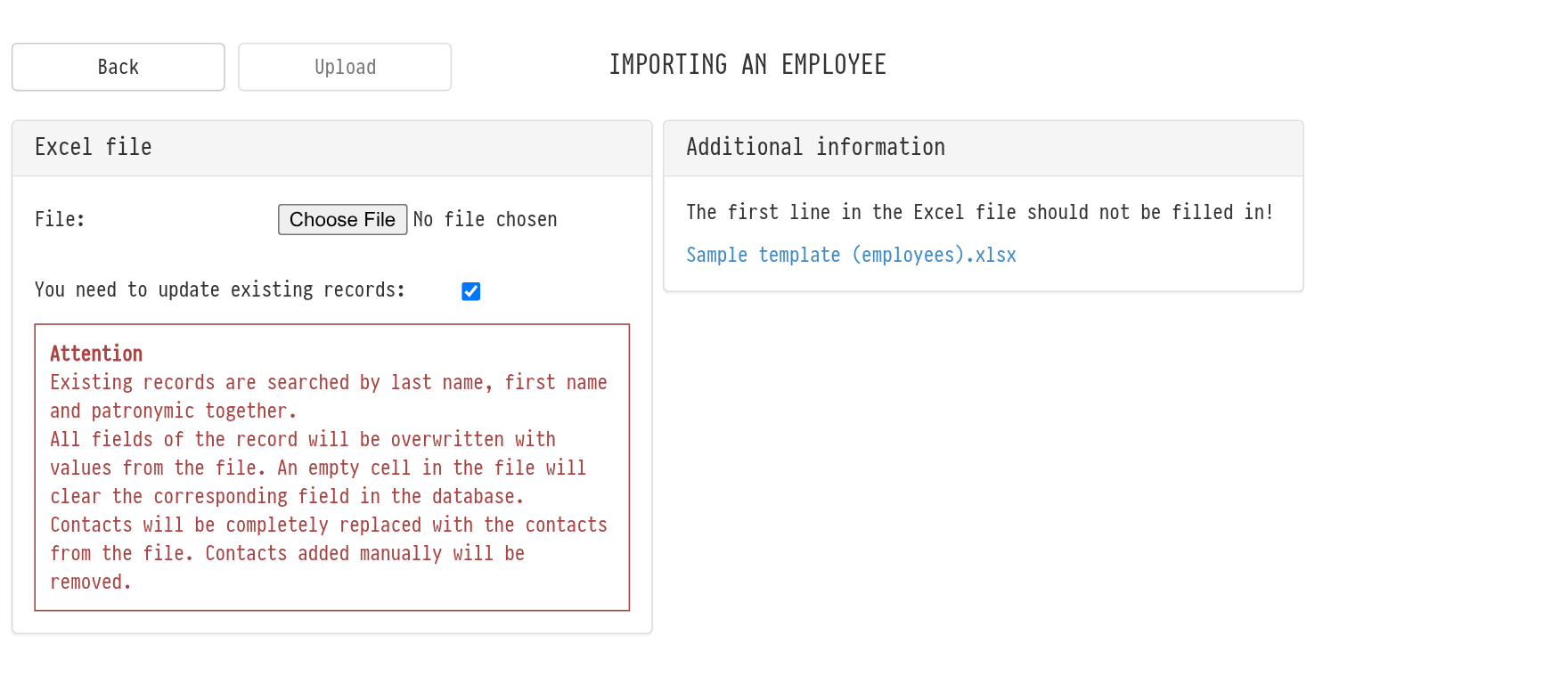
On the import page, download the sample with the "Sample template (employees).xlsx" link in the "Additional information" block. It already contains the headers and a sample row.
Fill in the file: one row is one employee.
Select the file in the "File" field and click "Upload".
After the upload, the "Upload results" block appears on the right: how many employees were added, which rows were not uploaded and why. For example, a row without a last name, name and middle name is not uploaded, and an employee who is already in the database is marked as a duplicate.
New employees are uploaded without a login and access template. To let an employee log in, open their card and set up access, see Adding Users. Specialties, tags and rates are also set in the card, see Adding employees.
Updating existing employees
To correct the data of employees who are already in the database, turn on the checkbox for updating existing records. An employee is considered found if the last name, name and middle name match.
Please note. When updating, all fields of the employee are overwritten with the values from the file: an empty cell clears the field in the card, and phone numbers and e-mails are fully replaced with those in the file. Access rights, specialties and tags do not change.