Under repair
All equipment repairs are collected in the "Repair" list: both those in progress and the finished ones. Open the catalog and click the "Repair" link in the row of links above the table.
How an SKU gets into repair
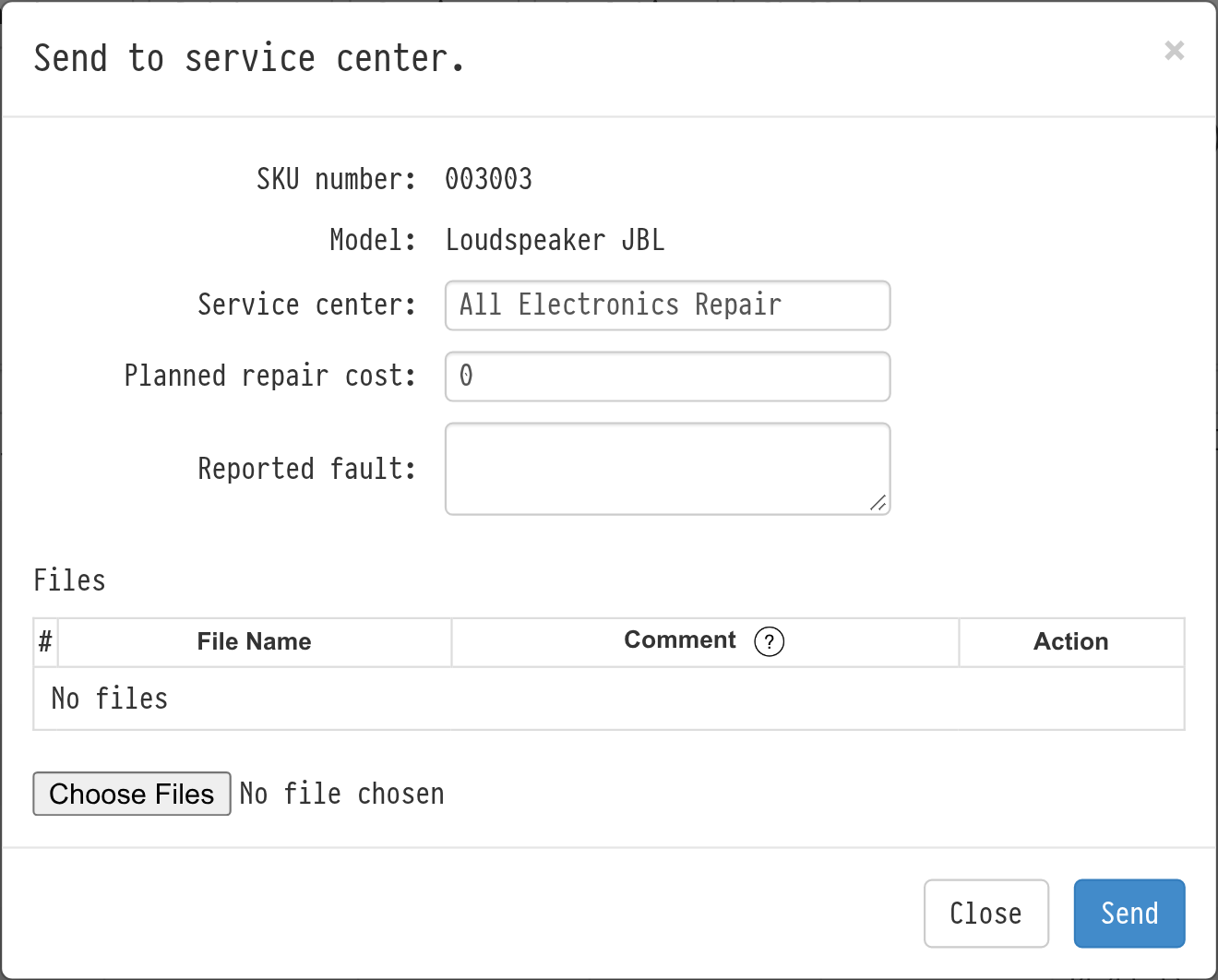
From the "Faulty" list. Select an SKU and send it to a service center. In the "Send to service center" window, enter the service center, the planned repair cost and the reported fault and, if needed, attach files, for example photos of the damage. See Faulty.
From the SKU card. In the "State" row, click "edit". In the "State management" window, select the "send to service center" action, then the service center and the repair priority, write a comment and attach files if needed. See Equipment SKU.
Service centers are added in the catalog with the "SC" link. See SC (Service Centers).
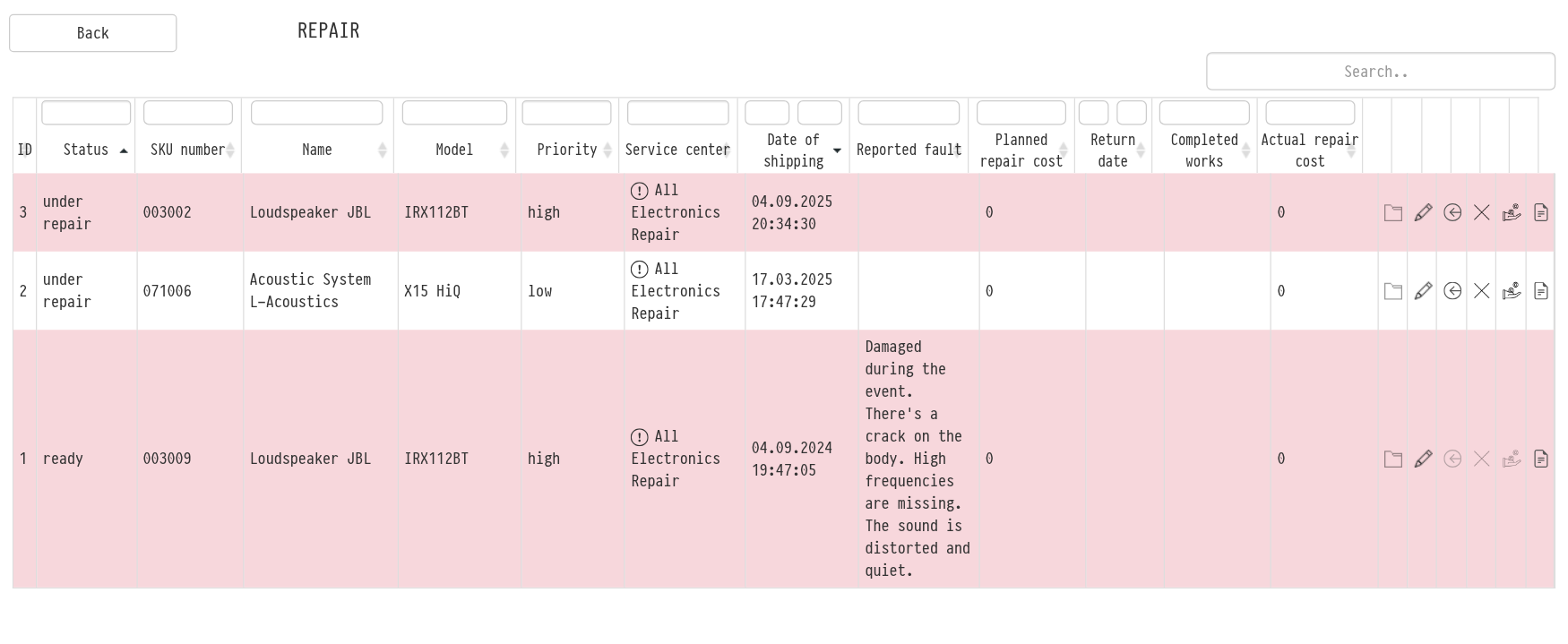
The "Repair" list
Each row is one repair case. If an SKU was repaired several times, there are several rows. The table shows:
the status: "under repair" or "ready";
the SKU number, name and model;
the priority: low, medium or high. Rows with medium priority are highlighted in yellow, with high priority in pink;
the service center: hover over the icon to see its address and phone number;
the date of shipping, the reported fault, the planned repair cost;
the return date, the completed works and the actual repair cost.
Each column has a filter: by status, priority and service center you pick from a list, by dates you set a range, by the other columns you search by text. For example, you can keep only the finished repairs of one service center.
Actions in a row
On the right of each row there are icons:
Files: repair documents and photos: a report, a bill, photos before and after. In the "Files" window you can upload files, add a caption (double-click the "Comment" field) and delete them. If there are no files, the icon is pale;
Edit: change the record: priority, service center, dates, fault, costs and completed works;
Return to warehouse: the repair is over, the fixture is back in service. In the "Return of equipment to the warehouse" window, enter the actual repair cost (you cannot return the SKU without it) and describe the completed works. The row gets the "ready" status, and the SKU goes back to the warehouse and can be booked again;
Write-off: the fixture cannot be restored. In the "Write-off" window, in the "Completion of repairs" part, enter the completed works and the actual repair cost, and in the write-off part the date and a comment. The SKU moves to the "Written off" list (see Written off);
Sell: the fixture is sold after repair or instead of it. In the "Sell" window, fill in "Completion of repairs", and in the "Sales" part the date and time, the sale price, the buyer and a comment. The SKU moves to the "Sold" list (see Sold);
SKU history: the SKU log in a new tab.
You can return to the warehouse, write off or sell only an SKU with the "under repair" status. For finished repairs these icons are inactive.
Repair analytics
Repair costs for a period, a comparison of service centers and the repair history of a specific SKU are in the report in "Analytics". See Repair report.