Adding and editing
On any page, open "Databases" in the top menu and choose "Counterparties".
Click "Add".
In the "Basic information" block, enter the company name and choose your employee responsible for working with this company (the "Manager" field). Choose the counterparty status and enter its address. If the counterparty can sublease equipment to you, select the "Available for sublease" checkbox: then it appears in projects when you set up the sublease.
In the "Legal information" block, specify the country of registration and the type of counterparty (for Spain, for example, "Empresa" or "Autónomo"), as well as bank details, e-mail and other data needed for contracts and payments. Here you can also add an unreliable counterparty to the "Blacklist" with a comment: then you can filter counterparties by this mark in the general table.
Click "Add": the counterparty appears in the database.
After the counterparty is created, its page can be edited, for example to add contacts of its employees.
Counterparty contacts
The counterparty page has the "Contacts" block: the people you work with in this company, such as the accountant, the rental manager, the director. The table shows "Name", "Phone number", "E-mail" and "Comment".
To add a contact, click the icon in the top left corner of the table, fill in the fields in the "Adding a Contact" window and click "Add". To correct a contact, click the edit icon in its row: the "Editing the Contact" window opens. The delete icon at the end of the row deletes the contact.
Please note. A contact is deleted at once, without confirmation. Employees with "full access" to "Counterparties" in their access template can add, change and delete contacts.
Counterparty files
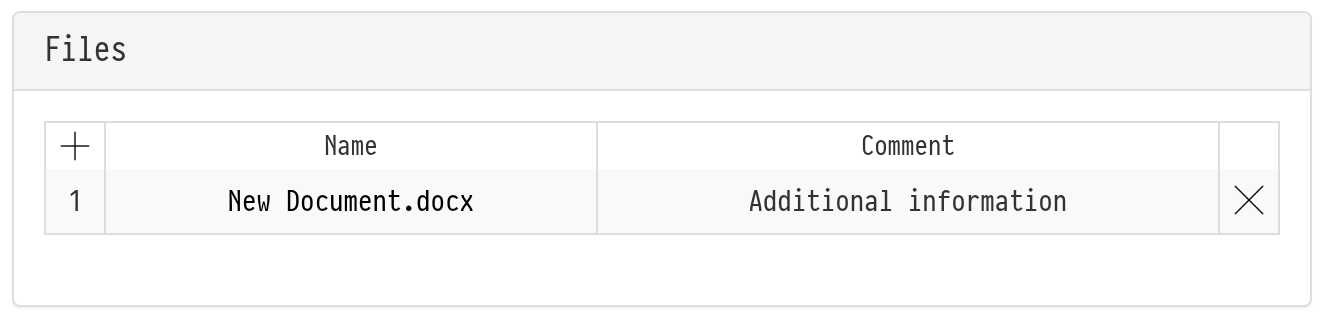
The counterparty page has the "Files" block. It is a convenient place for everything related to the company rather than to a single project: the signed contract, the company details sheet, powers of attorney, certificates.
To upload a file, click the "+" icon in the title of the file table. In the "File upload" window, choose the file, add a comment if needed and click "Upload". The file appears in the table with its name and comment.
To download a file, click its name.
To change a comment, double-click it, correct the text and press Enter or click outside the field.
To delete a file, click the delete icon at the end of the row and confirm.