Shortage
The "Shortage" block on the "Specification" tab shows the entries that the warehouse does not have enough of. Here you decide what goes to the project from your warehouse and what, and how much, you need to sublease.
How the shortage is calculated
The system compares how many units the project needs with how many units the warehouse has, taking into account all other projects that overlap with it in time. It uses the booking period, not the project dates: if a specification sheet or specific SKUs have their own "Booking time", that time is used. How to set it: see Actions with a specification sheet.
For each entry, the system calculates two numbers:
Maximum required quantity: the sum of all bookings of this entry in all projects that overlap with yours. This is how many you need if all projects run at the same time.
Minimum required quantity: how many units are busy at the busiest moment. If projects go one after another, the same fixtures have time to move from one project to the next, and you need fewer than the sum.
The shortage is calculated by the minimum required quantity. This way the system does not show a shortage where the equipment actually has time to come back between projects.
Only working units count: those in the "working" and "needs diagnostics" state. Faulty, lost, under repair units and units inside a set do not count. Subleased units are added to what the warehouse has.
The block table
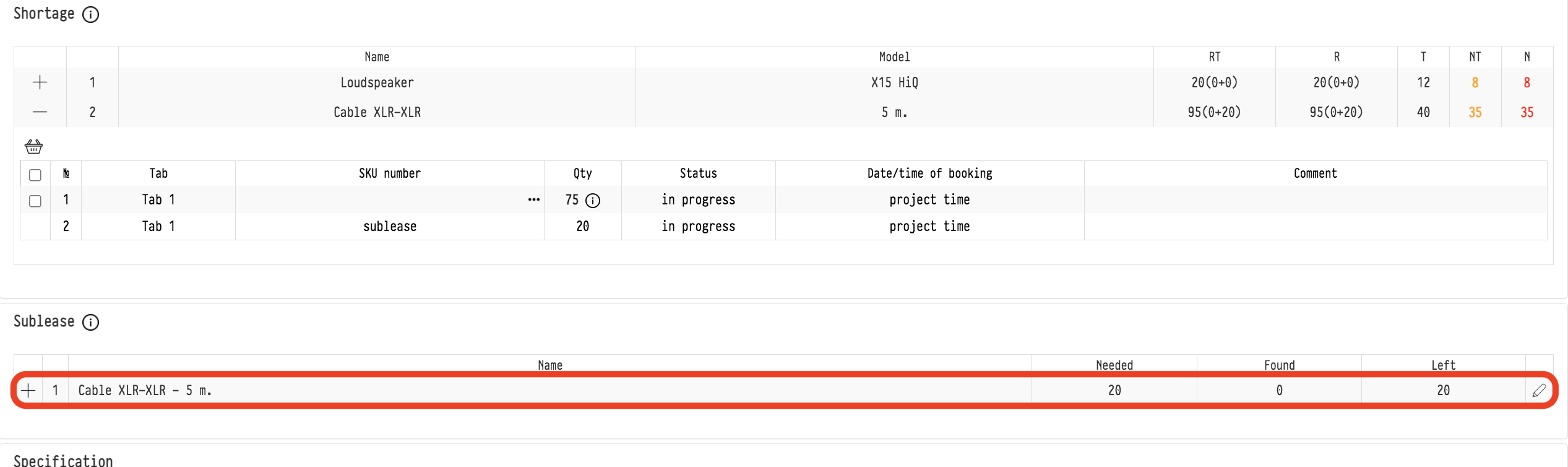
The block shows only the entries with a shortage. For each one you see "Name", "Model" and five columns:
RT: total booking for all projects. In brackets, after "+", how much of it is with an SKU and how much is subleased;
R: booking for this project, also split into "with SKU + sublease";
T: total in the warehouse;
NT: shortage for all projects;
N: shortage for this project.
Hover over a column header to see a hint.
Which entries get into the block depends on the "Shortage" global setting: only the shortage for the current project or for all parallel projects. See Deficit (settings).
The "Entry report" window
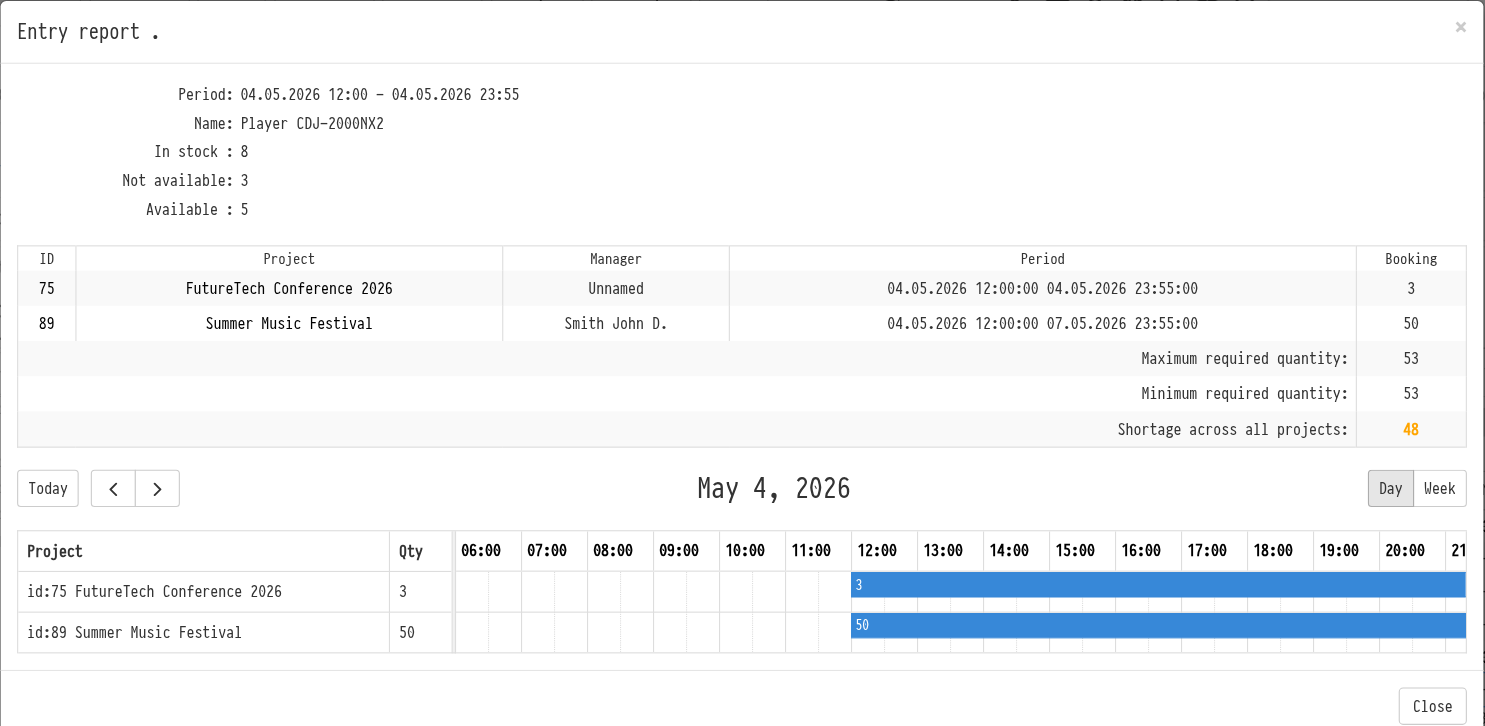
Click any number in the entry row to open the "Entry report" window. It has:
at the top: the booking period, the name, how many units are "In stock", how many of them are not available (under repair and so on) and how many are "Available";
a table of the projects that overlap with yours for this entry: ID, "Project", "Manager", "Period" and "Booking". The project number and name open it in a new tab;
under the table: "Maximum required quantity", "Minimum required quantity" and, if there is a shortage, "Shortage across all projects" and the shortage for the current project;
a chart: the projects on a timeline. It shows where bookings overlap and where the equipment has time to come back.
How to sublease an entry
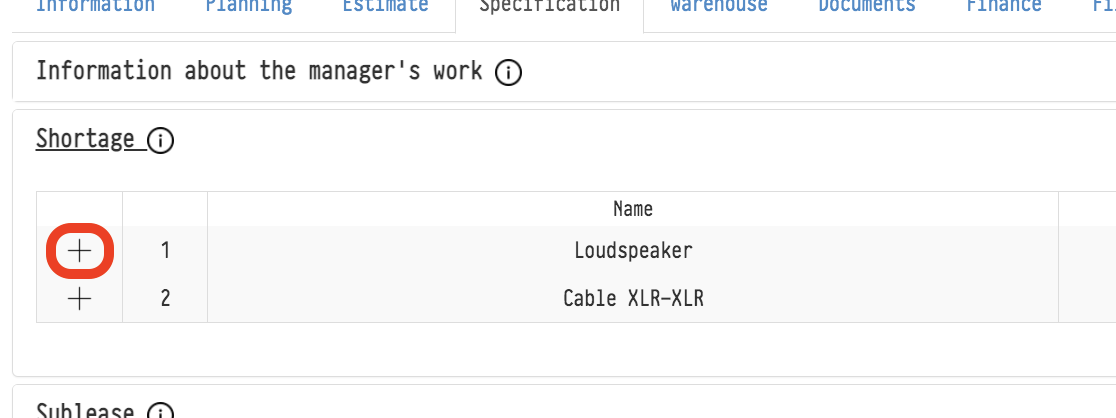
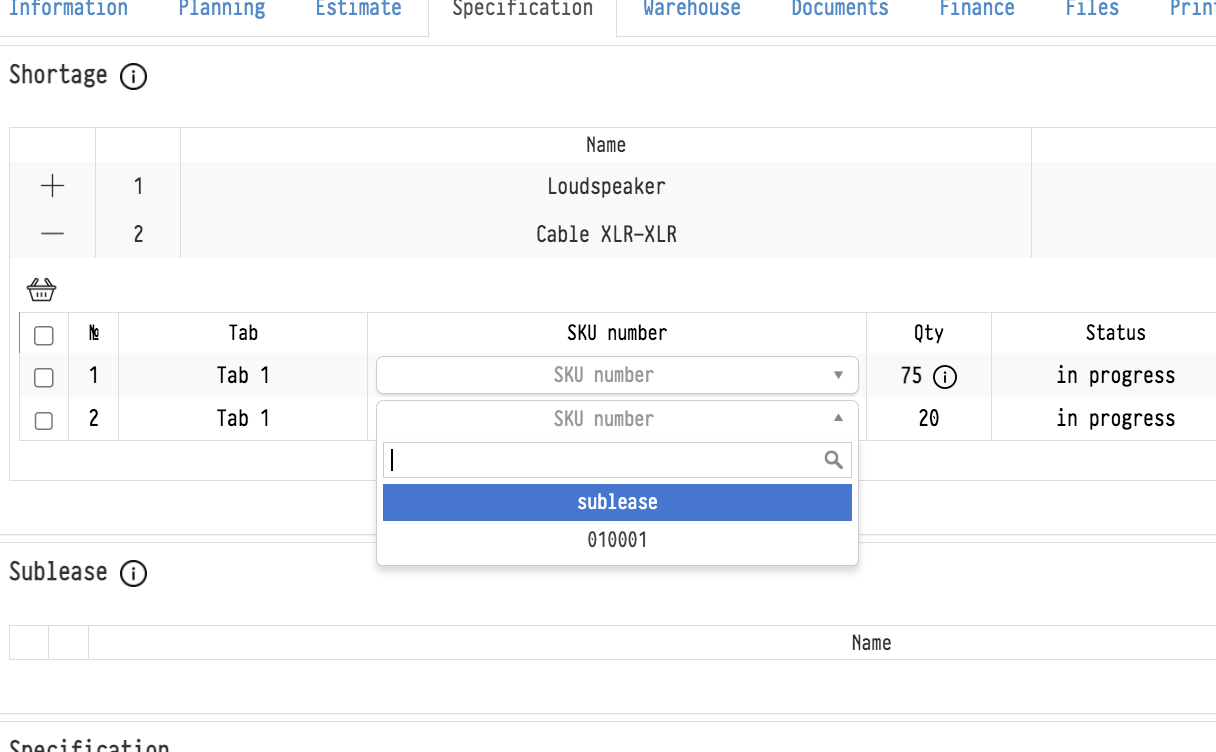
Click the arrow to the left of the entry name to expand its SKUs. The expanded list shows "Sheet", "SKU number", "Qty", "Status", "Date/time of booking" and "Comment". If the booking matches the project dates, the column says "project time".
To sublease one row, click the "sublease" icon at the end of the row  . To sublease several rows, check them and click the "sublease" button under the list. The rows move from the "Shortage" block to the "Sublease" block, where you fill in the sublease terms.
Entries of the "Accessories" type use one SKU for the whole quantity. If you need to sublease only part of it:
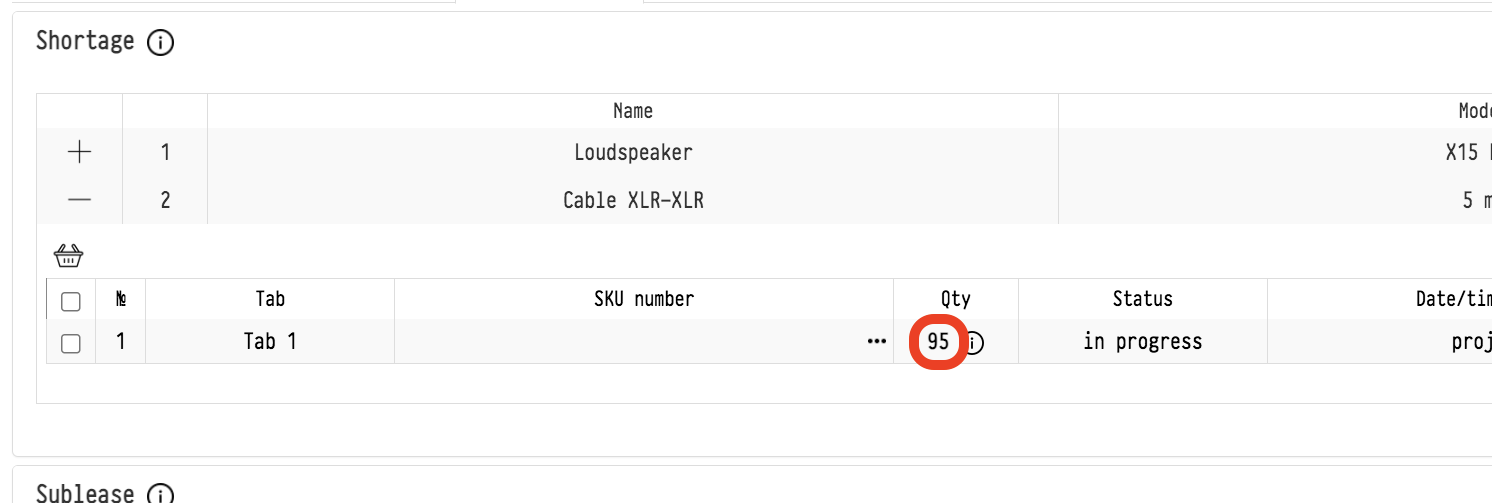
expand the entry and click the number in the "Qty" column (it is in bold);
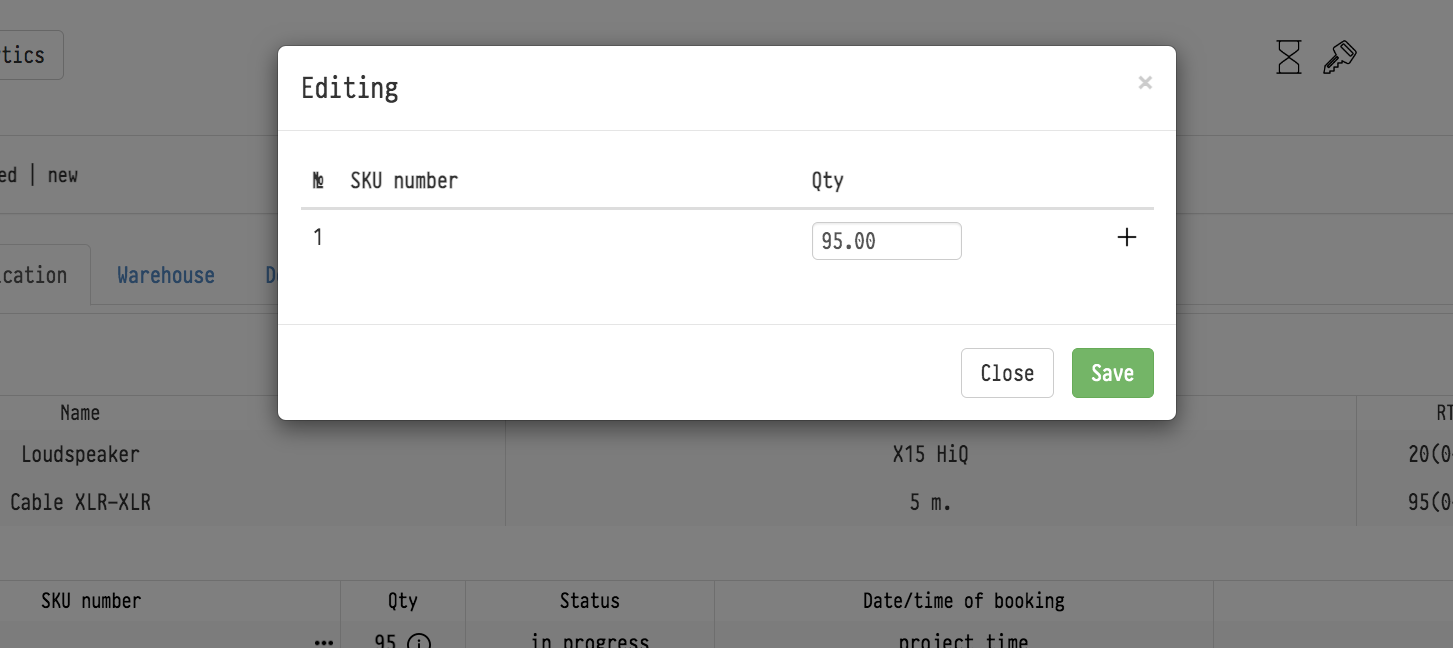
in the "Editing" window, click "+" to split the quantity into several rows;
assign an SKU or select sublease for each row.
The accessories row you assigned to sublease appears in the "Sublease" block.
To undo, use the general list of specification SKUs: click the cross next to the SKU.
Shortage in the estimate
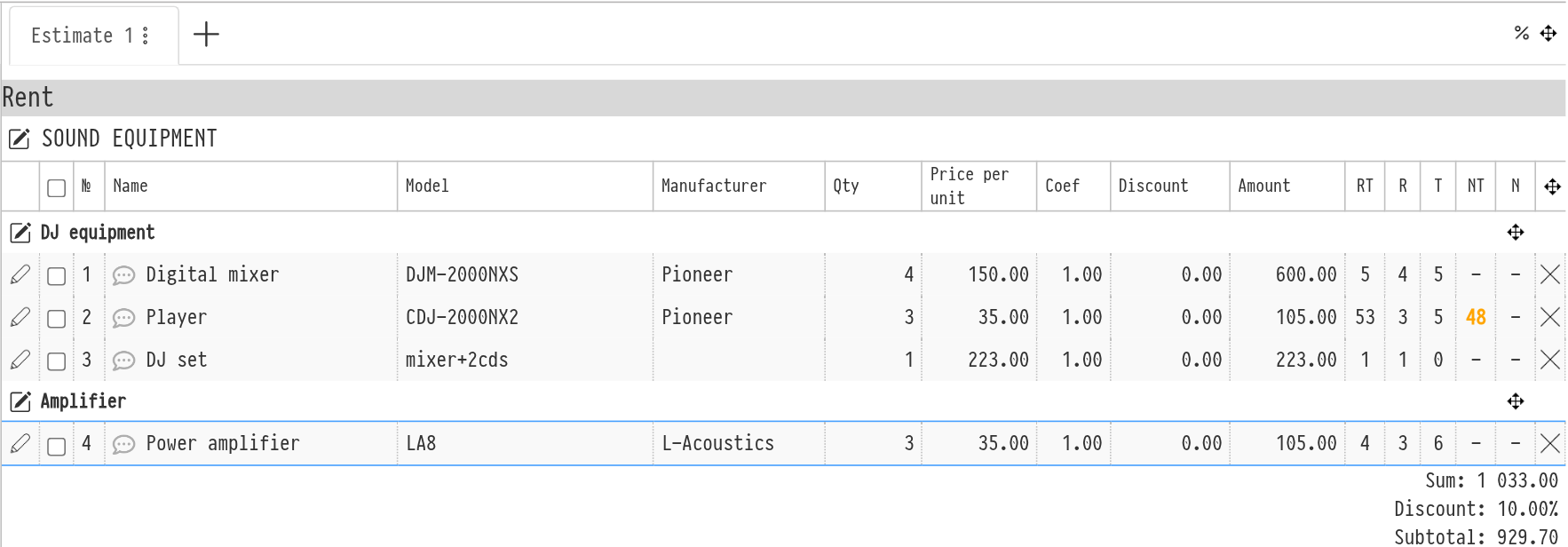
In the estimate, entries have a "Shortage" group of columns with the same RT, R, T, NT and N. If the minimum and maximum required quantity are different, the RT column shows both with a slash (for example, "4/6"). The shortage for all projects is highlighted in yellow, the shortage for this project in red, and the row of an entry with a shortage is highlighted. Kits and sets have an icon in the N column: ⚠️ means there is a shortage inside, ✅ means there is enough of everything.
Clicking any of these numbers opens the same "Entry report" window.
The columns are shown until the specification reaches a status with disconnection: after that, the specification is responsible for availability, and you check the shortage in this block. To show, hide or pin the columns, use the "Display settings" icon (gear) in the estimate, the "Shortage" group.
Where else you can see the shortage
The "Equipment control" report in "Analytics" shows how busy an entry is by day, with the minimum and maximum required quantity. See Equipment control.
Empty specification rows (entries that are not in the catalog) always get into "Shortage". For them, besides sublease, there are the "production" and "purchase" buttons. More about empty rows: see Specification.