Renewing and changing the plan
Both operations are available from the My plan page, with the buttons in the upper-right corner. The same buttons are in the window that opens when you hover over the subscription badge in the header. Before, you had to go to the personal account or write to support for this.
Please note. The "Extend plan" button is visible to users with full access to the subscription and with "renewal only" access; the "Change plan" button only with full access. The rights are set in the access template, the "Subscription button" parameter.
Renewal
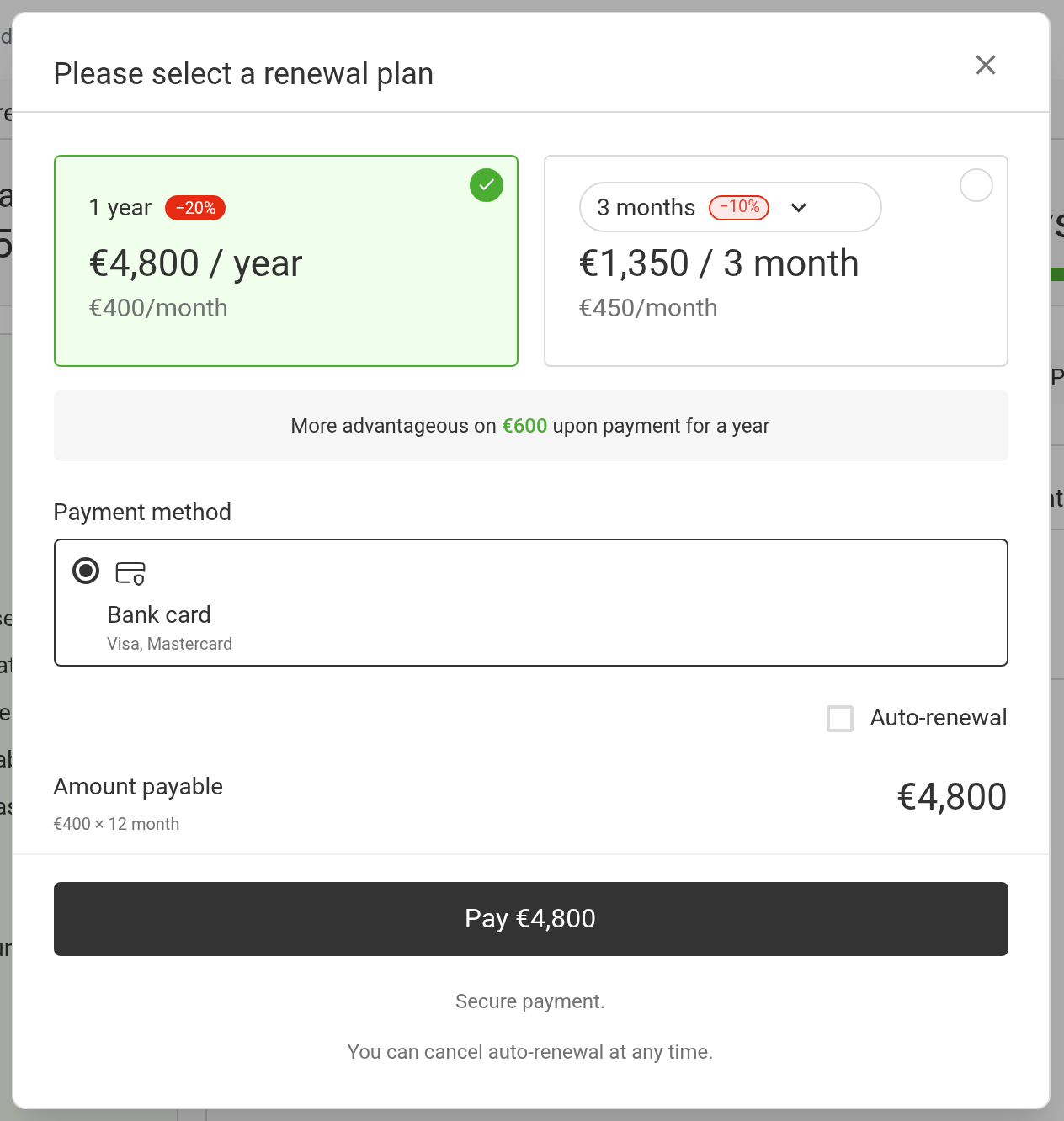
Click "Extend plan". A window opens where you choose the period.
Period and discount
You can renew for 1, 3 or 6 months or for a year. The longer the period, the cheaper each month. The discount applies when you pay for 3, 6 and 12 months, and it is the largest when you pay for a year.
The system calculates the saving at once and shows it as text: how much cheaper it is to pay for a year instead of a short period. The "Amount payable" block shows both the total and how it is made up: the price per month multiplied by the number of months.
Payment method
"Bank card": Visa, Mastercard. You go to the secure payment page, and the payment goes through right away.
Auto-renewal
If you select "Auto-renewal", the subscription is renewed automatically at the end of each period. You can cancel auto-renewal at any time.
Changing the plan
Click "Change plan": a separate "Change plan" page opens with a comparison.
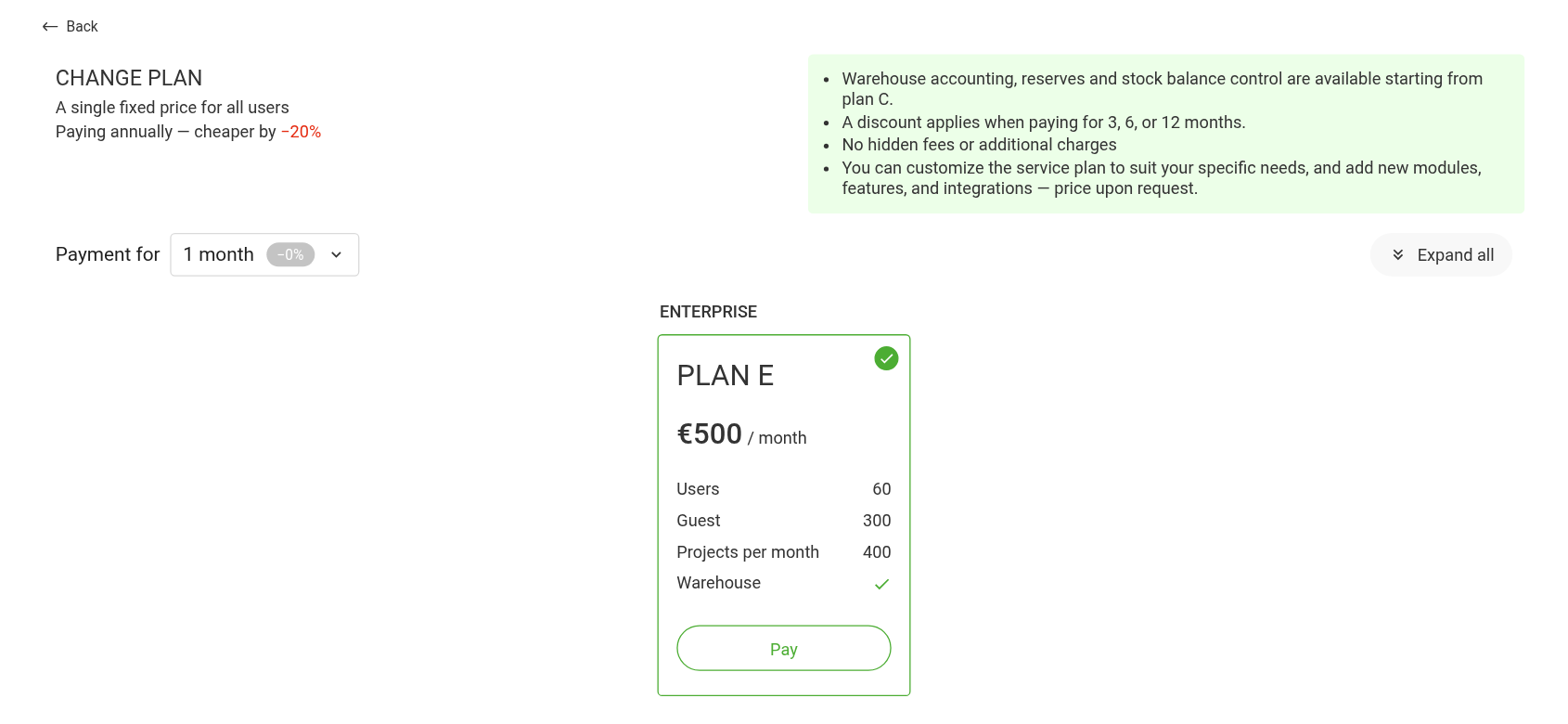
At the top there is the payment period selector, "Payment for": the prices in the cards are recalculated, and you see how much a month costs when you pay for different periods. The "Expand all" button shows the full contents of each plan: not only the main limits, but all included features row by row. "Collapse all" returns the short view.
The page shows your current plan and the plans that cost more: you cannot move to a cheaper plan from here. Your current plan is marked with a check mark, and the button in its card is "Pay": it opens the usual renewal window. One of the higher plans is marked "We recommend".
The page also lists conditions worth knowing in advance:
Warehouse accounting, reserves and stock balance control are available starting from plan C. This is the most common reason to move to a higher plan.
A discount applies when you pay for 3, 6 or 12 months.
There are no hidden fees or additional charges.
You can customize the service plan to your needs and add modules, features or integrations. The price is on request.
Moving to a new plan
Click "Select" in the card of the plan you need. The transition window opens. It shows the "current plan" and "new plan" cards side by side with their limits, and below them two blocks:
"Cost calculation": how many days are left and the remaining balance on the current and on the new plan;
"What will change?": how the limits change: users, guests, projects per month.
At the bottom you see from which date the price of the new plan will be charged, and the date of the next charge. Click "Change plan": the switch happens right away, there is no need to contact support.
When you move to a higher plan, the system recalculates the unused days of the current plan and adjusts the price. What you have paid is not lost: the remaining balance is recalculated at the new rate. For example, a year left on a lower plan can turn into several dozen days on a higher one.