Import and export
The “Import” and “Export” links are in the row of links above the catalog table. They are visible to employees with full access to the catalog. Both work with Excel files of the same format: a file downloaded by export can be uploaded by import, including to a different Golova account.
Export and import are meant for three tasks: moving the catalog to another account (a new company or a partner's account), adding new entries and SKUs in bulk from a spreadsheet, and getting a complete list of the catalog with SKU numbers and serial numbers in Excel.
Please note. Import only adds. It does not change or delete anything that is already in the catalog. You cannot download the catalog, edit it in Excel and upload it back to apply the changes: at best the quantity will double, at worst the file will be rejected because the SKUs already exist. See “What happens to entries that already exist” below. To change prices in bulk, use the separate “Pricing” tool.
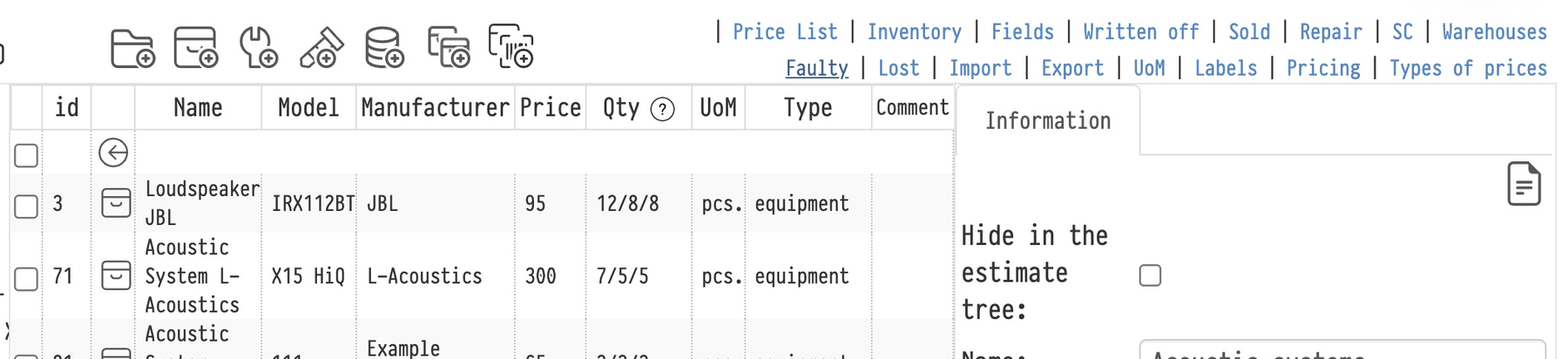
Export
Click “Export”, choose the type and click “Download”.
each SKU (full catalog) exports one row per SKU: SKU number, serial number, row and position, warehouse, purchase date and purchase price. An entry without SKUs, a service and a kit take one row each. For consumables and accessories the quantity is stored on the SKU. This type is available on plans with SKU tracking.
quantity only exports one row per entry and warehouse, with the quantity at that warehouse. If an entry is stored in several warehouses, there will be several rows. SKU numbers are not included; for a set, the quantity is the number of its SKUs.
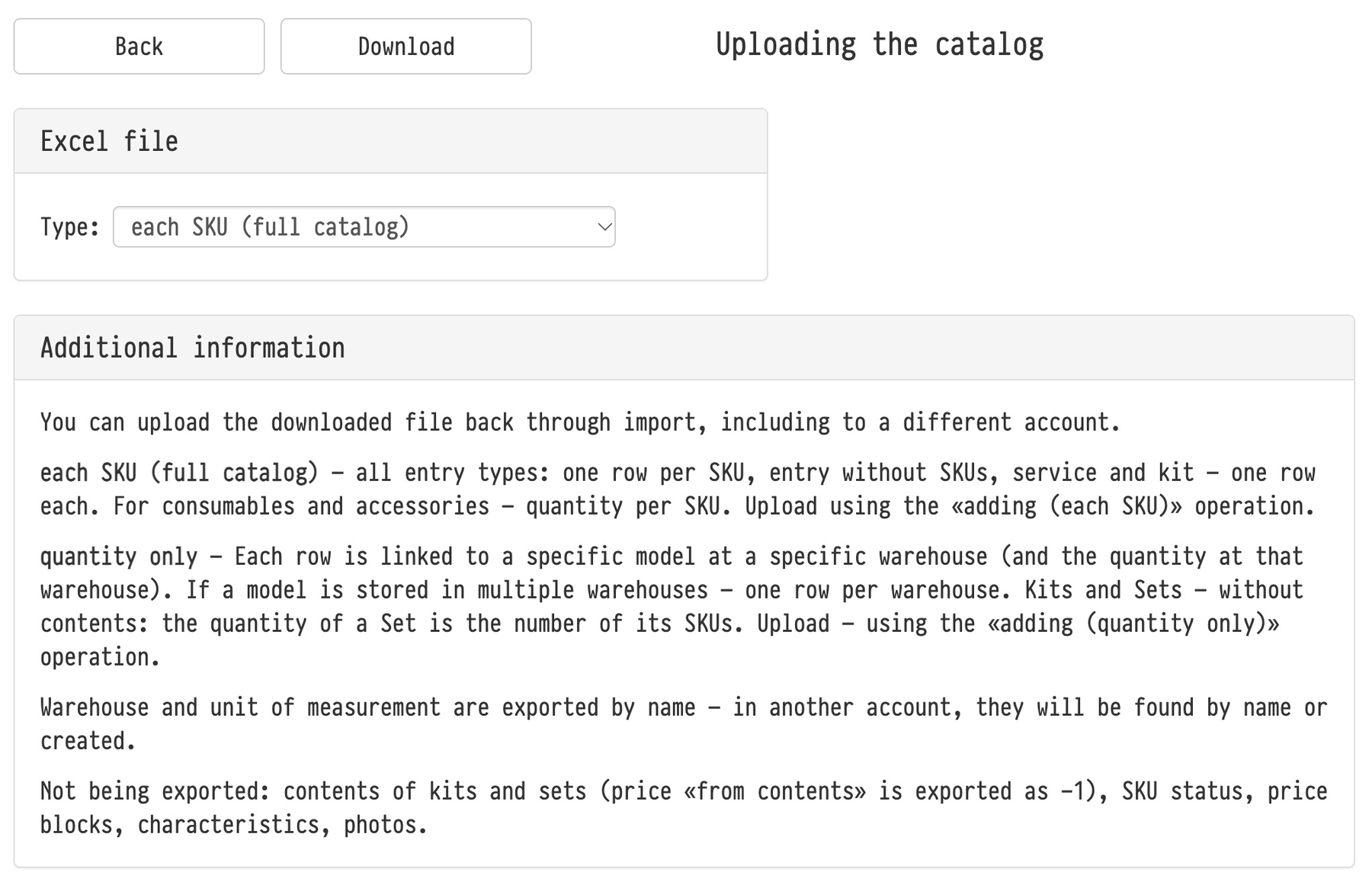
The warehouse and the unit of measure are exported by name, so in another account they will be found by name or created. Prices are included only if the employee's access template allows viewing catalog prices (Databases → Employees → Options → Access templates).
Not exported: contents of kits and sets (a price “from contents” is exported as -1), SKU status, price blocks, characteristics and photos. Each export is recorded in the catalog log.
Import
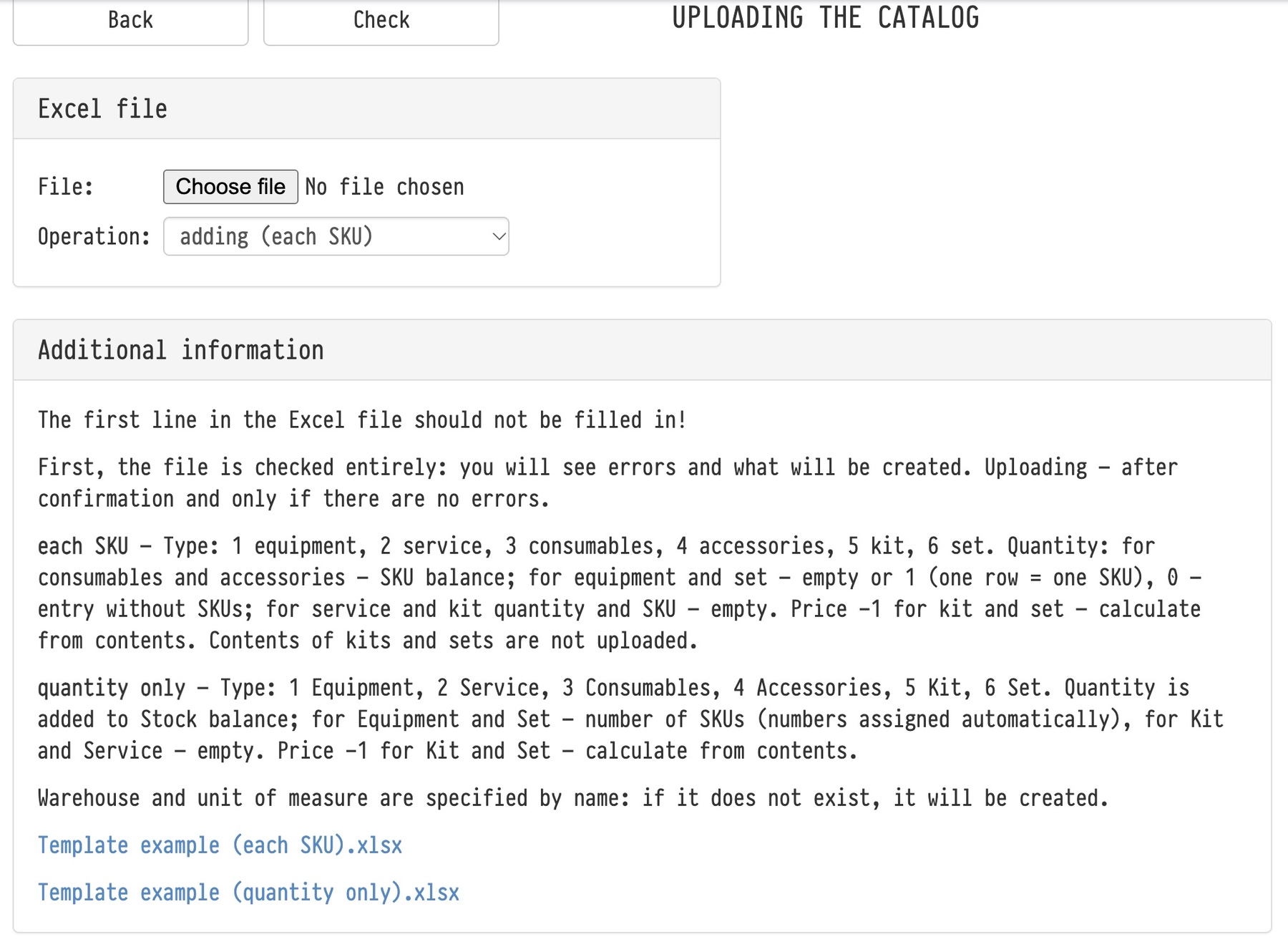
Click “Import”. The “Uploading the catalog” page opens. Download a template: “Template example (each SKU).xlsx” or “Template example (quantity only).xlsx”. The first row of the template contains the headers and is not filled in.
Choose the mode in the “Operation” field.
adding (each SKU): one row of the file is one SKU with its number and serial number. Use it for equipment and sets tracked individually. If the SKU number in a row is empty, the system assigns one automatically. For consumables and accessories the quantity is set on the SKU. Services and kits have no SKUs, so their rows have no SKU number and no quantity. A quantity of 0 for equipment means an entry without SKUs.
adding (quantity only): one row is one entry with a quantity. For equipment and sets the system creates the given number of SKUs and assigns numbers to them.
In both modes the entry type is a digit: 1 equipment, 2 service, 3 consumables, 4 accessories, 5 kit, 6 set. The catalog path is written with slashes, for example “Sound/Microphones”; missing folders are created. The warehouse and the unit of measure are given by name: if they do not exist, they are created too. Contents of kits and sets are not imported; build them in the catalog after the import. SKUs of sets are created with the status “not working” until the set is filled. A price of -1 for a kit or a set means “calculate from contents”.
Check before uploading
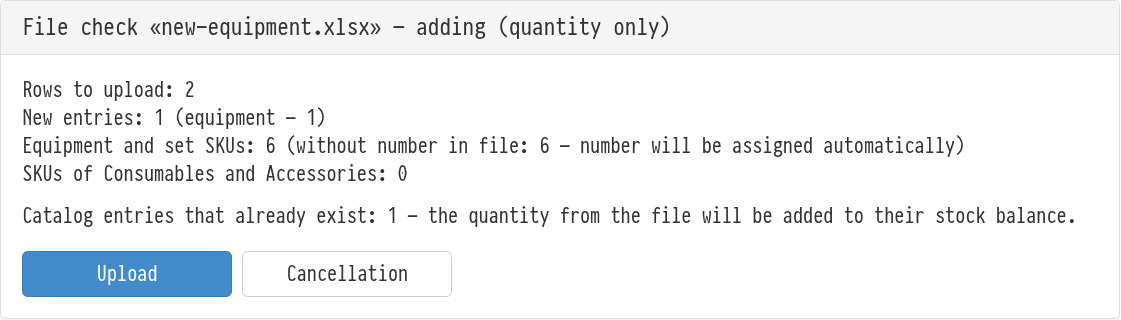
Choose the file and the mode and click “Check”. The whole file is checked and nothing is written to the catalog yet. The report shows how many rows will be uploaded, how many new entries of each type, how many SKUs will get numbers automatically, which warehouses and units of measure will be created, and which entries already exist in the catalog.
If the file has at least one error, the report says the file was not uploaded, lists the rows with errors, and there is no “Upload” button. Fix the file and check it again. If there are no errors, click “Upload”. When it finishes, the “Upload results” panel shows how many rows were uploaded.
The system recognises the mode of the file by its header row. If the selected operation does not match the template, the check tells you which mode to choose.
What happens to entries that already exist
An entry in the file is treated as the same as one in the catalog if the folder, type, name and model match. For such an entry, import does not change its card: price, manufacturer, description, dimensions and comment from the file are not applied. But the SKUs and the quantity from the file are added to it. The check report warns about this and shows how many entries from the file already exist in the catalog.
This has three consequences.
Uploading the same “quantity only” file again doubles the stock: new SKUs are created for equipment, and the quantity of consumables grows.
Uploading a full export again with the same SKU numbers is rejected as a whole, with errors saying that the SKU already exists in the catalog. But rows with an empty SKU number would get new numbers, that is, extra SKUs.
If you change the name, model or path in the file, the system creates a new entry, and the catalog gets a duplicate.
So use export and import to move the catalog and to add new entries. Edit existing entries in their cards, and update prices in bulk with “Pricing” (export step, edit the file, import step).
Importing other databases
Clients, venues, employees and counterparties have their own import pages in the corresponding “Databases” sections. The rule there is different: a record that already exists is skipped by default, and with the “Update existing records” checkbox it is overwritten completely. See “Database import”, “Importing venues” and “Import” of counterparties.
Full catalog export appeared in version 20.4.