Project Action buttons
The group of project actions is located on the right side of the project information block (name, dates, status, etc.), above the project sections ("Information", "Planning", etc.).

Copy
The "Copy" action creates a new project based on the current one, and you choose which data to transfer.
When copying, you set a date for the new project, and the system creates a copy with the selected parameters.
You can choose which data to copy from different project sections:
client
venue
comment
access
responsible persons
timeline
contacts
staff
tasks
managers
vehicles
You can also copy:
After the copy is created, you can change the project name, dates and any other parameters.
This is useful when you regularly run similar events or need to quickly create a new project based on an existing one.
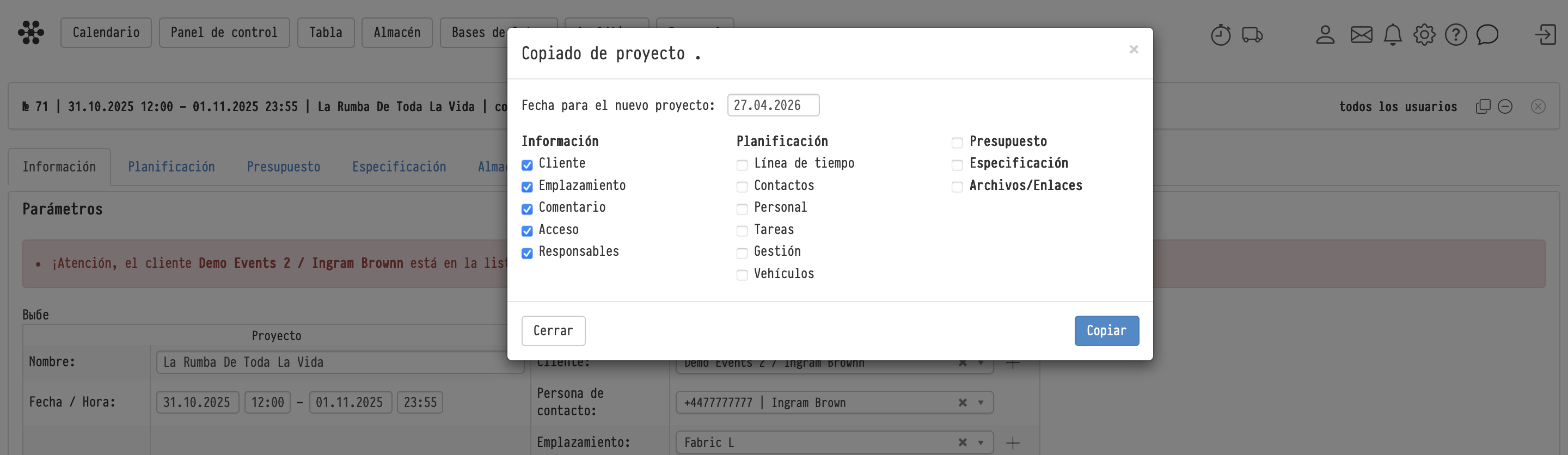
What is transferred when copying
In the copy window, tick what to transfer to the new project. By default, the whole "Information" block and "Estimate" are ticked, while "Planning", "Specification" and "Files/Links" are off. Enter the "Date for a new project" and click "Copy".
The project time, as well as the time of staff, tasks and vehicles, is not copied: it is taken from "Settings" → "System" → "Project", the "Project dates (default)" block. The specification is transferred as it was edited, not rebuilt from the estimate.
The copy icon is available if the access template has full access to the "Parameters" row in the "Estimate" block of the "Project" tab.
Cancel
The "Cancel" action sets the project to an inactive state.
It is used when:
the event is cancelled
the project is temporarily on hold
When a project is cancelled:
all equipment reservations are released
the project is excluded from active work
The project remains in the system and can be used for history or further analysis.
When a project is cancelled, all its statuses change to cancelled: the estimate, specification, warehouse, document and finance statuses. This happens regardless of whether the employee has rights to the specification, warehouse or finance of the project. In the calendar and in the project header, a cancelled project is visible at once by its status.
A project can be cancelled by employees whose access template has full access to the "Statuses" row in the "Estimate" block of the "Project" tab. The system asks for confirmation before cancelling.
Please note. The project is not cancelled if the specification entries can no longer be removed: a SKU has already left the warehouse for this project, a lessor is assigned to a sublease entry or production is assigned to an entry. The system shows what is in the way.
Restore
For a cancelled project, a "restore" icon appears in place of the "Cancel" icon. It brings the project back to work: the estimate gets the first status of its list, the specification and the warehouse get "Not active", documents and finance get the first statuses of their lists. The specification is rebuilt from the active sections of the estimate.
Delete
The "Delete" action is available only for cancelled projects.
To delete a project:
First apply the "Cancel" action
Then use "Delete"
Deletion is irreversible:
all project data will be permanently removed
the project cannot be restored
This approach helps prevent accidental deletion of active projects.