Database employees
The "Employees" database stores information about your staff. It is used when planning projects, printing access passes, etc. It also defines which employees are users, that is, who has access to the system: for this, a login and password are created on the employee page and the account is activated. See Adding employees and Adding Users.
Employee table
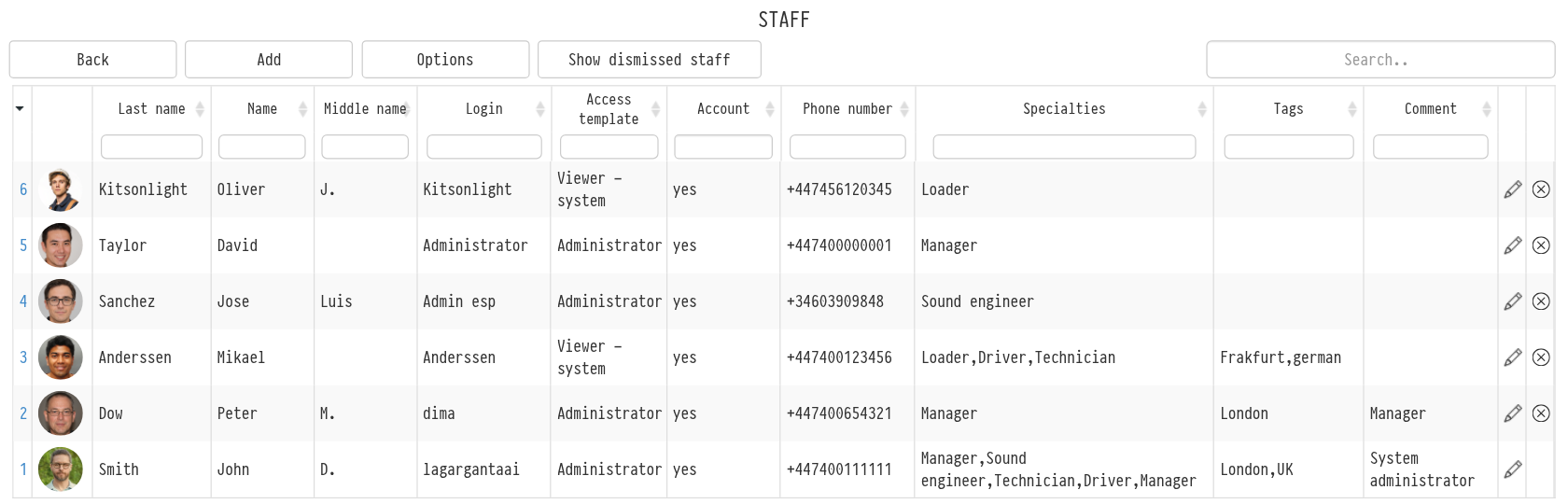
The table shows: photo, last name, name, middle name, login, access template, account, phone number, specialties, tags and comment. Above the columns there are filters; click a column title to sort the table. Click the last name or the photo to open the employee page.
The "Account" column shows whether the employee can log in: "yes" means the account is active, "no" means the employee is in the database but does not log in (for example, a rigger you only assign to projects). Choose "yes" or "no" in the filter above the column to see only system users or only those without access.
Dismissing an employee
If an employee has left, dismiss them rather than delete. A dismissed employee keeps the whole history of work on projects, accruals and payments; they just no longer work in the system.
Open the employee page.
Click "Dismiss staff member" at the top of the page and confirm.
After dismissal:
the employee can no longer log in;
their external calendar subscription (.ical) is turned off;
they are not counted in the user limit of your service plan;
they disappear from the employee table and from the list where responsible persons of a project are chosen.
To see dismissed employees, click "Show dismissed staff" above the table. Dismissed employees are highlighted in pink.
Restoring
If the employee comes back, turn on "Show dismissed staff", open their page and click "Restore staff member". They appear in the table again and can log in if their account is active. Turn the external calendar subscription on again if needed (see External Calendar (.ical)).
Please note. Only users with full access to the "Employees" database can dismiss or restore an employee. The main user of the account cannot be dismissed.
Deleting
Deleting (the icon at the end of the table row) is for employees added by mistake. If a person has simply stopped working for you, use dismissal: this keeps the whole history.