Accounting table
The "Accounting" table shows projects from the payment point of view: how much a project costs, which bills have been issued for it and how much money has already come in. It is not accounting in the full sense but a control tool: it helps you quickly find unpaid and partly paid projects.
Where to find it
In the top menu, click "Table" and open the "Accounting" tab.
The tab is visible to employees whose access template has "yes" for "Accounting" and whose prices are not hidden (the "Prices" row is not set to "hide"). More: Access patterns.
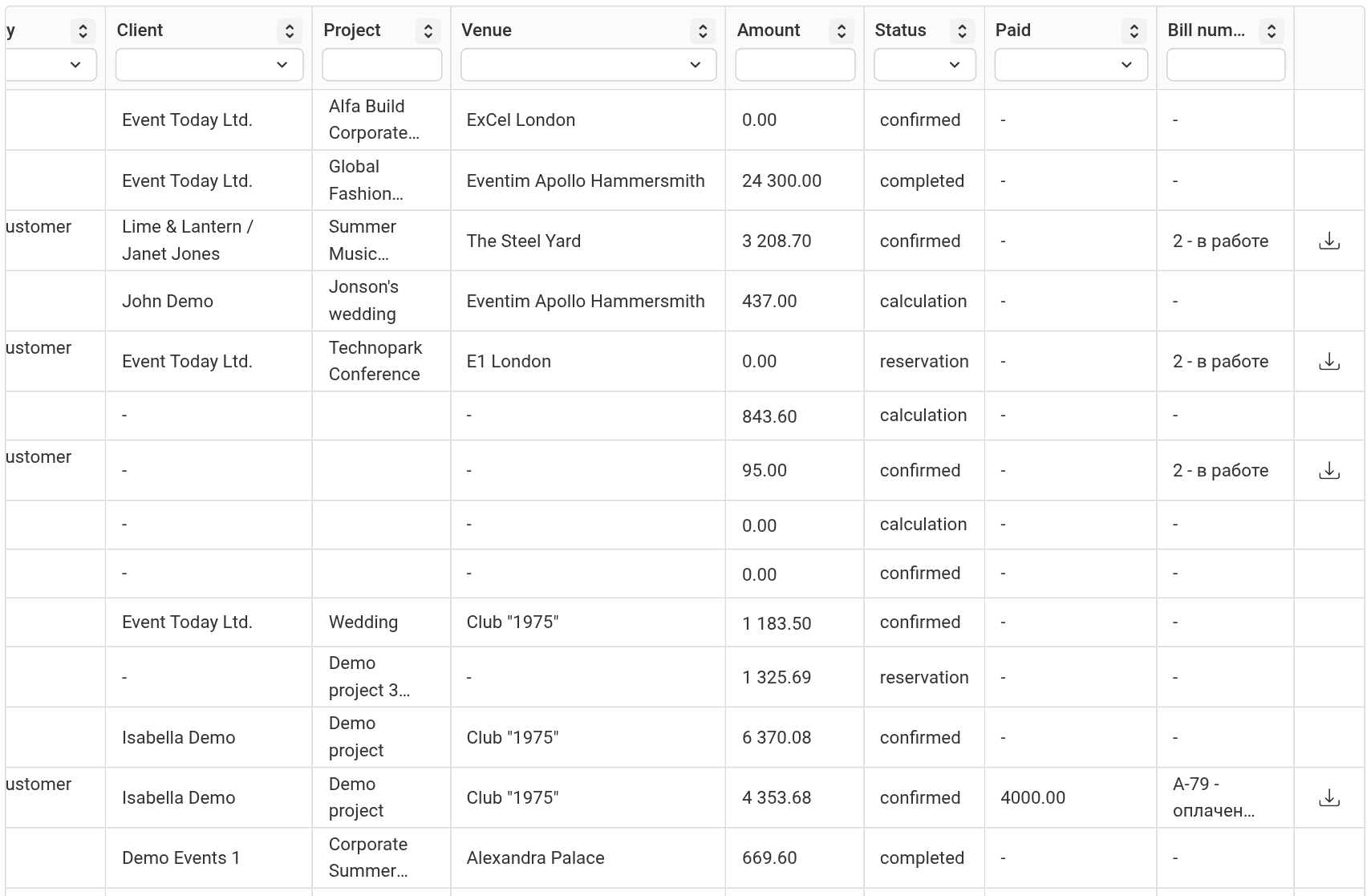
What the columns show
"ID": the project number.
"Company": your companies set on the estimate sheets of the project.
"Date": the project start date.
"Manager": the project manager.
"Counterparty": the counterparties from the document packages of the project.
"Client", "Project", "Venue": from the project information.
"Amount": the project amount according to the estimate.
"Status": the current estimate status of the project, with the name from your status settings. It is not the payment status.
"Paid": how much money has come in for the bills issued in the project. If there are no payments, a dash is shown.
"Bill number": the bill number from each document package of the project and its payment state: "in progress", "partially paid" or "paid". If there are several packages, they are listed separated by commas.
In the last column, if the project has document packages, there is a download icon: it downloads all project documents as one archive.
Where "Paid" and the bill state come from
The data is filled in automatically; you do not need to enter anything in the table:
when a document package is created on the "Documents" tab of the project, its bill number appears in the "Bill number" column with the state "in progress";
when you enter an income on the "Finance" tab and specify which bill it is for, the amount gets into "Paid";
if the income for the bill is less than its amount, the bill becomes "partially paid"; if it is equal or more, "paid".
Please note. An income not linked to a bill does not get into "Paid". How to enter an income: Incoming/Outgoing.
Please note. The bill state in the table is calculated automatically from the income. It is not related to the document and finance statuses that are set in the project manually. More: Document and finance statuses.
Search, filters and sorting
The "Search" field above the table searches by project number and name, client, venue, estimate status and manager.
Filters are under the column headers. In "Date" you choose a period; in "ID", "Amount" and "Bill number" you type text; in the other columns you choose values from a list, several at once if needed. Clicking a column header sorts the table by it.
Click any cell of a row to open the project in a new browser tab.
Table settings
The gear icon above the table opens the "Table settings" window. There you can hide columns you do not need, change their order and rename a column. You can change the column width by dragging its borders, and the width of the whole table by dragging its right edge.
Please note. You cannot create a bill or enter a payment in the table, only view them. Document packages and income are handled inside the project.