Filters and search
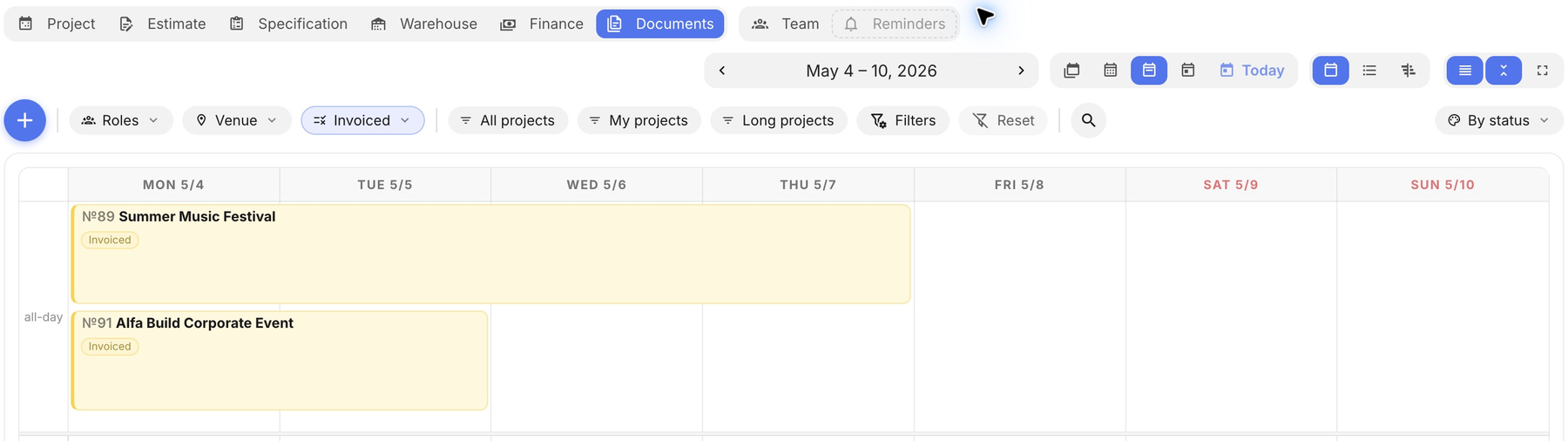
The row above the grid decides which projects land in the calendar. It holds three groups: quick filters on the left, saved filters in the middle and the search.
Saved filters
These are ready sets of conditions that switch on with one click. There are two kinds.
Global — created by the administrator in the global settings and visible to every employee who has access to them.
Personal — you create them for yourself straight from the calendar. You can edit and delete them.
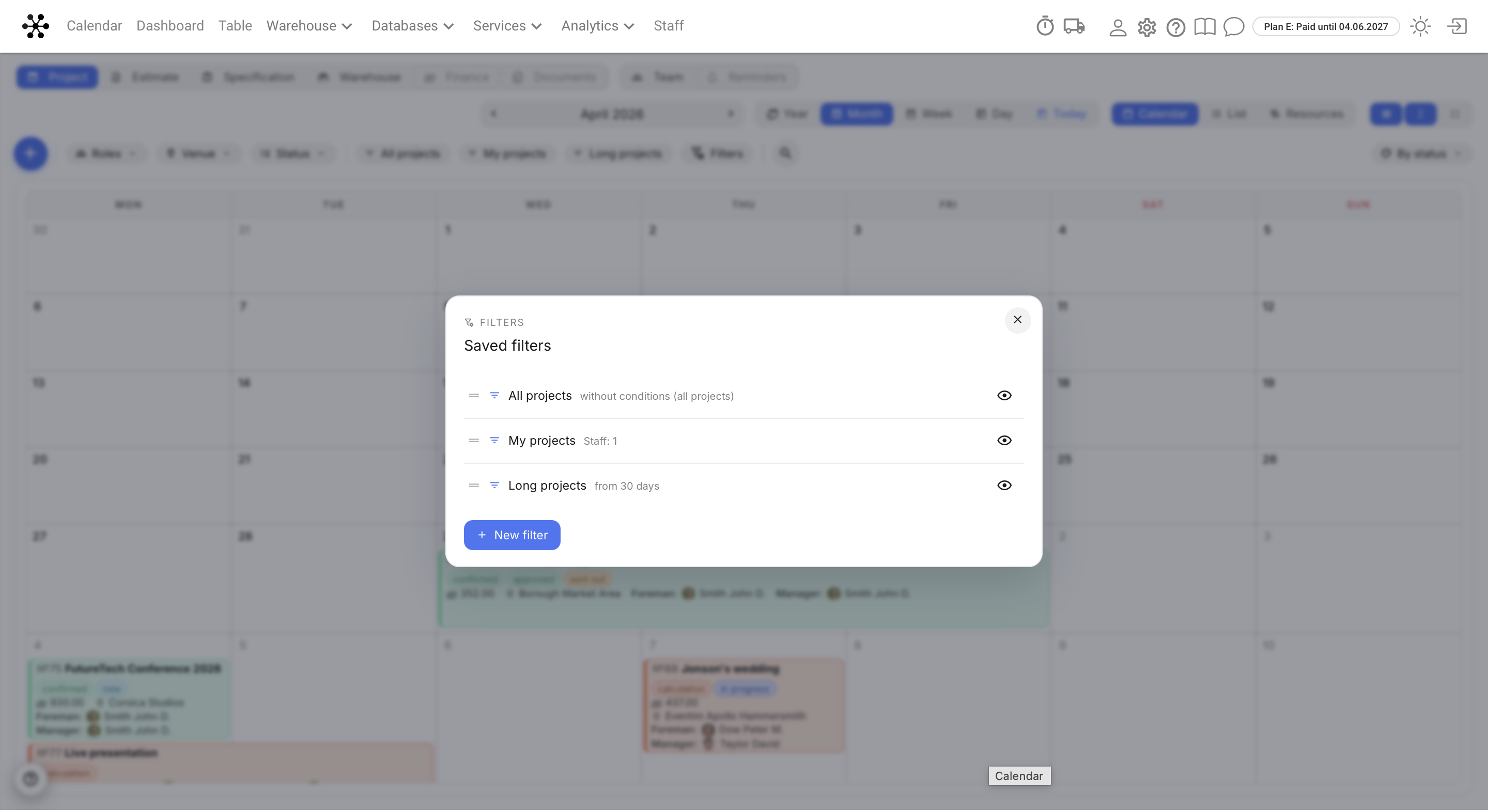
The Filters button opens the Saved filters window with the list of everything available to you. The conditions are shown next to each name — for example, “in progress / reservation / confirmed / completed · 1–10 days”.
In that window filters can be:
reordered — by dragging the handle on the left. The order is your own; other employees have theirs;
hidden — with the eye icon on the right. Useful for putting away global filters you never use. The filter is hidden only for you, other employees still see it.
A horizontal line in the list marks the border: the filters above it are placed in the calendar row as they are, the rest hide behind a counter button — +1, +2 and so on.
If a filter has conditions that the calendar window does not have, it is marked + CRM settings. Such conditions work, but for now you can change them only in the system settings, not in the calendar.
Your own filter
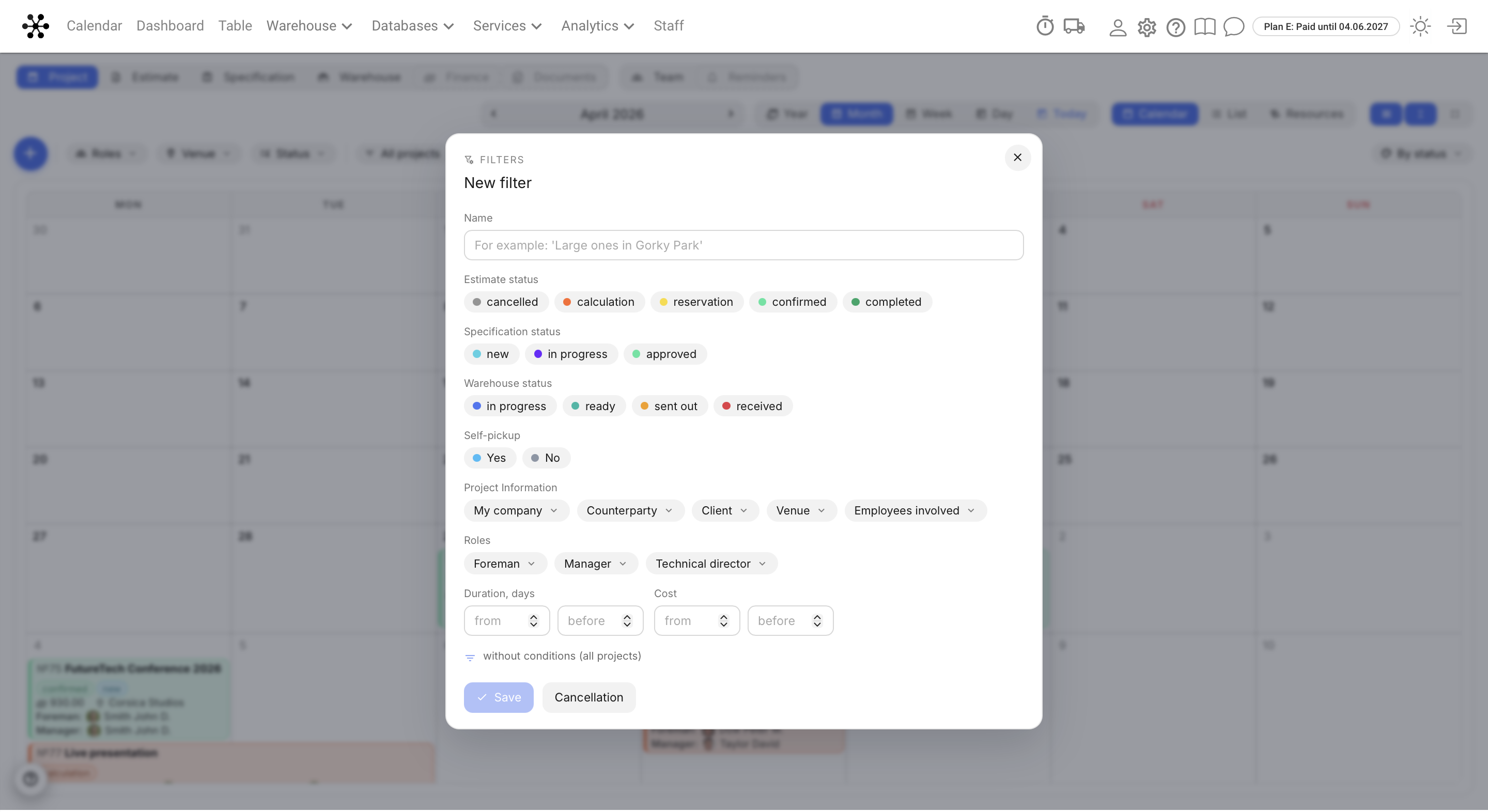
In the filters window click + New filter. Give it a name and tick the conditions:
Estimate status, Specification status, Warehouse status — any combination of statuses.
Self-pickup — yes or no.
Project Information — your company, counterparty, client, venue, employees involved.
Roles — specific people as foreman, manager, project manager and so on.
Duration, days and Cost — “from” and “to” ranges.
Below the form there is a summary of the chosen conditions — while nothing is ticked it reads “without conditions (all projects)”. A useful example: the projects where you are the manager.
Quick filters
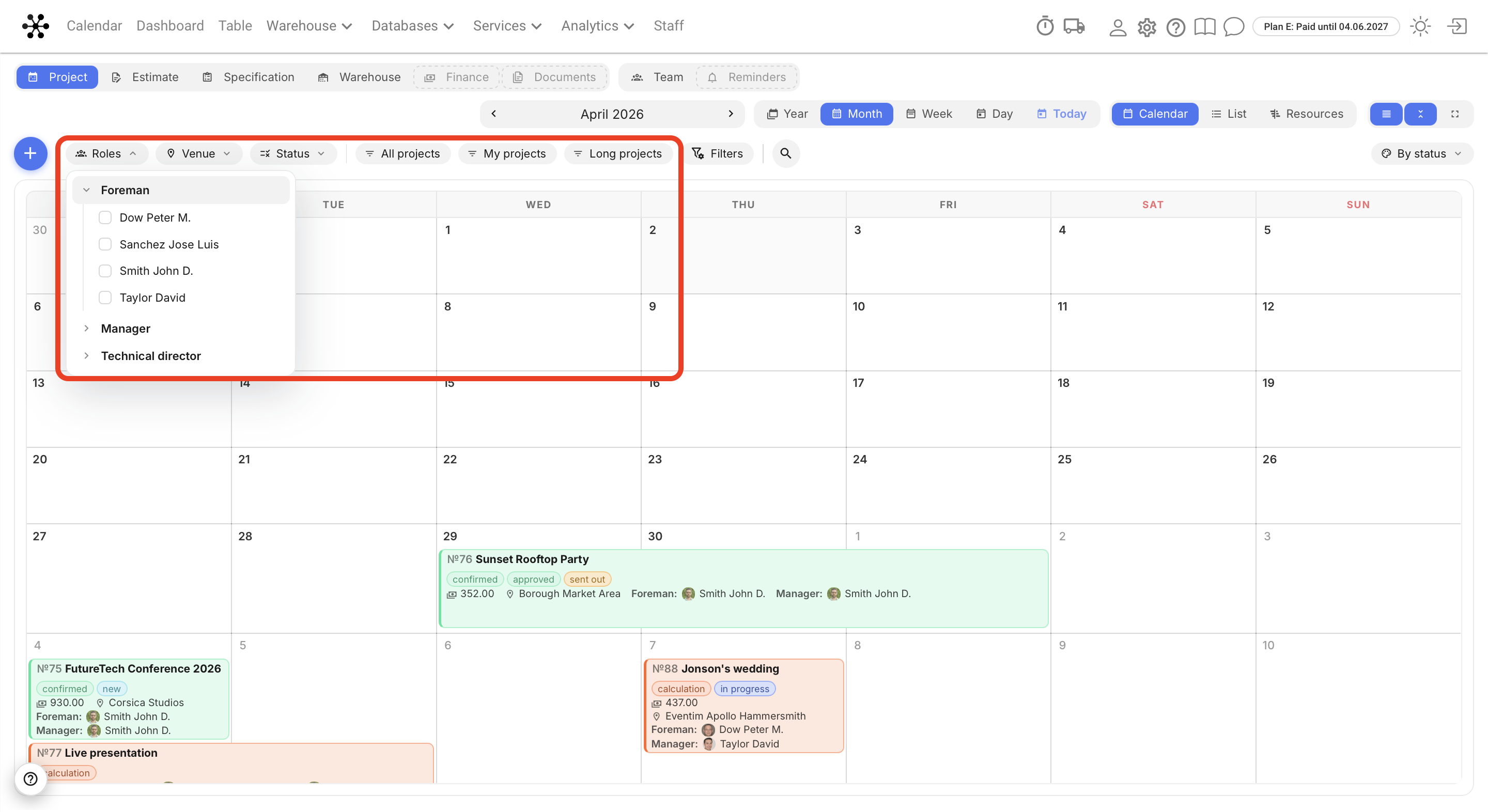
On the left of the row sit Roles, Venue and Status. They apply on top of the selected saved filter.
Within one list the choice widens the result: if you tick two administrators in “Roles”, the calendar keeps the projects of both, not only the ones they share.
If you tick people in several roles or statuses in several sections, a project needs to match all the selected conditions at once. A hint at the bottom of the list reminds you of this.
At the top of the Venue list there is a selected / everything except switch. In the second mode the calendar shows all projects except those at the ticked venues.
The Reset button in the filter row clears all quick filters and the selected saved filter at once.
Search
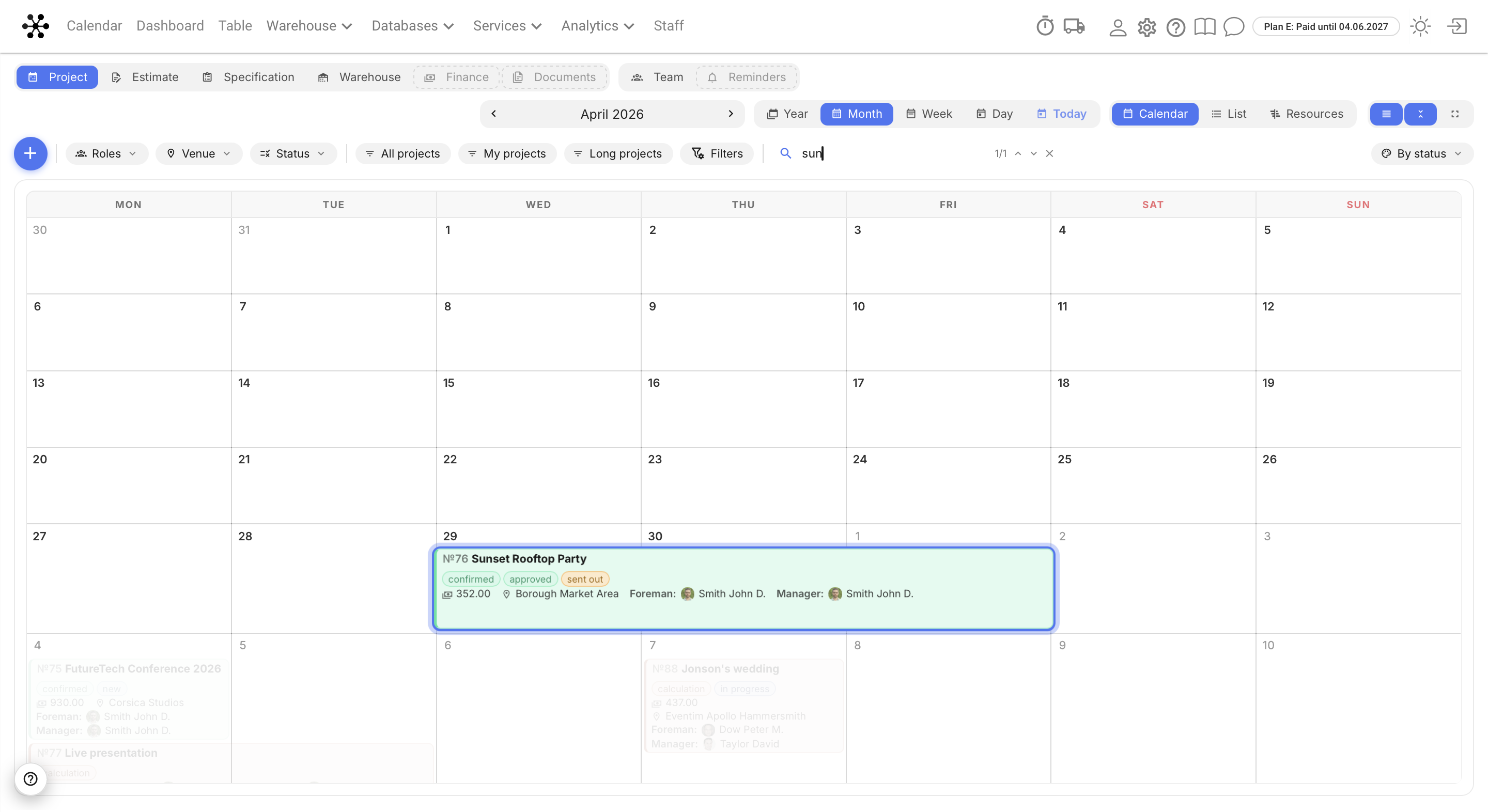
The magnifier icon at the end of the row opens the search field. Search by project number or name. Matching projects are highlighted while the rest fade but stay on the screen — you see both the result and the fact that the search is on.
Next to the field you see the number of the current match and the total, for example “2/5”. The calendar jumps at once to the match closest to today. Move to the next and previous match with the arrows next to the field or with Enter and Shift+Enter. To get the full picture back, clear the field or press Esc.
Documents and finance
The top row of calendar tabs has Documents and Finance. Open one of them, and the calendar colours the projects by their document or finance status: for example, you can see at once which projects still have no original documents or no payment. The status colours are set in the global settings: the "Settings" gear → "System" → "Calendar".
To see these statuses on the project tile on the Project tab, turn them on in your personal account, in the calendar settings. See Document and finance statuses.
Key concepts
calendar filters, saved filters, global filters, personal filters, new filter, quick filters, filter conditions, estimate status, self-pickup, roles, search by events, hide filter, CRM settings, my projects