Personal account
The personal account is the page where each employee fills in their own data: name, documents, phone numbers and e-mail, and also changes the password, the interface language and personal calendar and notification settings. The changes apply only to you.
Please note. Do not confuse it with the account owner's personal account, where companies are created and the subscription is paid. It is described in Registration of a personal account.
Where to find it
Click the person icon in the header on the right. On a narrow screen, use the "⋮" menu → "Personal Account".
Each employee opens only their own account. The data of other employees is edited in the "Employees" database.
At the top of the "Personal account" page there are the "Back" and "Save" buttons and three tabs: "General information", "Settings", "Notifications".
Please note. The fields on the tabs are saved only with the "Save" button at the top of the page. The "Specialty", "Phone number", "E-mail" and "Files" tables are saved at once, in their own windows.
General information
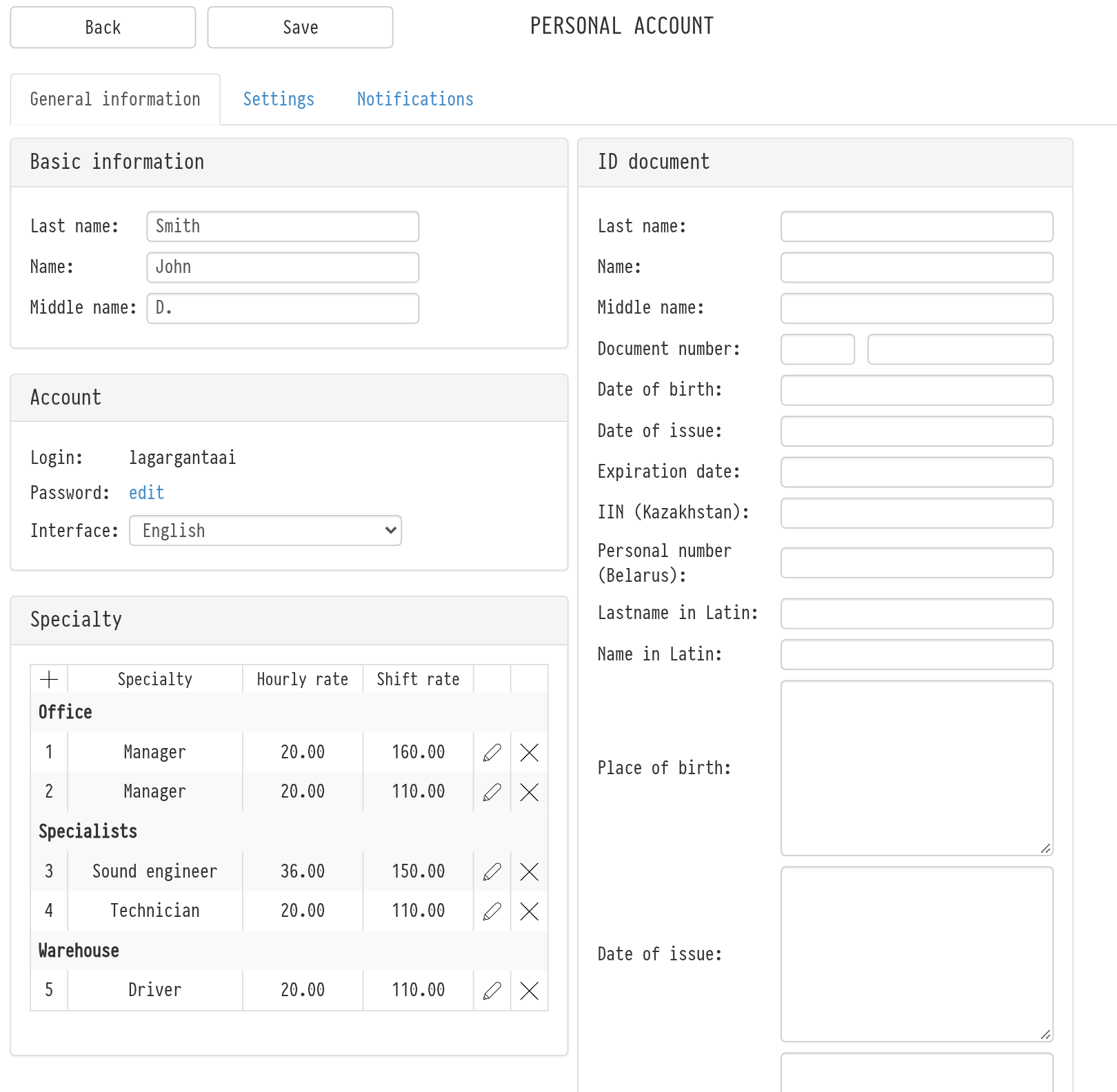
Basic information
"Last name", "Name", "Middle name": this is how your colleagues see you in projects, the calendar and tables.
Account
"Login": view only.
"Password": click "edit". In the "Password change" window, enter the "Old password" and the "New password". The icon next to the new password generates a strong password. The "Send to E-mail" checkbox sends the new password to your e-mail. Click "Save".
"Interface": the system language: English, Español, Português Brasileiro, Deutsch, Български, Русский. The new language is applied after "Save".
Specialty
The table of your specialties with the "Hourly rate" and "Shift rate". The icon in the table header adds a specialty; the icons in a row edit and delete it. The rates are used to calculate staff payments in projects.
Documents
"ID document": last name, name, middle name, document number, dates of birth and issue, expiration date, IIN (Kazakhstan), personal number (Belarus), last name and name in Latin, place of birth, address and scan.
"Passport": last name, name, number, dates of issue and expiry, issued by, scan.
"Driving license": document number, category, scan and the "Personal vehicle" mark.
This data is needed, for example, for access passes to venues.
Contacts and files
"Phone number": one or more numbers with a comment.
"E-mail": addresses with a comment. The "For notifications" mark means that e-mail notifications are sent to this address.
"Files": any of your documents. Double-click the file description to edit it.
Settings
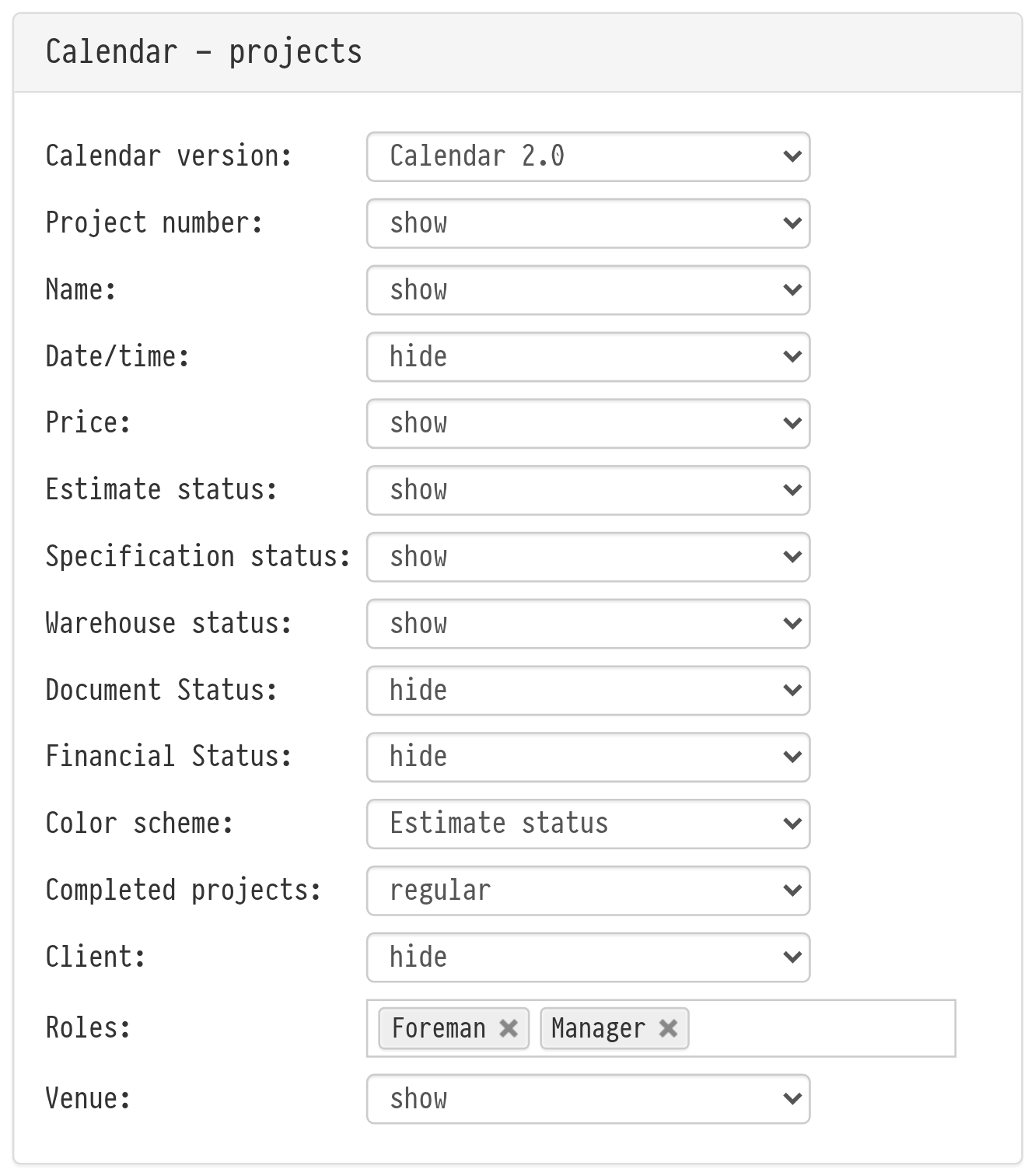
On the "Settings" tab, the "Calendar - projects" block defines how projects are shown in the calendar for you personally:
"Calendar version": "Calendar 1.0" or "Calendar 2.0".
What to show on the project tile: "Project number", "Name", "Date/time", "Price", "Estimate status", "Specification status", "Warehouse status", "Document Status", "Financial Status", "Client", "Venue": "show" or "hide" for each.
"Roles": which responsible persons to show on the tile. If nothing is selected, responsible persons are hidden.
"Color scheme": color projects by estimate, specification or warehouse status.
"Completed projects": "regular" or "semi-transparent". The row is visible when "Calendar 2.0" is selected.
How these settings change the calendar is described in Appearance settings.
Notifications
On the "Notifications" tab you choose which changes in projects you want to hear about and where: in the system, by e-mail or in Telegram. Here you also find the "Disable all notifications" checkbox and the "Subscribe to Telegram Bot" link. The list of events depends on your access template.