System log
"System log" is a shared table of employees' actions in Golova: what was done, by whom, when and where. It records changes in the catalog and in projects: creating an entry, changing the warehouse of a SKU, deleting an estimate row, processing an expense.
The log helps you find out where a SKU went, who changed the price of an entry or deleted an estimate row. When an entry "suddenly" disappears from the catalog or a SKU number changes, you do not need to ask your colleagues: just find the object in the log and look at its history.
How to open it
In the system header, click "Databases" → "System log".
You can open the history of a single catalog object right from the catalog: see "Folder, entry and SKU log" below.
Who can see it
The log is an administrator's tool, so it is hidden by default. Access is turned on in the employee's access template: "Databases" → "Employees" → "Options" → "Access templates", the "System" tab, the "System logs" block. More about templates: Creating a new template.
The switch in the "System logs" block header ("show" / "hide") opens the section itself: the "System log" item appears in the "Databases" menu.
"Catalog": whether the table shows actions in the catalog.
"Projects": whether it shows actions in projects.
When you switch the block header to "show", "Catalog" and "Projects" are turned on with it; with "hide", they are turned off. After that you can set each of them separately: for example, give an employee only the catalog actions.
The folder, entry and SKU log is available to everyone who has access to the catalog, even if "System logs" is hidden in the template.
Please note. If the "System logs" block header is on, but "Catalog" and "Projects" are hidden, the employee will have the menu item, but the table will be empty.
What is recorded
Catalog
Almost everything that happens in the catalog:
creating, renaming, moving and deleting sections and entries;
changes to SKU fields: warehouse, comment, number and others;
bulk actions;
actions from the catalog top menu: service centers, units of measurement, price types, warehouses, fields, price list, pricing, label templates, inventory audit, import and export;
viewing and downloading photos and files of entries, downloading the price list and exports.
Projects
Changes in project sections: "Information", "Planning", "Estimate", "Specification", "Documents", "Finance", "Files/Links". Opening the project, printing the quotation, access passes, the warehouse pick list and staff lists, and downloading documents, files and archives are also recorded.
How to read the table
New records are at the top. Each record has columns:
Column | What is in it |
|---|---|
"Date of the operation" | The date and time of the action |
"User" | Who did it |
"Action" | For the catalog: creating, change, deletion, movement, downloading, view. For projects: creating, change, deletion, data access, cancellation, recovery |
"Module" | "Catalog" or "Project" |
"Parameter" | What exactly was worked on. In the catalog, this is the level: "Folder" (a catalog section), "Entry" (equipment, service, accessories, kit, set) or "SKU number" (a specific unit of equipment). For the lists from the catalog top menu, their name: "Warehouse", "Price type", "Field", "Unit of measurement", etc. In a project, the project block |
"Parameter ID" | The object number in the system. It does not change when the object is renamed, so it is handy for searching |
"Location" | Where it happened. For the catalog, the full path: "/ CATALOG / section / subsection / object /" |
"Old value" and "New value" | What it was and what it became. If an action with a SKU is linked to a project, "New value" has a link to this project |
If one action in a project changed several fields at once, the rows go one after another: the date and user are shown only in the first row of the group.
In the catalog path, the "CATALOG" root and the sections of the lists (for example, "Warehouses" or "Price types") are highlighted in blue, and your own sections and entries are in plain black text.
Going to a SKU
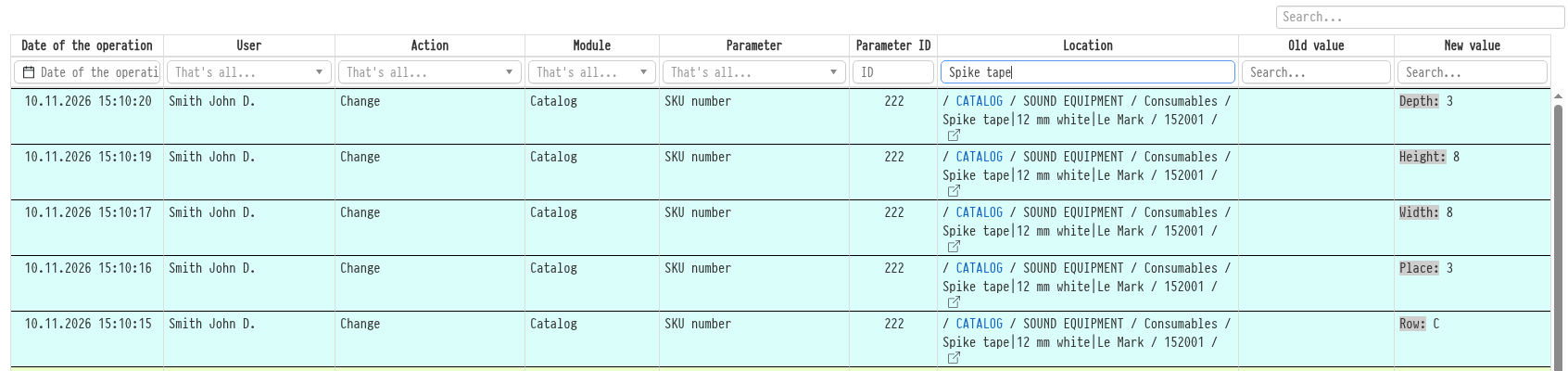
For actions with a SKU, there is an "Open in Catalog" icon at the end of the path in the "Location" column. It opens the catalog in a new tab right on the card of this SKU, so you do not need to copy the number and search for it. If the SKU is no longer in use (sold, written off or lost), its entry opens.
Action colours
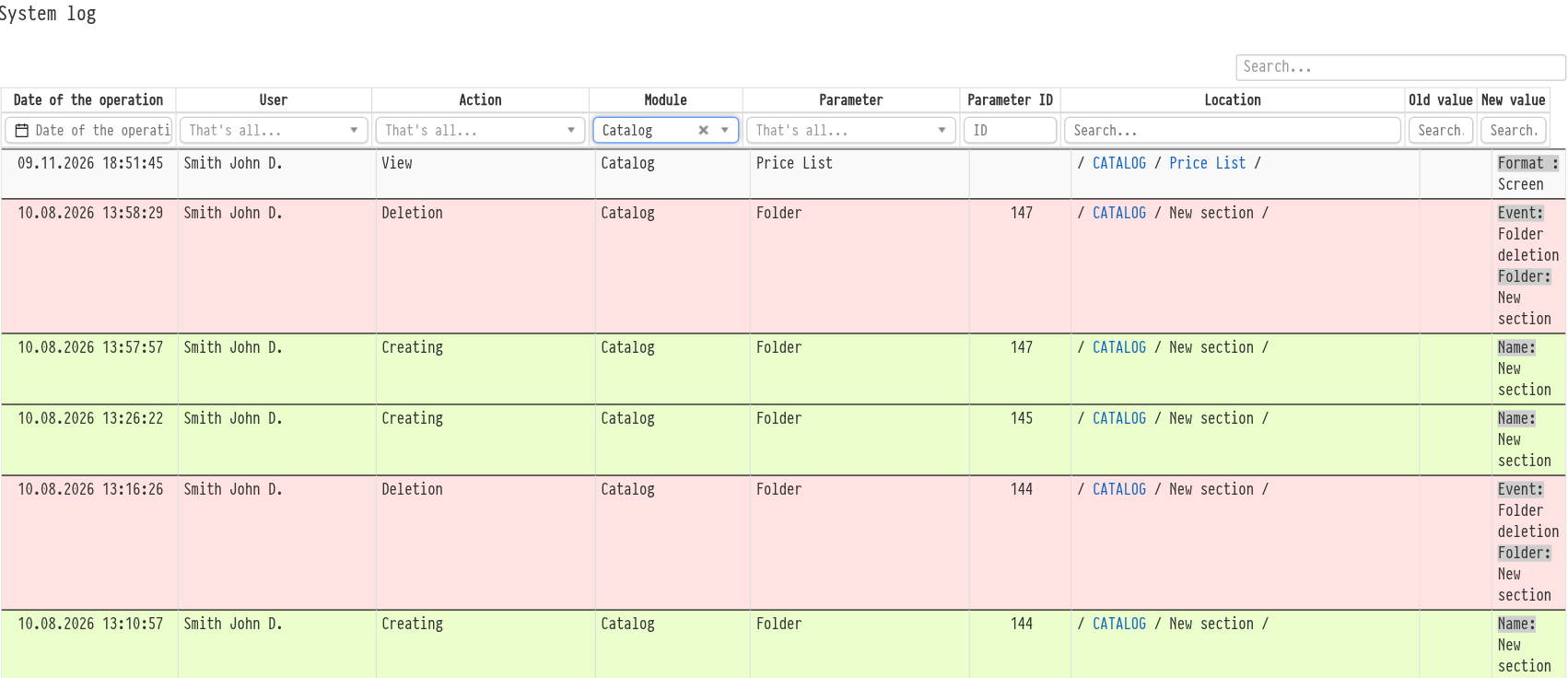
Rows are highlighted by action type:
green: creating;
turquoise: change;
red: deletion;
lilac: movement (in the catalog) or data access (in a project).
Other actions (downloading and viewing in the catalog, cancellation and recovery in a project) have no colour.
Search and filters
There is a filter under the heading of each column:
"Date of the operation": a period, including ready-made options: "Today", "Yesterday", "Current month", "Last month", "Current year";
"User": one employee; dismissed and deleted employees are also in the list, with a mark;
"Action", "Module", "Parameter": a choice from a list. After you choose a module, the action and parameter lists keep only the items that fit it;
"Parameter ID": an exact match of the number;
"Location", "Old value", "New value": search by part of the text.
The filters work together: for example, you can find all deletions in the catalog made by one employee last month. Above the table on the right there is also a general search field.
Search by ID
Every folder, entry and SKU in the catalog has a system ID. It never changes, even if the object is renamed or moved to another section. So the most reliable way to get the full history of an object is to enter its number in the "Parameter ID" filter.
Folder, entry and SKU log
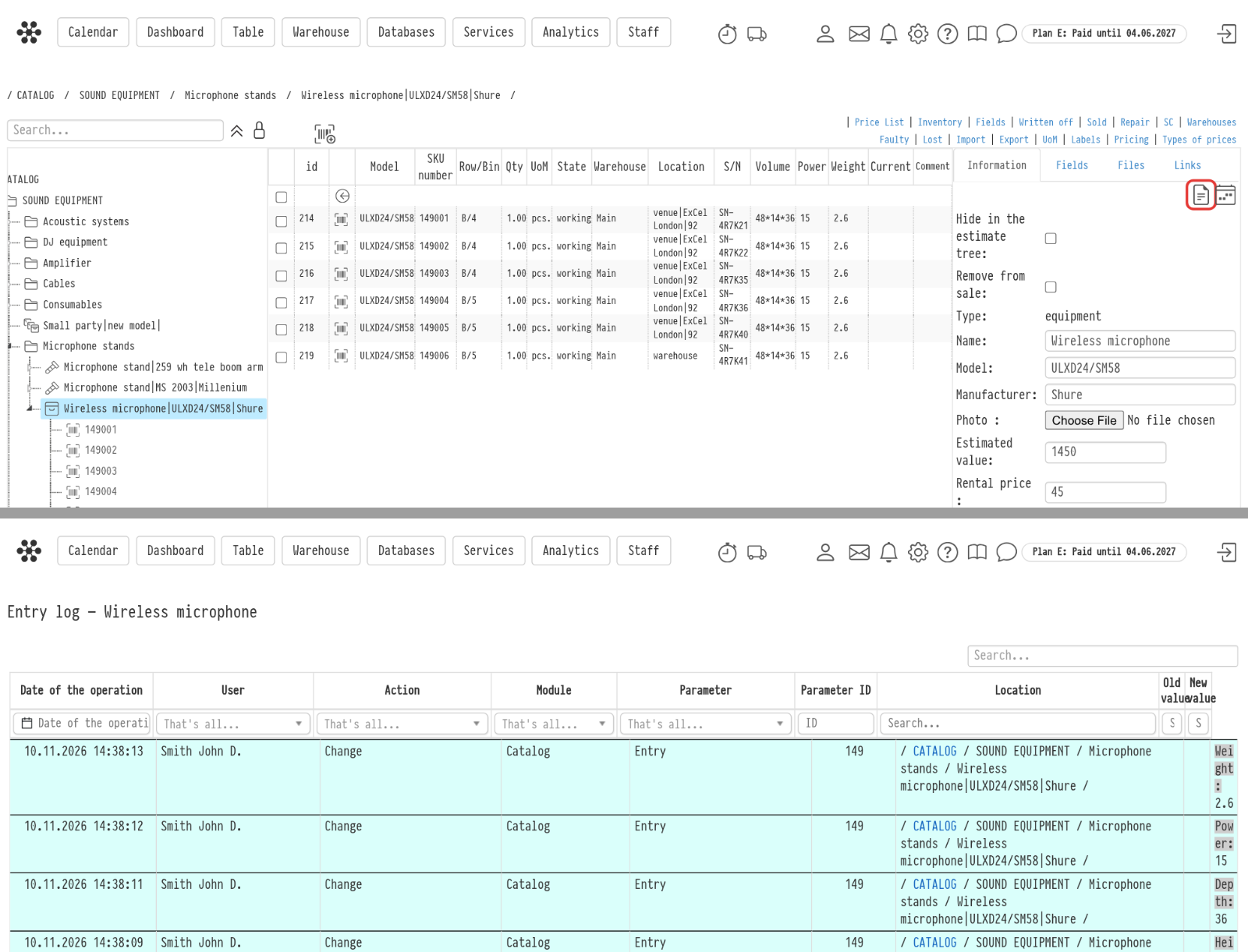
You can open the history of a single catalog object without going to "System log":
folder log: the "Folder history" icon in the section card;
entry log: the "Entry history" icon in the upper-right corner of the entry card, next to the calendar;
SKU log: the "SKU history" icon in the SKU card. In the "Lost", "Faulty", "Written off" and "Sold" lists, the SKU log opens when you click its number.
The log opens in a new tab. It is the same table, but only with the records of this object, and the title says "Folder Log", "Entry log" or "SKU log" with the name or number, for example "SKU log — 000123". For such a log, access to the catalog is enough: the "System log" right is not needed.
Related articles: Equipment Card · Equipment SKU · Top menu of the catalog