AI Assistant in the estimate
The AI Assistant of the estimate reads the client's rider and turns it into a list of entries. You can upload the rider as a PDF file or an image, or paste it as text. The assistant finds suitable equipment in your catalog, and you tick the rows you need and add them to the estimate with one button. This saves time when the rider is long and you would otherwise search for the equipment line by line.
The assistant's work is paid with GLV coins. The cost of each analysis and your balance are shown in the assistant block.
Where to find it
Open the project and go to the "Estimate" tab. Click the AI icon "Rider analysis" to the right of the search above the catalog tree: the "AI Assistant" block opens above the estimate. You can also open the block by clicking its header.
Please note. The block and the icon are visible to employees whose access template has the "AI Assistant" item enabled ("Project" tab, "Estimate" block). The estimate itself also needs to be editable.
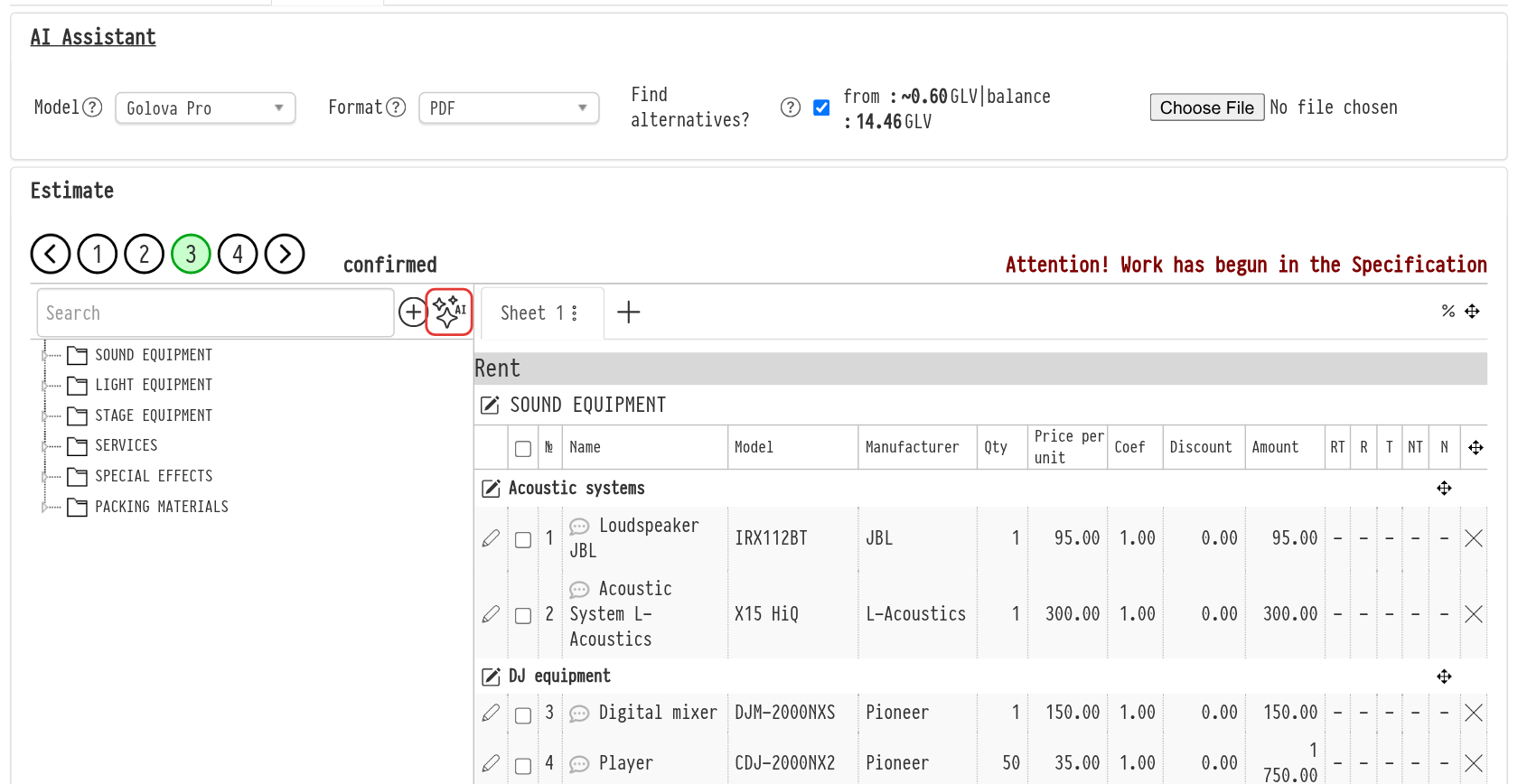
Settings before the analysis
"Model": which AI reads the rider: "Golova Pro", "Golova Lite" or "Golova LLM". The models differ in answer quality and price. Try the cheaper model first: it often does the job just as well.
"Format": what your rider looks like: "PDF", "JPEG/PNG" (a photo or a screenshot) or "TEXT" (text that you paste into the field).
"Find alternatives?": if the checkbox is on, the assistant looks for the rider equipment in your catalog and, when there is no exact match, suggests similar entries. If you turn it off, the result is just the list of equipment from the rider, without matching to the catalog. The analysis is then faster and cheaper.
Next to the settings you see the approximate cost and your balance: "from: ~… GLV | balance: … GLV". The cost depends on the model, the format and the "Find alternatives?" checkbox. Recognizing an image costs noticeably more than a PDF or text.
How to analyse a rider
PDF. Select the file with the button next to the settings. The document opens for viewing; zoom in and out with "+" and "−". The PDF needs to contain text: if you cannot copy text from the file (for example, it is a scan), save the pages as images and select the "JPEG/PNG" format.
Image. Select a JPEG or PNG file: it appears for viewing.
Text. Select the "TEXT" format and paste the rider text into the field.
Click "Send for analysis". While the assistant is working, a progress bar is shown. The "Reset" button clears the uploaded file or text so you can start again.
Please note. The AI answer has a size limit. Split a very long rider into parts and send it in several requests.
Analysis result
A table appears to the right of the rider. Each row has:
"Name in rider": how the line is written in the rider;
"Assistant's suggestion": the entry found in your catalog: the type icon (equipment, consumable or accessories), how many are available and how many are already in the estimate, the price (if prices are open to you), the description and the name. The icon next to it opens a short entry card. The number field is the quantity that will be added to the estimate;
"Comment": the assistant's note on the row. The icon in the column header opens the "Additional information from AI" window with a general comment on the whole rider.
Below the table you see how many coins were spent on the analysis ("Used: … GLV").
How to move the entries to the estimate
Entries are added to the estimate sheet that is open at the moment.
To add one entry, check the quantity and click "+" next to it.
To add several at once, tick the rows (the checkbox in the header selects all) and click "Add chosen".
If there is no suitable entry in the catalog, the row shows "Add as an empty line". Click "+": the "Adding an empty line" window opens with the name from the rider already filled in. Select a section, correct the name if needed and save.
Remove a row you do not need with the delete icon on the right.
Added rows disappear from the result table, so it is easy to see what is left to transfer.
Please note. The AI is still learning, so before sending the estimate to the client, check that the assistant has understood the rider correctly and chosen the right entries.
If something goes wrong
"Insufficient coin balance for the operation": your GLV coin balance is not enough for this analysis. Try a cheaper model or turn off "Find alternatives?".
"AI returned an empty equipment list…": the assistant could not recognize the rider. Try another format (for example, paste text instead of a PDF) or another model.
A message about too many AI requests per minute: wait the number of seconds shown and send the rider again.
A message about a failure on the AI service side: try again later. If the error repeats, contact support.
If the AI service did not answer, no coins are charged. If it answered but recognized nothing, the analysis is paid.