Staff: main
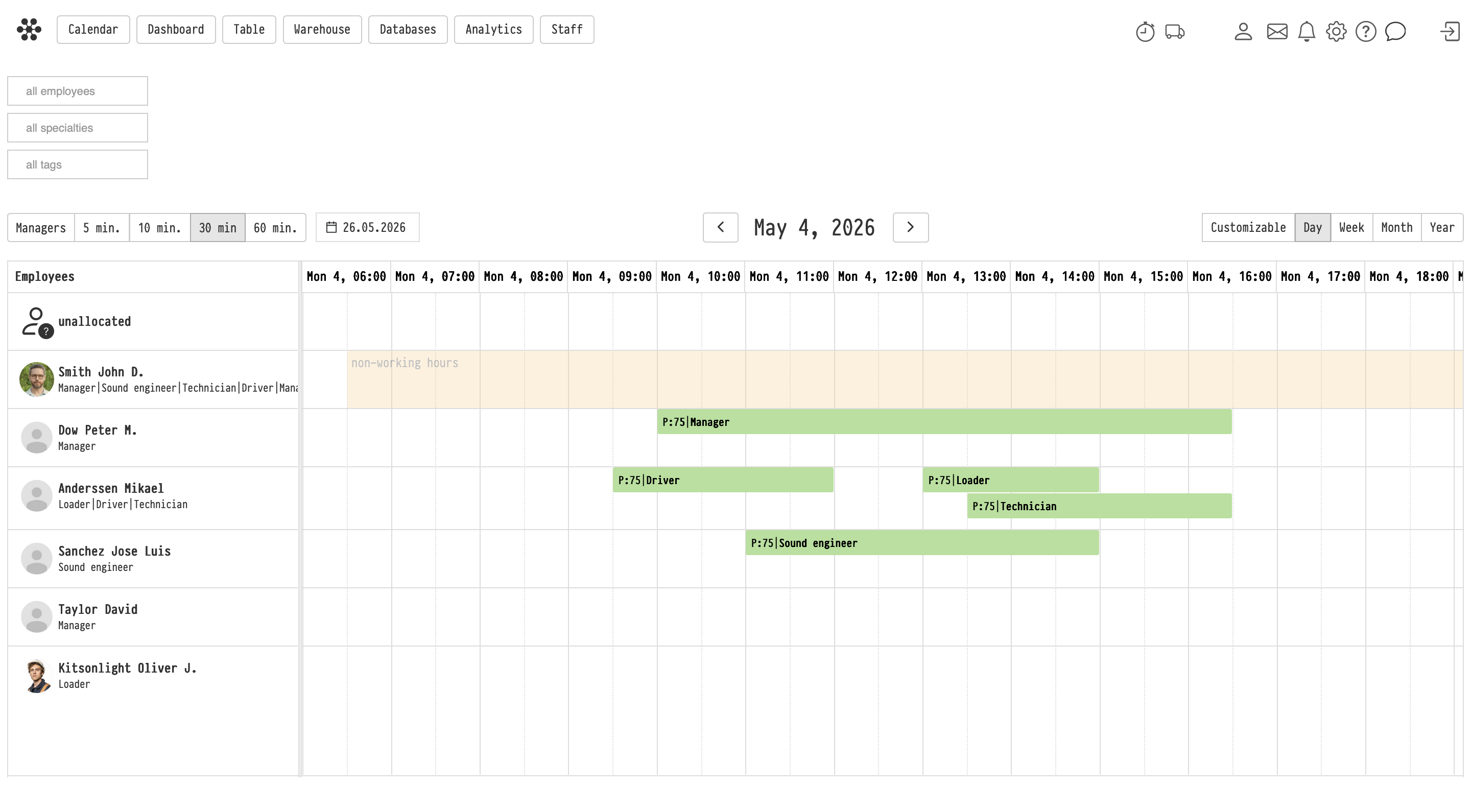
The "Staff" section lets you plan the working hours of your employees and allocate them across projects. It helps avoid scheduling conflicts by showing clearly how busy each specialist is.
Where to find it
Go to the top menu and select "Staff". The section is available to users whose access template allows viewing planning in projects.
How it works
The section is a Gantt chart with several timeline modes: by hours (down to five-minute intervals), weeks, months and a full year.
The list of your employees is on the left.
Under the name of each employee, their specialties are listed. If there are no specialties, the system shows a corresponding text.
Click the avatar to open the employee's card in the "Employees" database (it opens in a new window).
The avatar is uploaded in the employee's card in the "Employees" database, in the "Avatar" block.
Managing working hours
When you hover over a chart element, a tooltip with information about the project and the time involved appears.
Shift adjustment: click an element to adjust the shift time in the window, or change its duration by stretching the element to the right or left. The changes are applied in the planning of the project at once.
Vacations and days off: the chart shows the employee's vacations from the calendar (the "Vacation" event) and non-working hours added in the "Staff" section itself. This does not block assigning the person to a project, but it is a visual hint that they are not available.
Working hours by schedule: if the "Scheduled work" checkbox is ticked in the "Schedule" block of the employee's card, their shifts from the calendar (the "Shift (Schedule)" event) are shown on the chart as a background labelled "working hours". This shows where the employee's working day ends and where it is better not to assign them. If the checkbox is not ticked, the employee's row stays empty and they can be planned at any time.
Vacations and scheduled shifts are visible in the section to employees whose access template has "all" or "only mine" selected for the "Schedule" row on the "Calendar/Table" tab. With "only mine", the employee sees only their own schedule.

Non-working hours
You can mark a vacation or a day off right here, without going to the calendar:
Select the time in the employee's row.
In the menu that appears, select "Add non-working days".
In the "Add non-working hours" window, check the employee and the "Period", add a "Comment" if needed and click "Save".
Such non-working hours are saved as the employee's vacation and are visible in the calendar.
To change or delete non-working hours, click their block on the chart: the "Edit non-working hours" window opens with the "Save" and "Remove" buttons.
Assigning to projects
You can add employees to projects directly from this section.
Select the employee, then select the free time and day.
In the menu that appears, select "Assign to project".
A window opens where you select the project.
Assign the employee to the entire project or to a specific phase, and leave a comment if needed. The data appears on the "Planning" tab of the selected project at once.
Filters
Filters make work with a large team easier:
By specialty: keeps on the screen only the employees who have the selected specialty.
By tags: groups employees by departments or other categories (for example, keeps only the sound department or the warehouse on the screen). Tags are set in the employee cards in the "Employees" database.
By employee: helps track the working hours of a specific person, for example to plan their travel between several projects.
By managers: managers are hidden from the chart by default. This filter shows managers whose work is tied to the entire project period rather than to individual shifts.
Key concepts
staff, gantt chart, work schedule, scheduled work, working hours, employee planning, vacation, non-working hours, assigning to a project, staff filter, employee tags, avatar