Dashboard
The dashboard is the employee's personal page. It collects everything that concerns you personally: the projects you take part in, your tasks, your working and non-working hours by schedule, and the money accrued and paid to you. Each employee has their own dashboard: it shows only what is related to them.
Open the dashboard with the "Dashboard" item in the main menu, right after "Calendar". The dashboard also works on a phone: the blocks line up in one column and collapse.
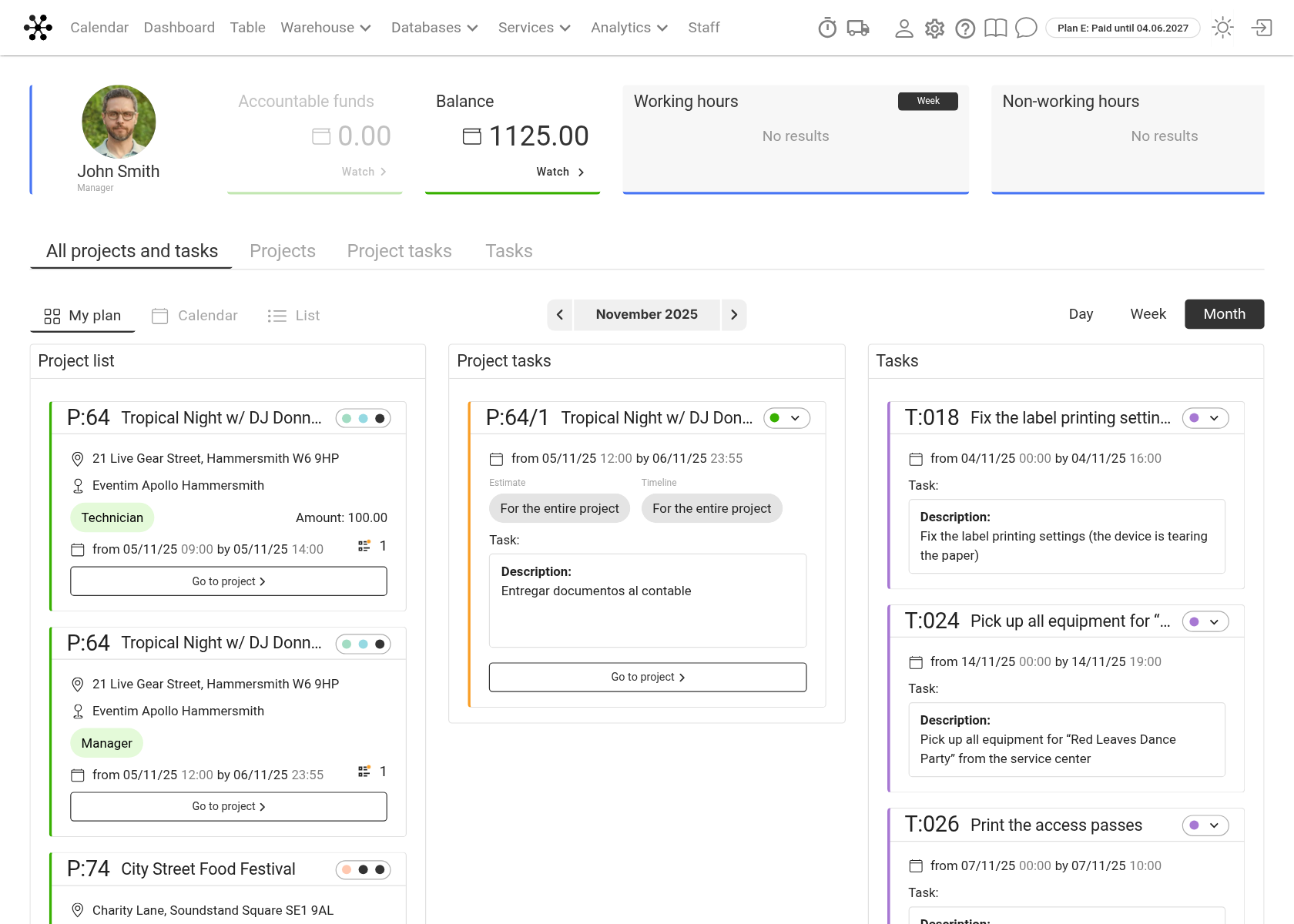
Top panel
At the top of the page there is a row of tiles:
Avatar, name and specialty. A click on this tile resets the dashboard to the default view: the "All projects and tasks" tab, the "My plan" mode, the "Day" period.
"Balance": how much you are still owed for projects: accruals minus payments. The "Watch" link opens the "Disbursement history" (see below).
"Working hours": your shifts from the schedule in the calendar, from which date and time to which. On the right there is the period choice: "Day", "Week" or "Month" starting from today.
"Non-working hours": vacations and other non-working time marks from the calendar, with the same period choice.
The "Accountable funds" tile is not active yet: no amounts are calculated in it.
Please note. Only employees whose access template opens at least one of the "Staff", "Vehicles" or "Project Managers" project blocks ("full access", "read-only" or "read only (own prices)") see the balance amount. Others see "-.--" and "No access" instead. More about access: Access patterns.
What is shown on the dashboard
The tabs under the top panel select what to show:
"Projects": projects where you are the manager, work as part of the staff or management, or are assigned among the responsible persons of the project. The card shows in which role you take part.
"Project tasks": tasks assigned to you on the "Planning" tab of projects.
"Tasks": tasks outside projects assigned to you in the calendar.
"All projects and tasks": all of the above at once.
Only projects and tasks that fall into the selected period are shown.
Period
Above the cards, in the centre, there is the date choice, and on the right the "Day", "Week", "Month" buttons. Choose a period, and the dashboard shows the projects and tasks for these dates. The selected period is remembered: next time the dashboard opens on it.
Display modes
On the left above the cards there are three modes:
"My plan": cards in three columns: "Project list", "Project tasks" and "Tasks".
"Calendar": the same projects and tasks as a calendar for the selected day, week or month. A click on a day opens this day.
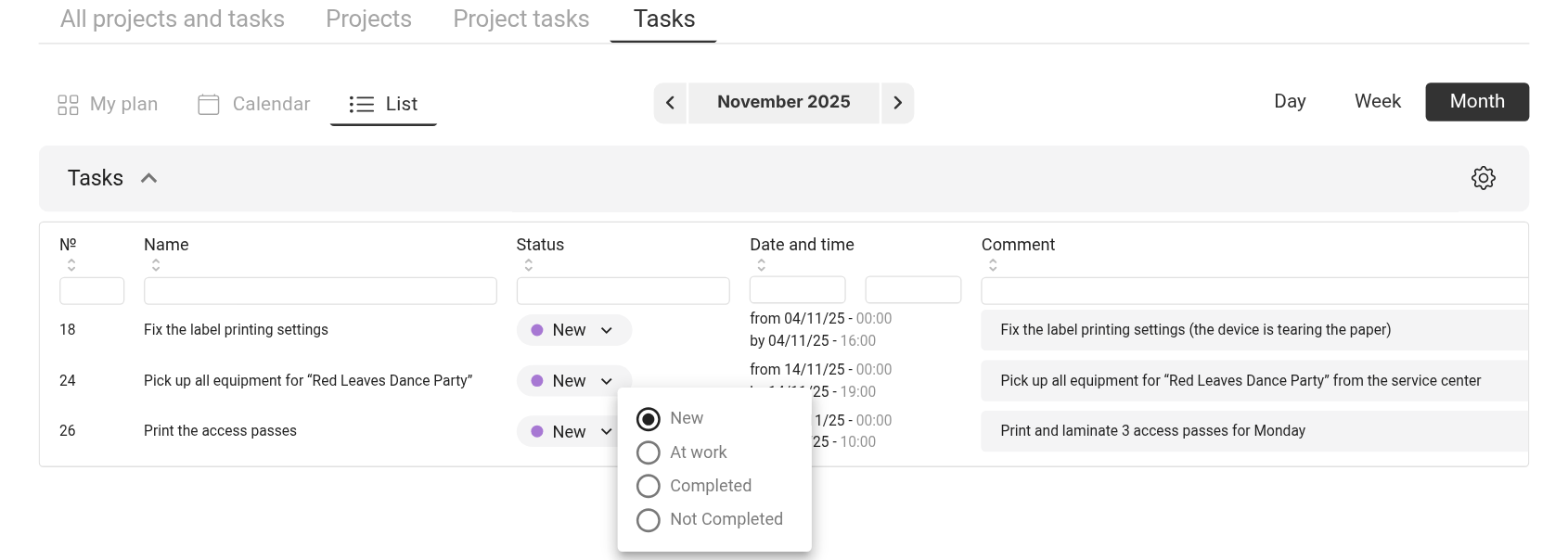
"List": tables. On the "All projects and tasks" tab there are four tables: "Project list", "Project tasks", "Tasks" and "Vehicles" (trips in the vehicles you are assigned to).
Project card
The card shows the project number and name, dates, venue, your role or specialty and the amount accrued to you for this project. Coloured dots show the estimate, specification, warehouse, document and finance statuses; hover over them to see their names. If the project manager has a phone number, you can call them or write in WhatsApp or Telegram from the card. The "Go to project" button opens the project.
Task card
A project task card shows the name, description, dates and what the task is linked to: the whole project, a sheet or a timeline phase. From it you can go to the "Planning" tab of the project. A card of a task outside projects shows the name, description and dates.
Tables in the "List" mode
Above each table column there is a filter field; the arrows in the column title sort the rows. You can change the task status ("New", "At work", "Completed", and for tasks outside projects also "Not Completed") right in the table: choose the new status in the cell. The columns of the project table are set in the "Display settings" window.
Disbursement history
The "Watch" link in the "Balance" tile opens the "Disbursement history" page. Each row here is one accrual for a project: date, basis (project number and name; the link opens the project), the person responsible for the project, specialty, "Accrued", "Paid", "Balance" and comment. The history includes accruals for work as staff, in management and with vehicles, and also fines. The balance in the top panel is the total of the "Balance" column.
Go back to the dashboard with the arrow to the left of the title.